Mastering Drill-Down Reports in Oracle HCM


Overview
Enterprise HR analytics rarely stop at summary numbers. Decision makers often start with a high-level metric – such as employee counts by Business Unit or Department, and then need to investigate the underlying employee data driving those numbers. Without drill-down capability, this investigation requires switching reports, applying filters manually, and repeating the same analysis steps.
Oracle HCM reporting tools allow this navigation to be automated. By configuring drill-down interactions, a summary report can dynamically open a detailed report already filtered for the selected dimension.
This article demonstrates how to implement drill-down reporting using two commonly used Oracle HCM reporting tools:
- OTBI (Oracle Transactional Business Intelligence)
- BI Publisher
The examples below illustrate a practical reporting scenario where users navigate from summary workforce metrics to employee-level data.
Part 1 – OTBI Drill-Down Implementation
Reporting Scenario
The objective is to enable navigation from a Business Unit workforce summary report to an employee detail report filtered automatically for the selected Business Unit.
Workflow:
Business Unit Summary → Click Business Unit → Employee Detail Report
Prerequisites
Before configuring drill-down interaction, two OTBI reports must already exist.
Parent Report – Business Unit Workforce Summary
The parent analysis should contain:
- Business Unit Name
- Distinct count of Person Number
- Filter for Active Employees
Output example:
| Business Unit | Active Employees |
| Finance BU | 42 |
| Operations BU | 67 |
No interaction or drill-down configuration should be applied at this stage.
Child Report – Employee Detail Report
The child analysis provides the detailed workforce data.
Typical columns include:
- Business Unit
- Person Number
- Display Name
- Gender
- Date of Birth
- Primary Email
The Business Unit column must exist, because it will be used to dynamically filter the report when navigation occurs.
Step 1 – Configure a Presentation Variable in the Child Report
The child report must be capable of receiving the Business Unit value passed from the parent report.
Procedure
- Open the child OTBI analysis in Edit mode.
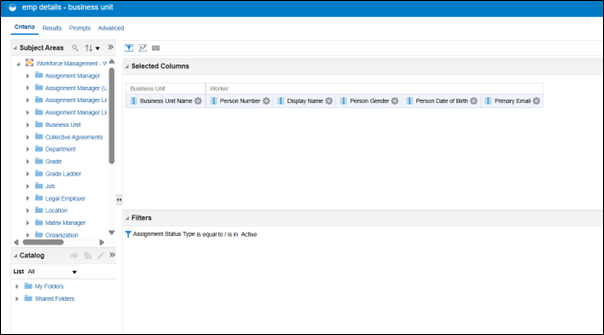
2. Add a filter on Business Unit Name.
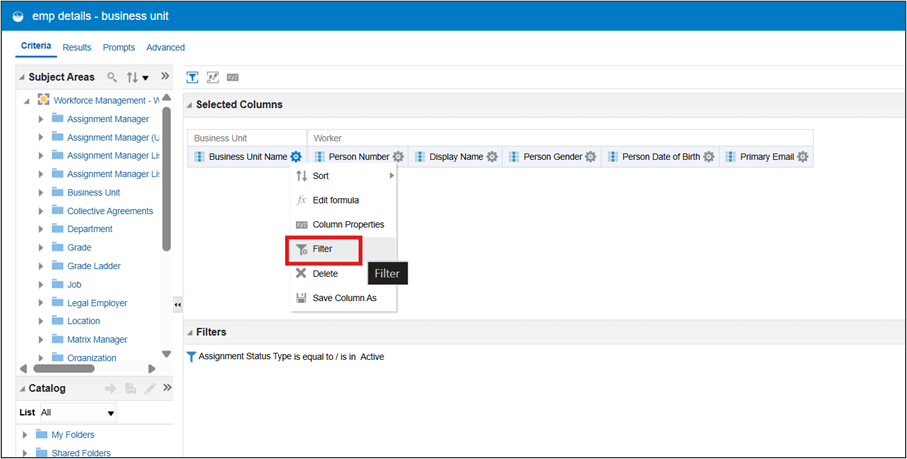
3. Click Add More Options.
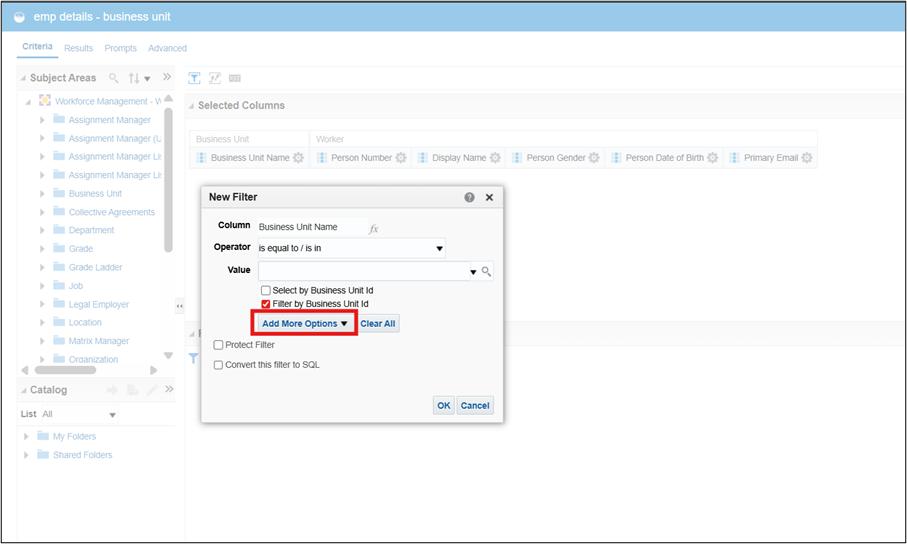
4. Select Presentation Variable.
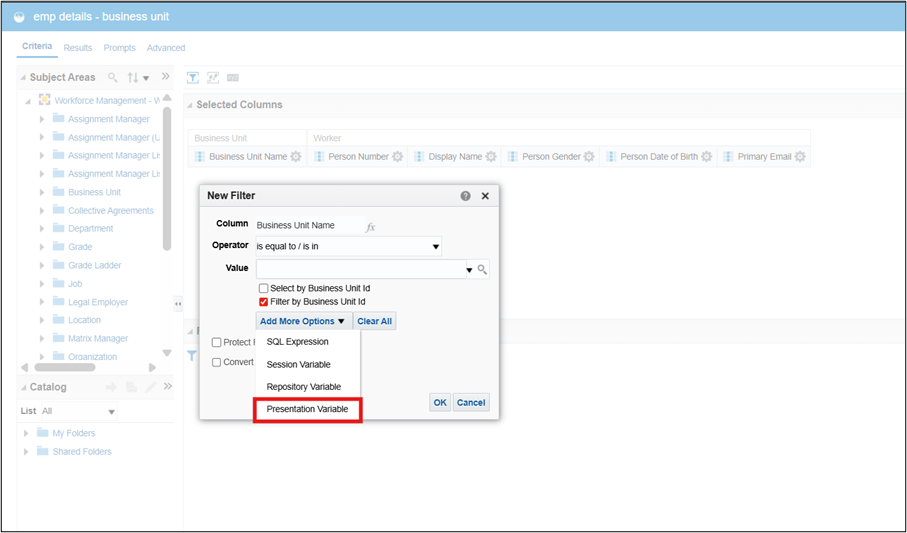
5. Assign a variable name.
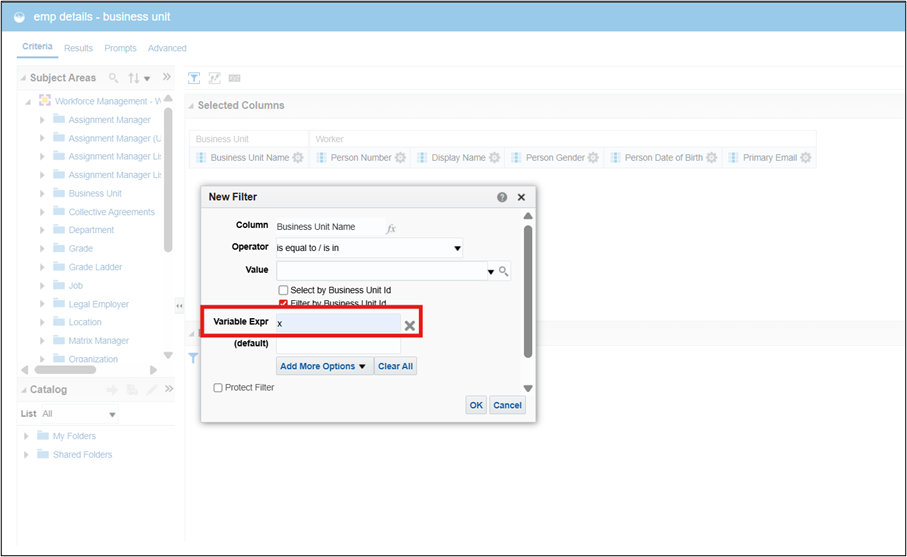
Example used in this guide:
‘X’
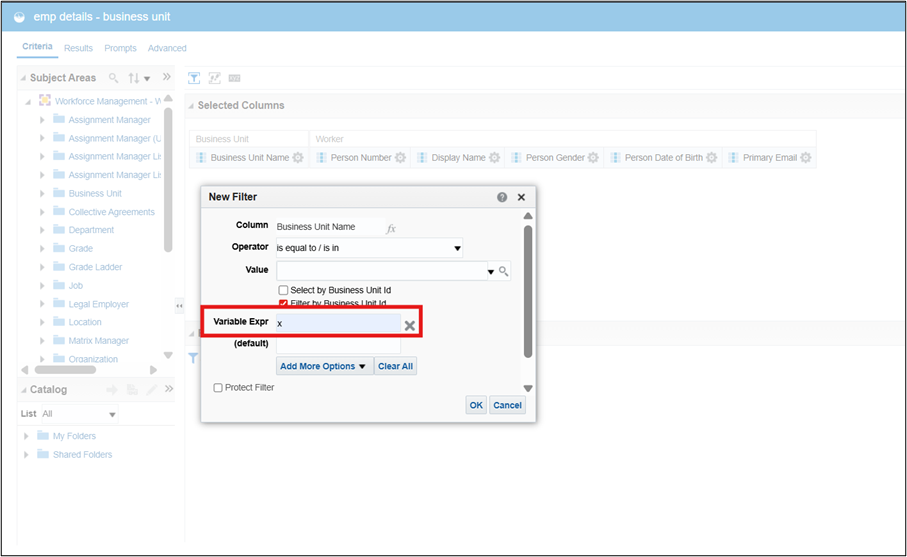
6. Save the filter.
Result
The child report can now receive the Business Unit value dynamically during drill-down navigation.
Step 2 – Configure Drill-Down Interaction in the Parent Report
The drill-down interaction will be configured on the Business Unit column of the parent report.
Step 2.1 – Configure Column Interaction
- Open the parent OTBI report in Edit mode.
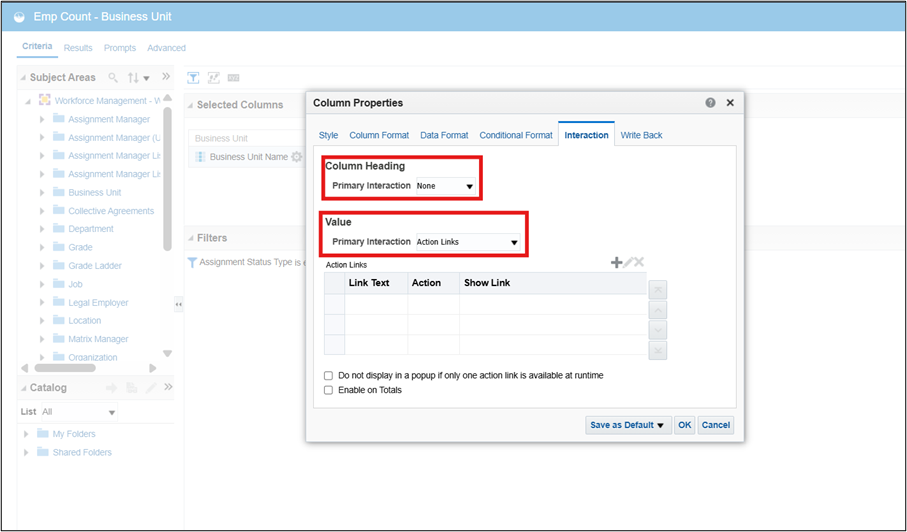
- Open Column Properties for the Business Unit Name column.
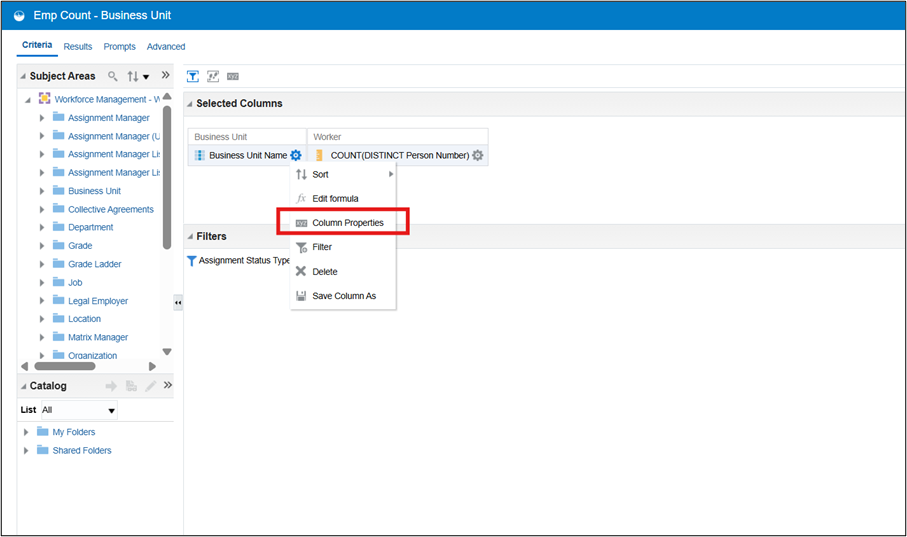
3. Navigate to the Interaction tab.
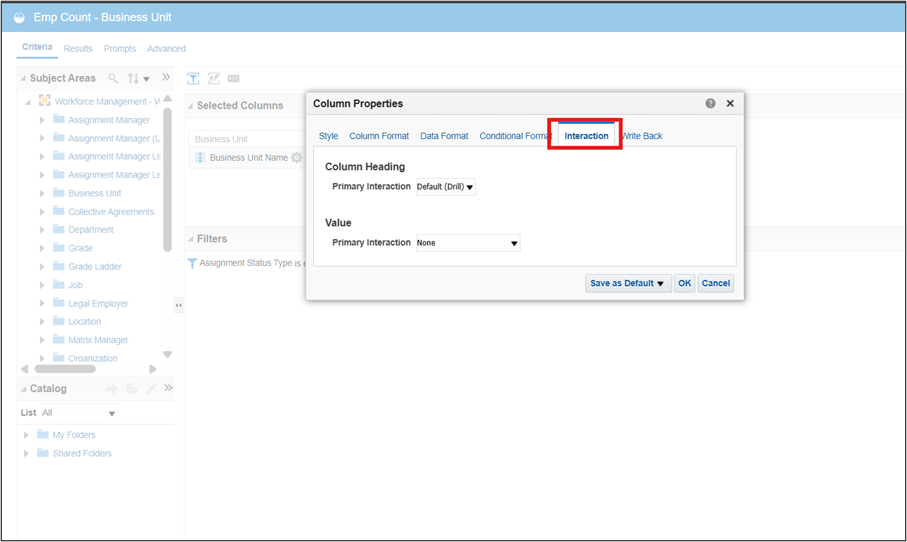
4. Under Column Heading
Set:
Primary Interaction = None
5. Under Value
Select: ‘Action Links’
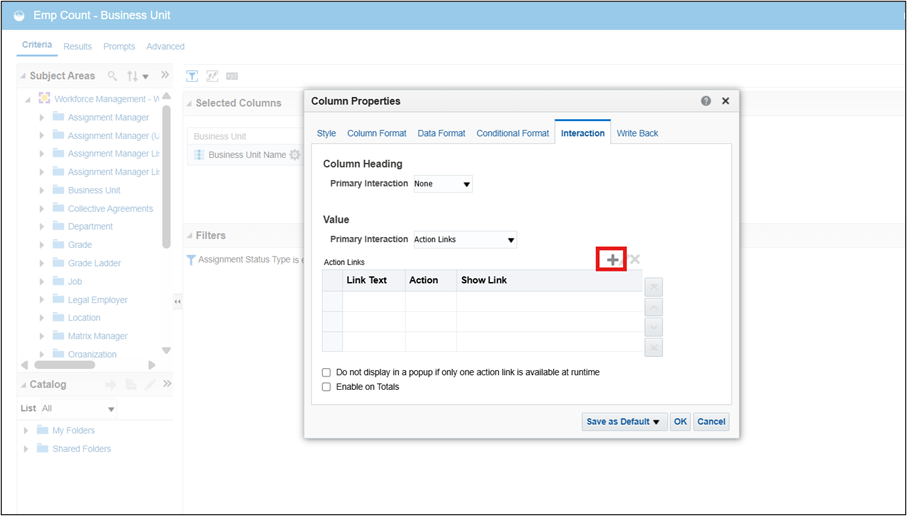
6. Click Add (+) to create a new action.
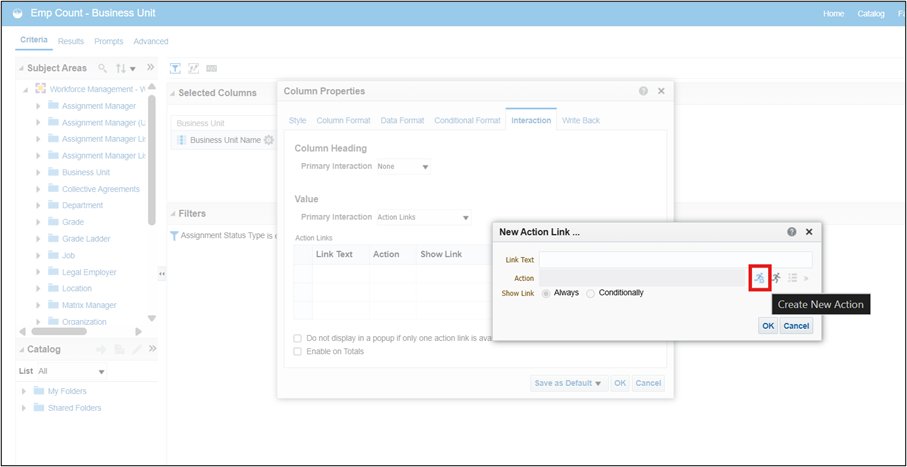
7. Select Create New Action.
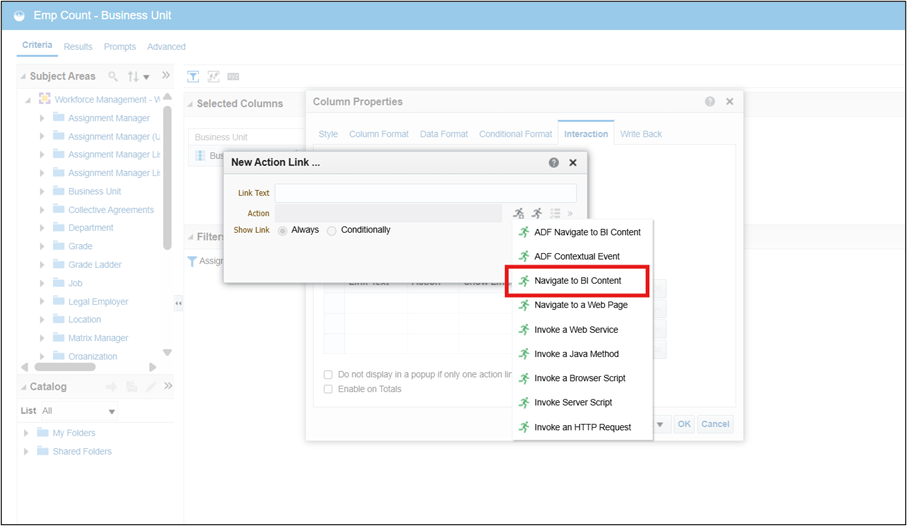
8. Choose Navigate to BI Content.
9.Browse and select the child OTBI report created earlier.
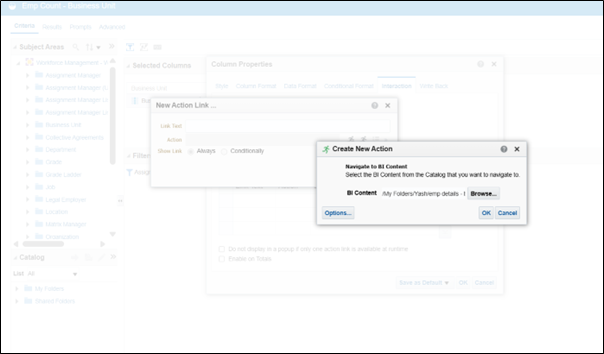
10.Enable: ‘Open in New Window’
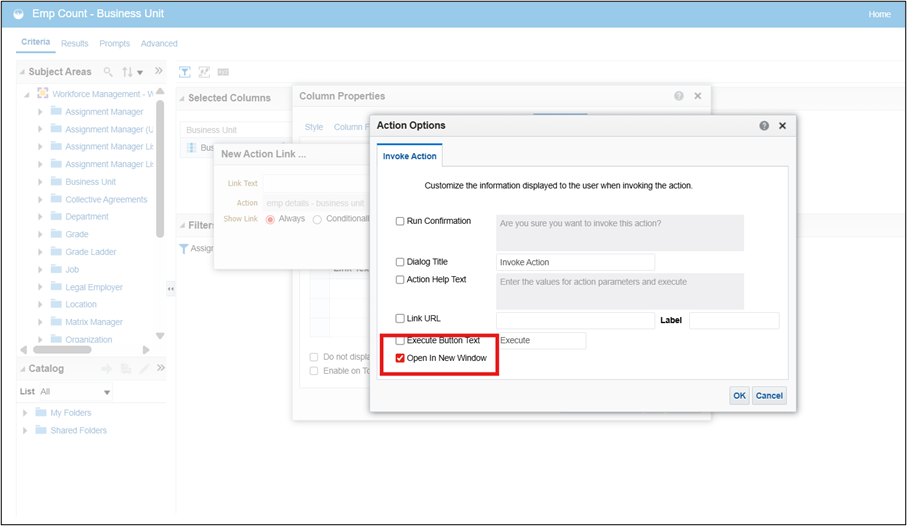
11. Save the configuration.
Step 2.2 – Optional Prompt Configuration
To make the report reusable in dashboards or prompted reports, the Business Unit column can also be configured with a prompt.
Steps:
- Open the Business Unit column settings.
- Add a filter on Business Unit.
- Set condition:
Is Prompted
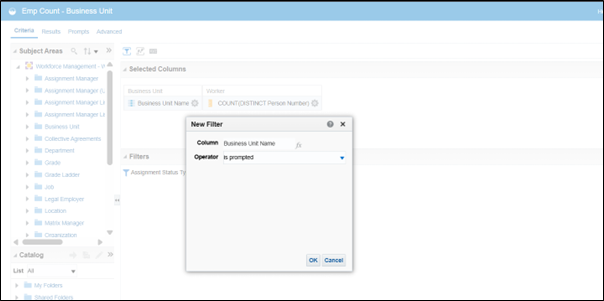
This step is optional but useful when integrating the report with dashboards.
OTBI Drill-Down Result
Once configured, the report behaves as follows:
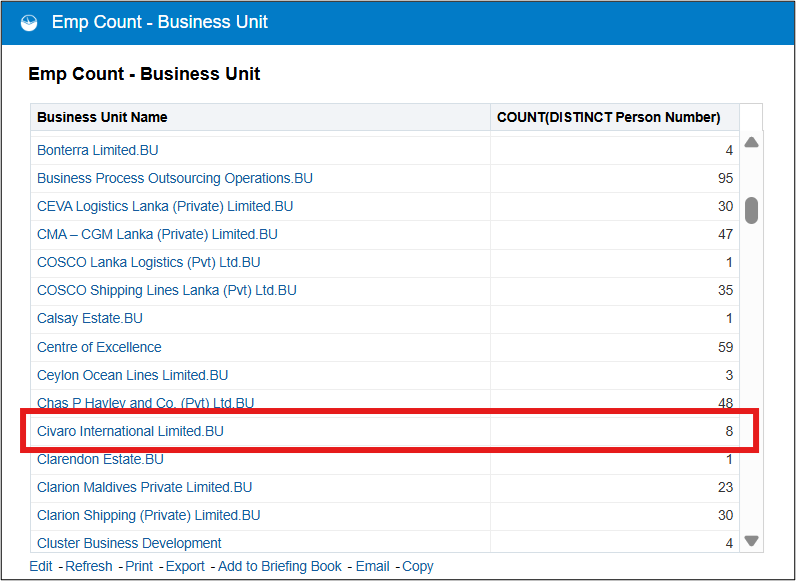
- The parent report displays Business Unit workforce counts.
- Clicking a Business Unit triggers navigation.
- The employee detail report opens automatically filtered for that Business Unit.
Parent Report
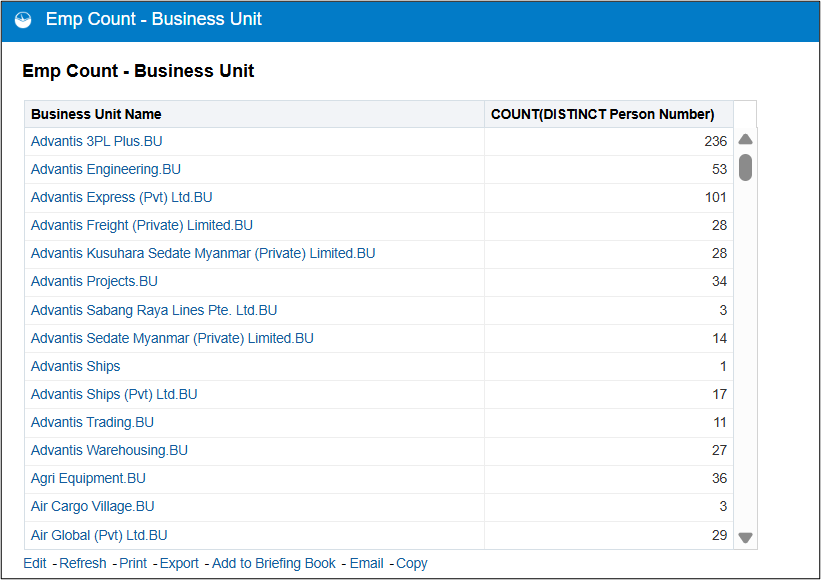
Example:
‘Civaro International Limited BU – 8 Employees’
Child Report
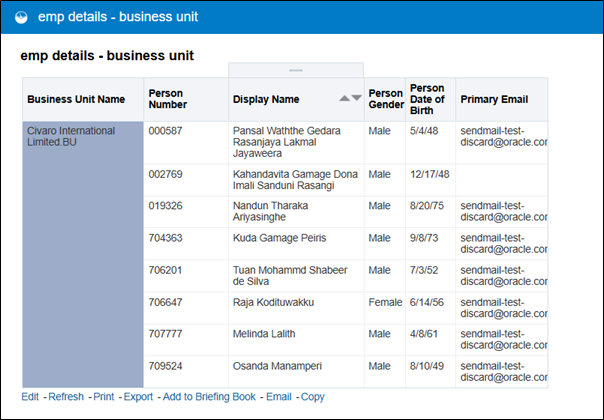
The report opens showing only employees belonging to the selected Business Unit.
Part 2 – BI Publisher Drill-Down Implementation
While OTBI drill-down is configured using action links, BI Publisher drill-down uses URL navigation between reports.
Reporting Scenario
Navigate from a Department-wise employee summary report to a detailed employee report filtered by Department.
Workflow:
Department Summary → Click Department → Employee Detail Report
Prerequisites
Two BI Publisher reports must exist.
Parent BI Publisher Report
Contains:
- Department Name
- Distinct employee count
- Active assignment and effective-date SQL filters
Example output:
| Department | Employees |
| Sales | 18 |
| HR | 11 |
Child BI Publisher Report
The detailed report must include:
- Employee-level columns
- A parameter used to receive the department value
Required parameter:
p_dep
The SQL must filter using:
:p_dep
The parameter should be configured as Hidden.
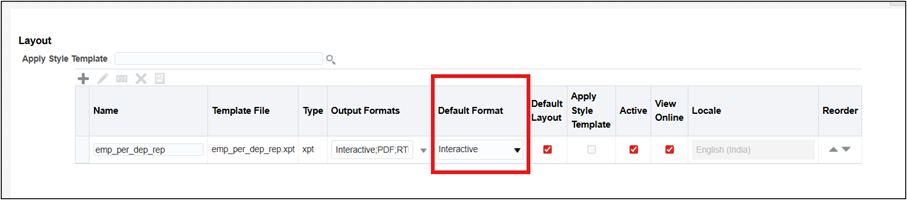
Step 1 – Enable Interactive Output
Drill-down navigation works only when the report output format is interactive.
Procedure
- Open the parent report.
- Navigate to:
Edit Report → View as List
- Set:
Default Output Format = Interactive
- Save the report.
Step 2 – Construct the Child Report URL
The parent report must call the child report using a dynamic URL that passes the department value.
URL format:
http://<your_server><port>/xmlpserver/<report_path>/report_name.xdo?<parameter_name>={/Data_set/Group/Column_name_in_parent_report}
Example implementation (In this Case):
This configuration dynamically passes the Department Name from the parent report to the child report parameter.
Step 3 – Configure Drill-Down in Parent Layout
- Open the parent BI Publisher report.
- Click Edit Layout.
- Select the Department Name value cell (not the column header).
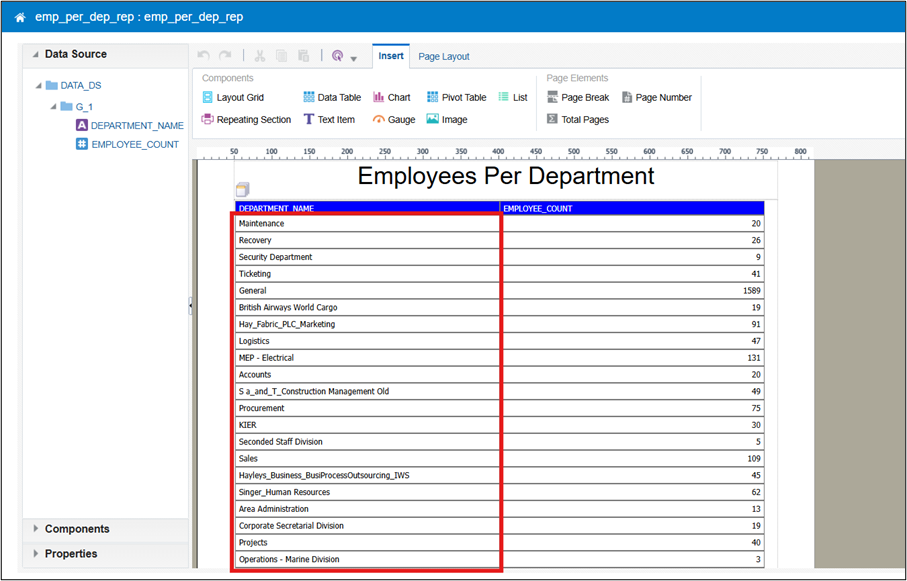
- Open Properties.
- Paste the constructed URL into the URL field.
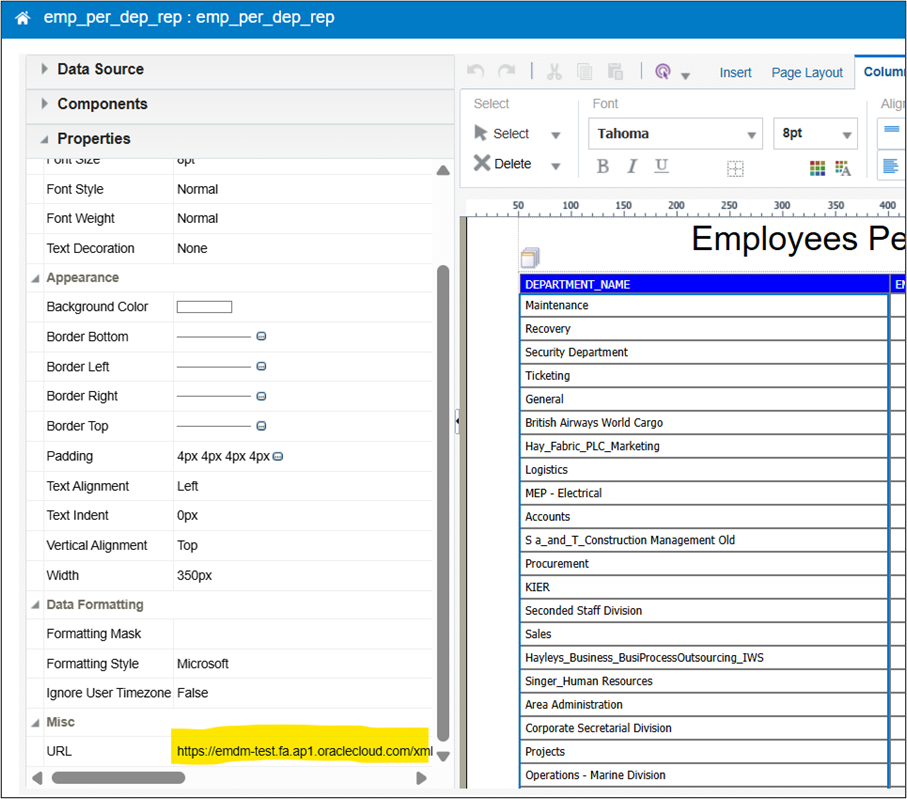
- Save the layout and the report.
BI Publisher Drill-Down Result
Once configured:
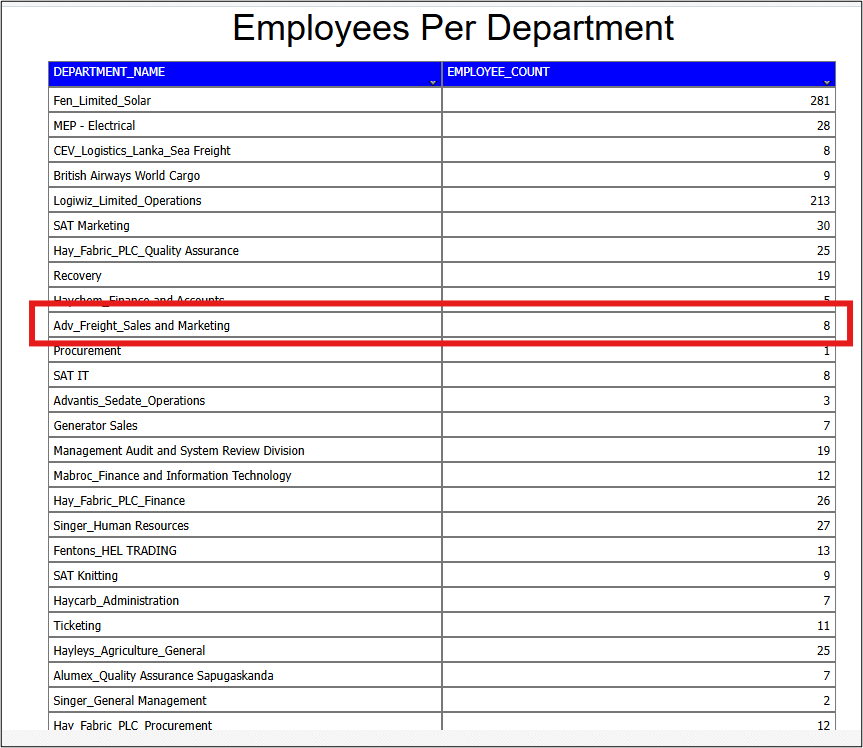
- The parent report displays department-level employee counts.
- Clicking a department launches the detailed employee report.
- The child report opens automatically filtered for that department.
Parent Report
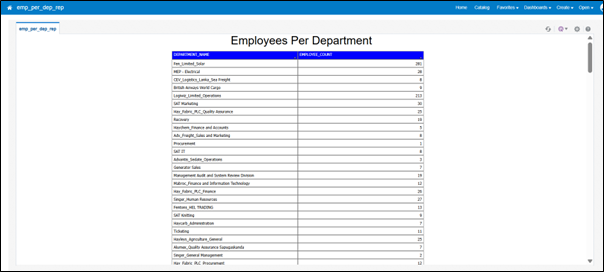
Example:
Adv_Freight_Sales and Marketing Department – 8 Employees
Child Report
The report shows employee records only for the selected department.

Implementation Best Practices
Several implementation details significantly impact drill-down reliability.
Parameter Consistency
Parameter names must match exactly between:
- URL configuration
- Child report parameter
- SQL filter
Even minor mismatches prevent filtering from working.
Interactive Output for BI Publisher
Clickable drill-down links only function when the report output format is Interactive.
Static outputs such as PDF or Excel will not support navigation.
Effective-Date Accuracy
Employee reports must use proper effective-date joins.
Incorrect joins can produce inconsistent results where the summary count does not match the detail report.
Why Drill-Down Reporting Matters
Well-designed drill-down reports transform static workforce reporting into interactive analysis.
Instead of generating multiple reports or applying filters repeatedly, users can move seamlessly between:
- Executive-level metrics
- Operational employee data
This approach improves investigation speed, reduces reporting friction, and enables HR teams to identify workforce insights faster.
Key Takeaways
- OTBI drill-down is implemented using Action Links and Presentation Variables.
- BI Publisher drill-down uses URL-based parameter navigation.
- Child reports must be designed to accept dynamic filtering parameters.
- Interactive output is mandatory for BI Publisher navigation.
- Correct effective-date logic ensures summary and detail reports remain consistent.