How to Control DFF Visibility Using Visual Builder Studio in Oracle Fusion HCM


Introduction:
Conditional Display of DFF Fields Using VBS in Oracle Fusion HCM During Multi-Project Data Migration
When organizations migrate HR systems to Oracle Fusion HCM, managing configuration differences across multiple business units and legal entities becomes critical. In large transformation programs—especially those involving parallel projects—ensuring that users see only relevant fields during transactions such as hiring employees can significantly improve data accuracy and user experience.
In this blog, we explore how Visual Builder Studio (VBS) can be used to conditionally display Descriptive Flexfields (DFFs) on the Assignment page based on Business Unit, using a real-world migration scenario.
Project Background
During a recent HR system migration project, employee data was being moved from HR.net to Oracle Fusion HCM. The organization was running two parallel implementations within the same Fusion environment:
- Hartree Project – Already live in Oracle Fusion
- EDFM Project – Newly being onboarded into the same environment
The EDFM setup was significantly larger and more complex, consisting of:
- 100+ Legal Entities
- 12+ Business Units
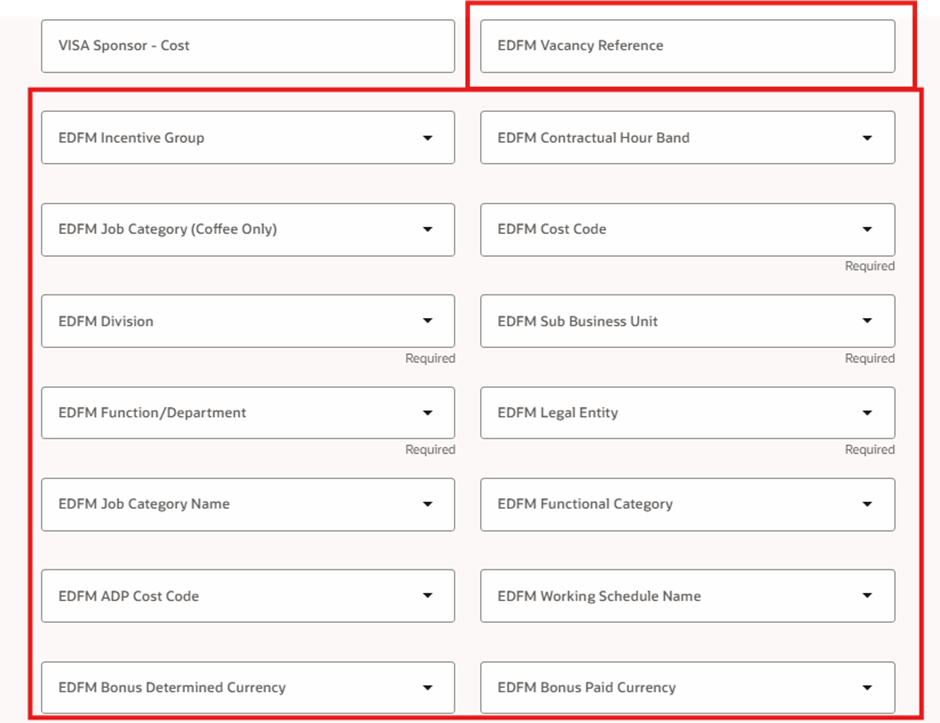
To support EDFM-specific data capture requirements, 10+ Descriptive Flexfields (DFFs) were created on the Assignment page.
However, these fields were only relevant for EDFM business units, not for Hartree.
The Business Requirement
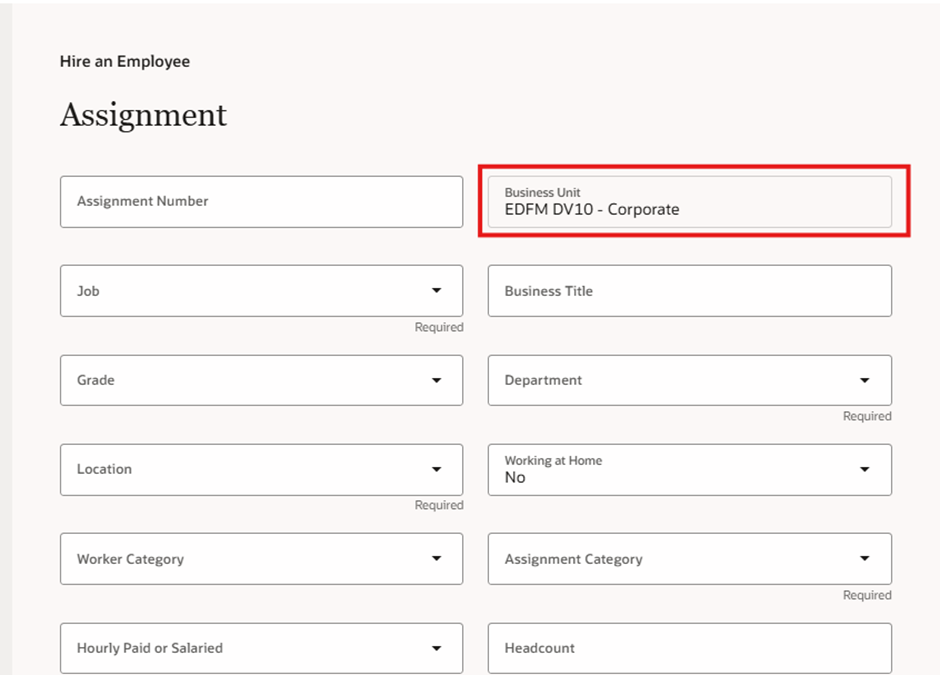
When a user performs a Hire an Employee transaction:
- If the Business Unit belongs to EDFM, the system should display the EDFM-related DFF fields.
- If the Business Unit belongs to Hartree, those DFF fields should remain hidden.
Solution Approach Using Visual Builder Studio (VBS)
To meet this requirement, Visual Builder Studio (VBS) was used to customize the Assignment page UI.
VBS allows developers to add conditional logic that controls the visibility, behavior, and interaction of fields in Oracle Fusion Redwood pages.
Key Implementation Steps
- Configure Descriptive Flexfields (DFFs)
First, the required EDFM-specific fields were created as DFF segments on the Assignment entity/Page.
Examples of fields might include:
- EDFM Cost Code.
- EDFM Contractual Hour Band.
- EDFM Job Category Coffee Only.
- EDFM Vacancy Reference Number ETC….
These fields were deployed and made available on the Assignment page.
- Identify Business Units
The organization categorized business units based on project ownership.
Example:
| Business Units | |
| EDFM DV20 Coffee | EDFM |
| Back Office | Hartree |
Only the EDFM business units should populate configured DFF fields.
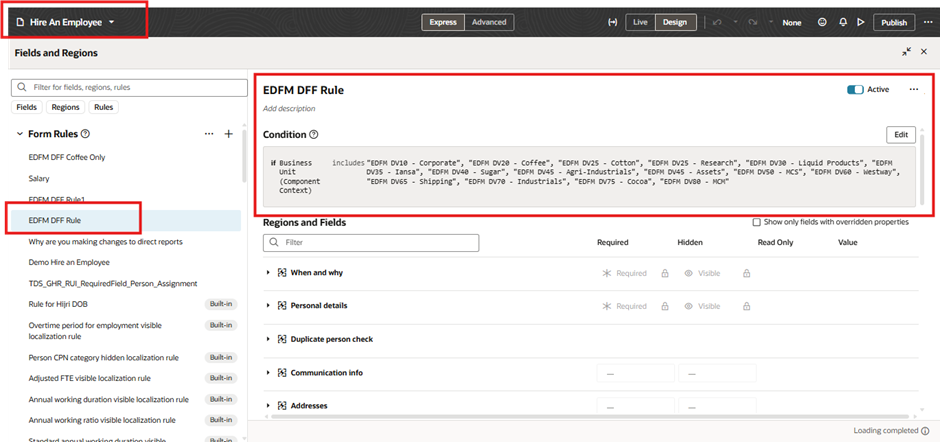
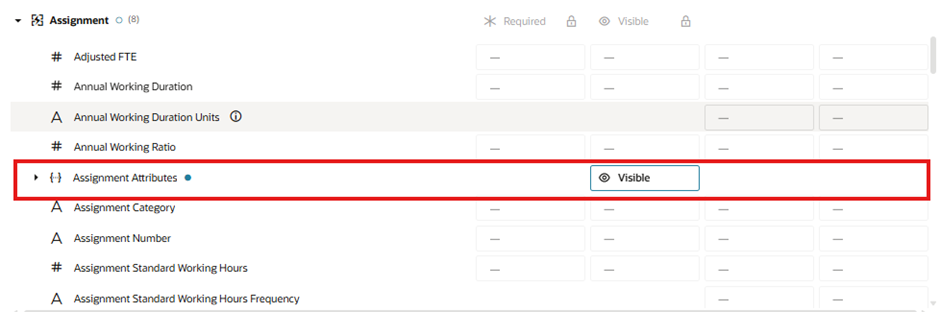
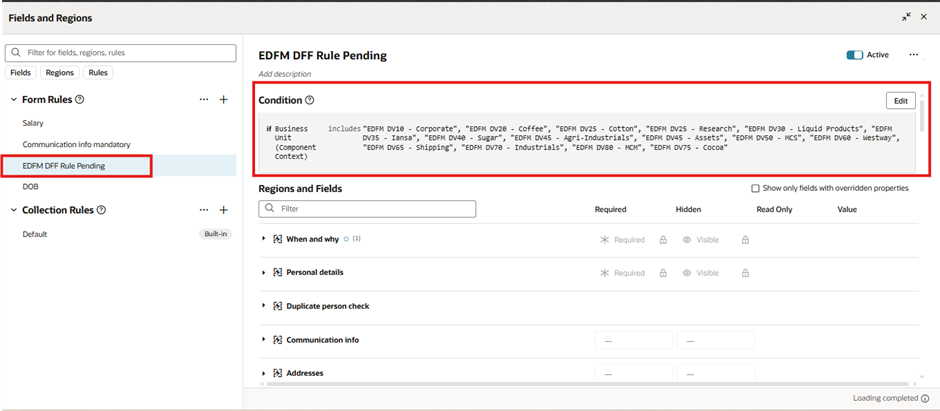
- Apply Conditional Visibility Using VBS For Hire Employee and Add Pending Worker
Inside Visual Builder Studio, visibility rules were applied to the DFF fields.
The logic checks the selected Business Unit during the hire transaction.
Example Logic:
If Business Unit = “ALL EDFM BU’s”
Then Show EDFM DFF Fields
Else Hide EDFM DFF Fields
This logic was extended to include all EDFM-related business units.
- Configure the Visibility Rule Hire Employee and Pending worker
Within VBS:
- Navigate to the Hire an Employee /Add Pending Worker.
- Locate the Assignment
- Select the DFF fields
$fields.BusinessUnit in [‘ALL EDFM BU’s’]
If the condition evaluates to true, the DFF fields appear.
If false, the fields remain hidden.
Benefits of This Approach
Implementing conditional field visibility using VBS provided several advantages:
- Improved User Experience
Users only see fields relevant to their business unit.
- Reduced Data Entry Errors
Irrelevant fields are hidden, preventing accidental input.
- Cleaner UI
The Assignment page remains streamlined and easier to navigate.
- Flexible Configuration
Additional EDFM business units can be easily added to the visibility rule.
- Supports Multi-Project Environment
Both Hartree and EDFM projects can operate within the same Fusion instance without UI conflicts.
Best Practices for Similar Implementations
If you are implementing conditional UI logic in Oracle Fusion HCM, consider the following best practices:
- Use Clear Business Unit Mapping
Maintain a documented list of business units associated with each project. - Avoid Hardcoding Where Possible
Consider referencing configuration tables if the list of business units is large. - Test Multiple Scenarios
Validate visibility rules for:
- EDFM Business Units
- Hartree Business Units
- Future Business Units
Conclusion
As organizations consolidate HR platforms into Oracle Fusion HCM, the need for flexible UI customization becomes essential. Using Visual Builder Studio (VBS) to control the visibility of Descriptive Flexfields (DFFs) based on Business Unit is a powerful approach to managing complex multi-project environments.
In the EDFM migration scenario, this solution ensured that only EDFM users interacted with EDFM-specific fields, while Hartree users experienced a simplified interface—leading to improved usability and cleaner data capture.
If you’re working on Oracle Fusion HCM implementations, Redwood UI customizations, or VBS configurations, this approach can help streamline your UI while supporting multiple business structures within the same environment.