Oracle Compensation 26A: Beyond Worksheets in the Era of Agentic AI

Introduction :
The 26A Release (February 2026) marks a critical milestone for Oracle HCM. It’s the year the “Agent” becomes as important as the “Admin.” With the full rollout of the Redwood Experience for core compensation tasks and the introduction of Agentic AI, Oracle is moving from a system of record to a system of action.
The Power of “Agentic” AI: Your New Compensation Co-Pilot
Oracle 26A introduces Agentic AI—autonomous agents that don’t just wait for your prompt but understand the goal of a business process.
- AI Assist for Instruction Generation
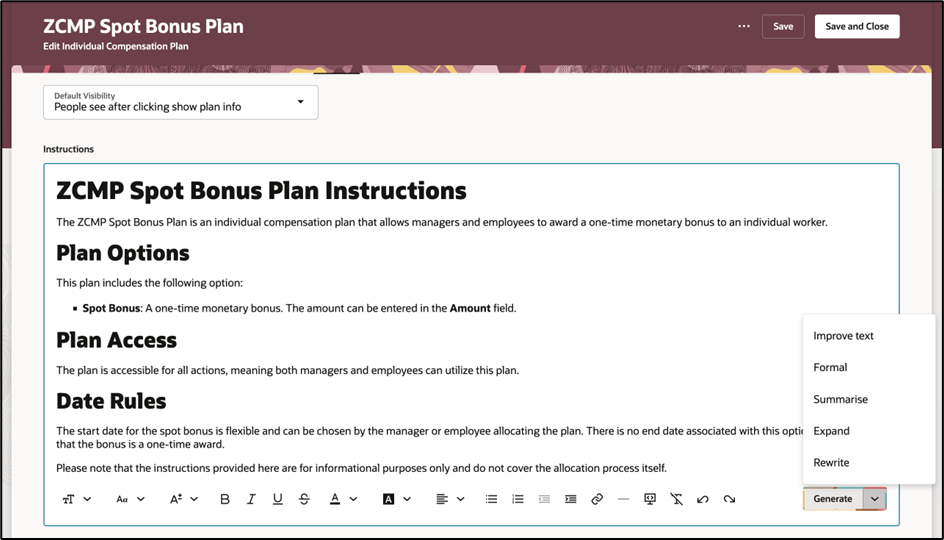
The most tangible update is the enhancement to AI Assist for Individual Compensation Plans (ICP).
- What’s New: You can now use five specialized AI actions—Revise, Expand, Summarize, Formalize, or Improve Text—to draft plan instructions.
- The Business Value: Admins no longer need to be technical writers. Whether you need to turn a few bullets into a formal policy or shorten a long legal disclaimer for mobile users, the AI handles the heavy lifting.
Steps to enable and configure
If you already enabled the Generate button, you don’t need to do anything else. The button menu options are automatically available.
- Peer-Group Salary Benchmarking
The My Team Compensation Advisor now includes AI-driven peer-group benchmarking.
- How it works: When a manager is considering a salary increase, the system automatically suggests a peer group based on job, grade, and location, providing real-time data on where the employee sits relative to their “internal market.”
Example
- Let’s say you manage Emma, a full-time nurse with an N2 grade. Emma earns $500 per week and works for the US legal employer. The agent calculates her full-time annual salary as $26,000. It then finds all other workers with the N2 grade, the US legal employer, and earning in US dollars, and ranks Emma’s salary among those peers.
- Business benefits: My Team Compensation Advisor offers a clear, simple way to understand and discuss team salaries. Seeing where each person’s pay falls within a peer group makes it easier for managers to:
Identify salary gaps
• Make informed compensation decisions
• Promote fairness and transparencyOrganizations can make sure their pay practices match both internal policies and current market standards. At the same time, they can maintain strong privacy and security protections for worker information. And the manager and organization benefits lead to improved worker satisfaction and better retention. - The “Redwood” Finish Line: Enhanced User Experience
Release 26A brings the Redwood UI to the most high-traffic areas of the Compensation module. This isn’t just a “skin”; it’s a performance upgrade built on the Oracle Visual Builder Studio (VBS).
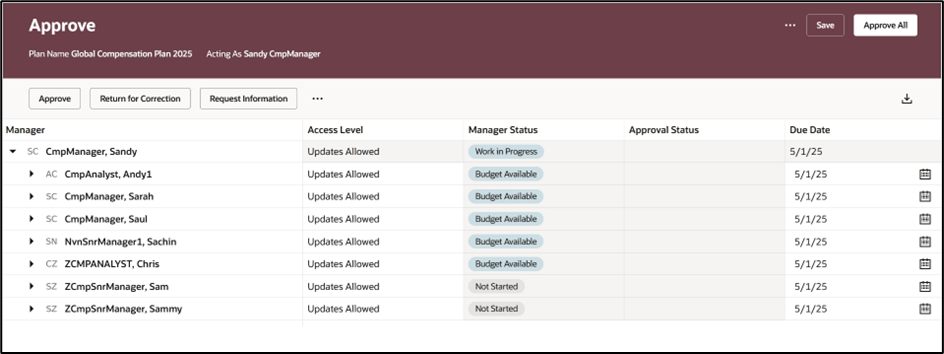
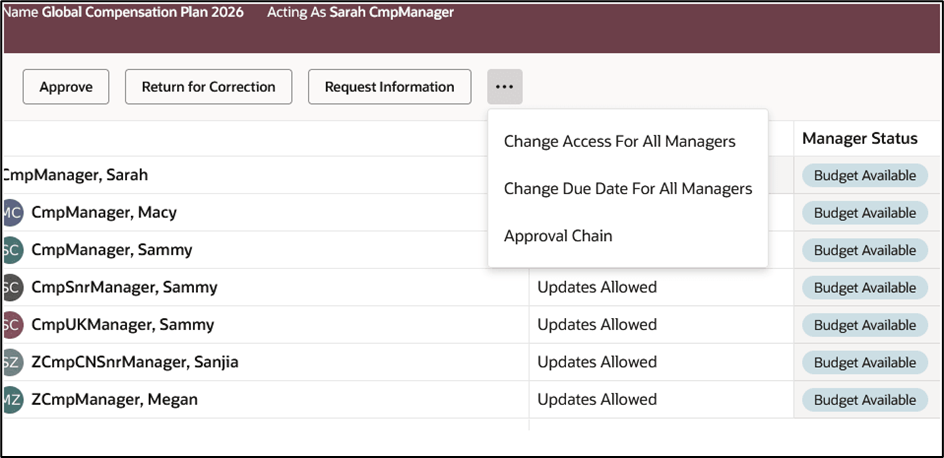
Key Redwood Migrations in 26A:
Steps to enable and configure
Need to enable all of these profile options to enable the Redwood page.
| Profile Option Code | Profile Option Description | Default Value |
| ORA_HCM_VBCS_PWA_ENABLED | Enable VBCS Progressive Web Application User Interface | No |
| ORA_CMP_WORKFORCE_COMPENSATION_REDWOOD_ENABLED | Enable the redwood workforce compensation pages. | No |
| ORA_CMP_WFC_LANDING_PAGE_REDWOOD_ENABLED | Enable the controlled release of redwood workforce compensation landing page. | No |
| ORA_CMP_WFC_APPROVAL_REDWOOD_ENABLED | No |
- Communicate Worksheet: Redesigned for central management of compensation statements, making it easier to “bulk-release” letters to employees.
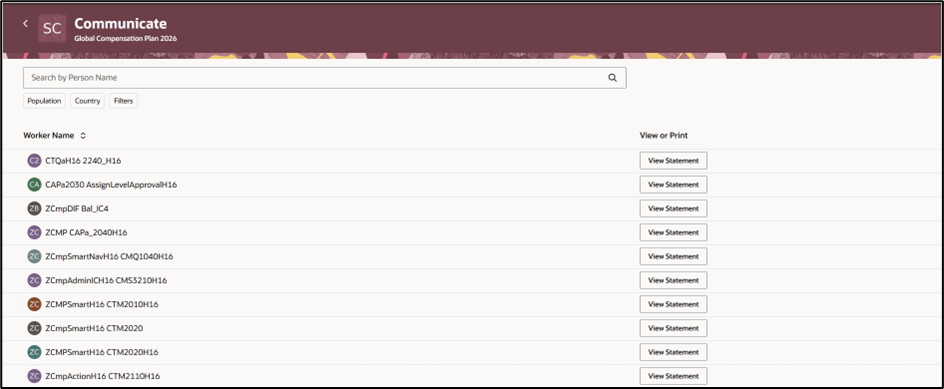
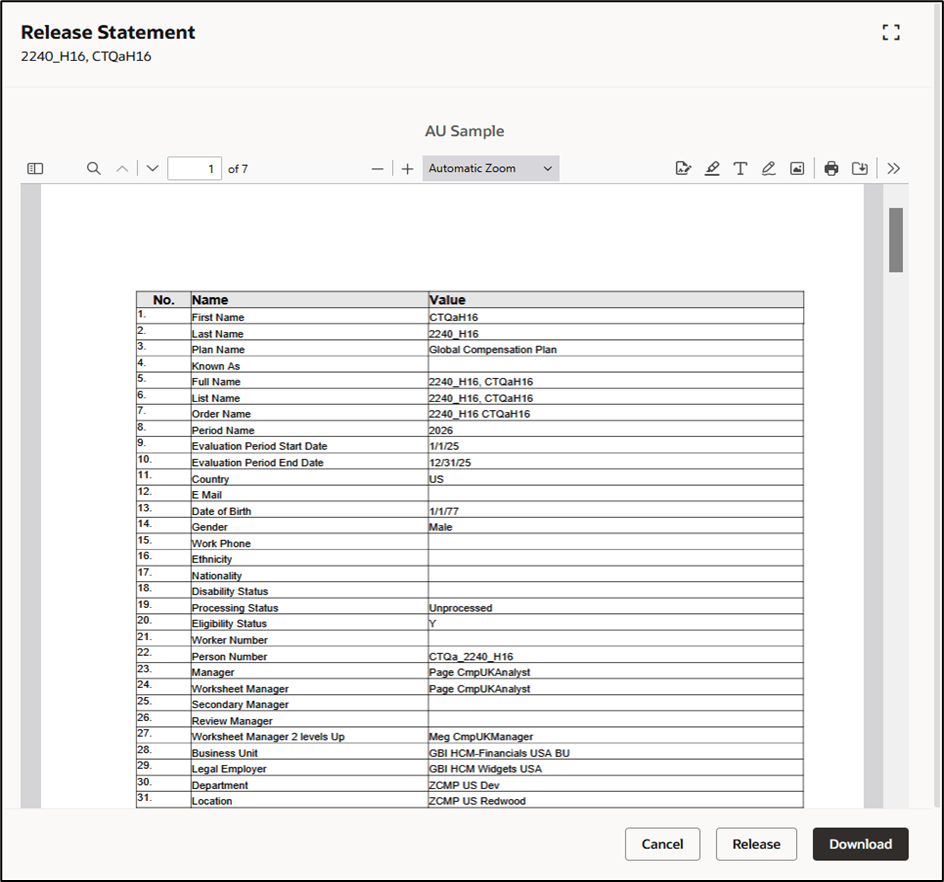
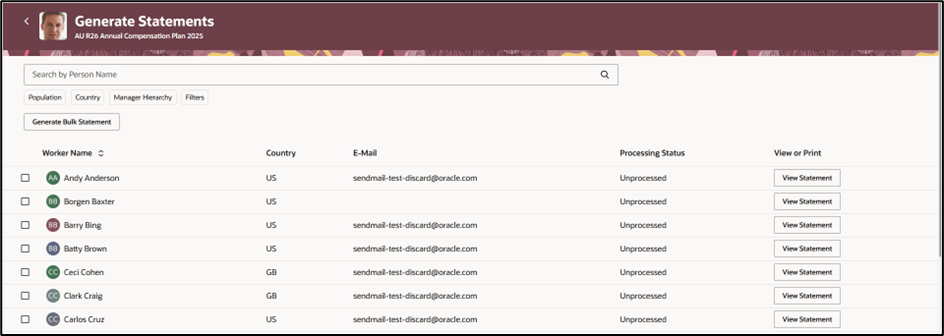
Communicate Worksheet – Printed and Delivered By Managers
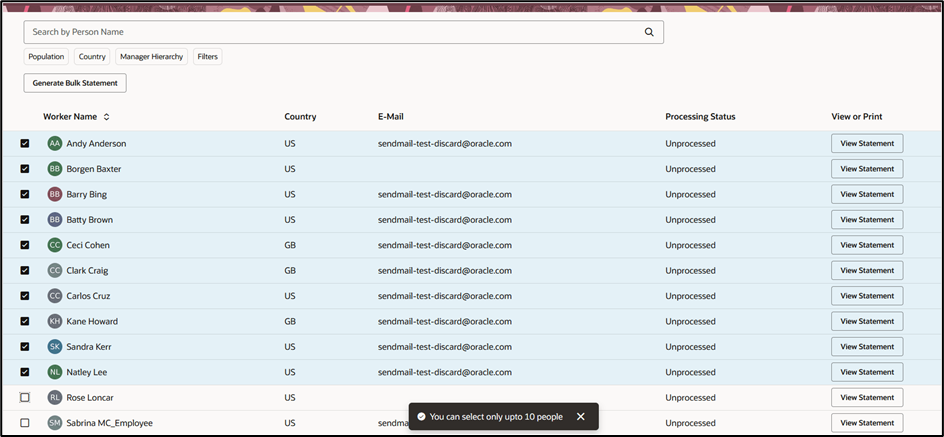
Up to 10 people can be selected to be combined into a single statement:
Steps to enable and configure
Need to enable all of these profile options to enable the Redwood page.
| Profile Option Code | Profile Option Description | Default Value |
| ORA_HCM_VBCS_PWA_ENABLED | Enable VBCS Progressive Web Application User Interface | No |
| ORA_CMP_WORKFORCE_COMPENSATION_REDWOOD_ENABLED | Enable the redwood workforce compensation pages. | No |
| ORA_CMP_WFC_LANDING_PAGE_REDWOOD_ENABLED | Enable the controlled release of redwood workforce compensation landing page. | No |
| ORA_CMP_WFC_COMMUNICATE_REDWOOD_ENABLED | No |
- Worker-Level Budgets: A new card-based layout for managers to track individual budget allocations versus targets.
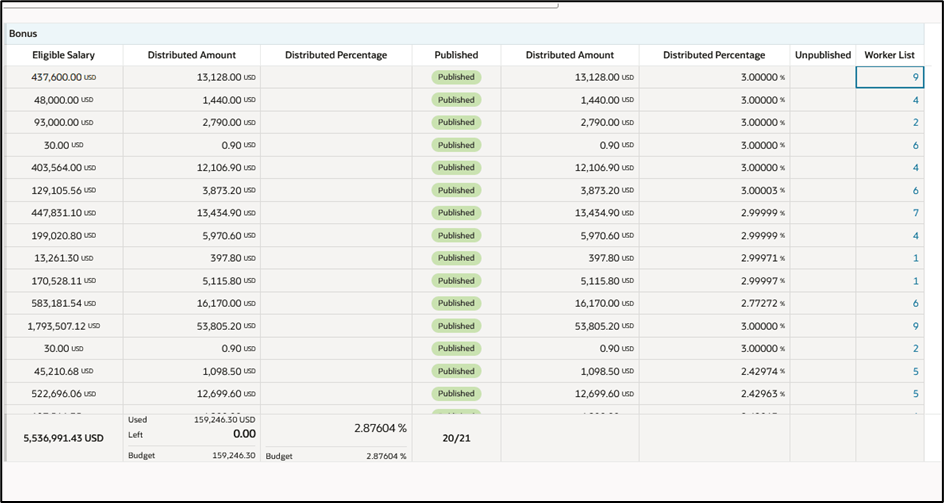
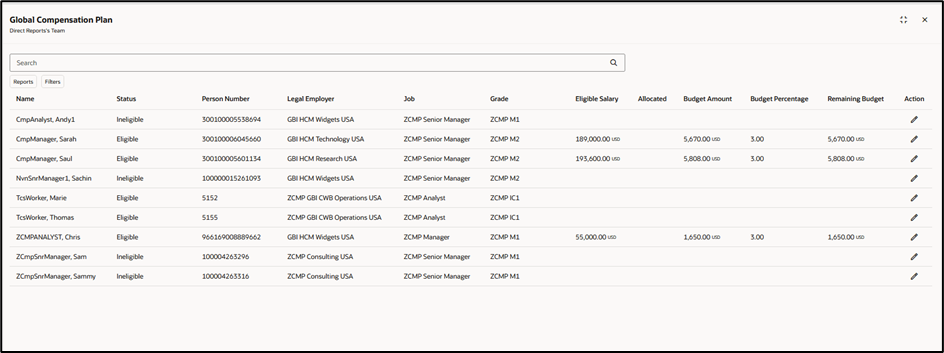
Enrich the manager experience with the updated Redwood experience for worker-level budgets in the budget sheet. In the new budget sheet, if worker-level budgets have been configured, managers can review the budget amounts calculated for each person. To access the worker list, navigate to the Worker List column and select a manager’s value of reports.
Steps to enable and configure
Need to enable all of these profile options to enable the Redwood page.
| Profile Option Code | Profile Option Description | Default Value |
| ORA_HCM_VBCS_PWA_ENABLED | Enable VBCS Progressive Web Application User Interface | No |
| ORA_CMP_WORKFORCE_COMPENSATION_REDWOOD_ENABLED | Enable the redwood workforce compensation pages. | No |
| ORA_CMP_WFC_LANDING_PAGE_REDWOOD_ENABLED | Enable the controlled release of redwood workforce compensation landing page. | No |
| ORA_CMP_WFC_BUDGETSHEET_REDWOOD_ENABLED | No |
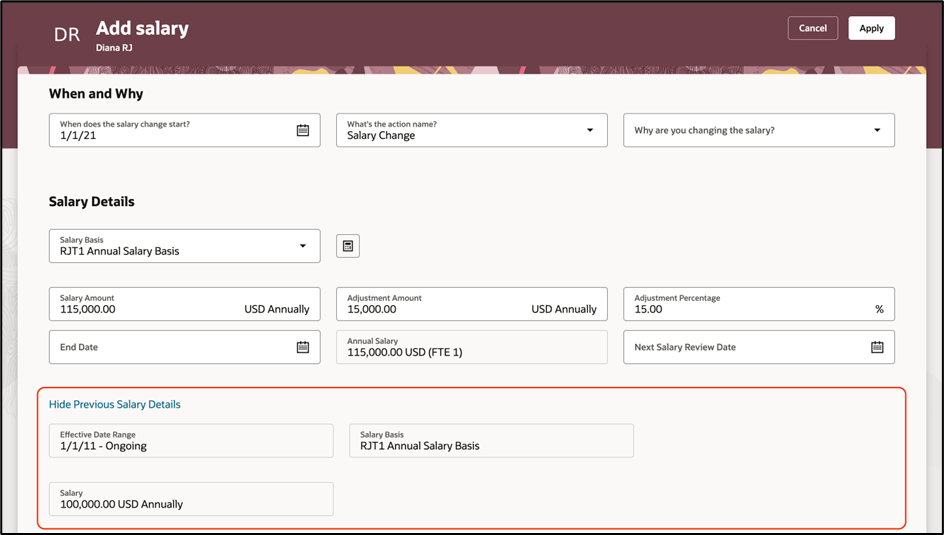
- Salary History & Graphs: Managers can now see a Prior Salary Graph directly within the salary update page, providing a visual timeline of an employee’s growth.
Steps to enable and configure
Auto Enabled Feature
Technical Spotlight: “Validate and Calculate on Save”
One of the most requested features from the Oracle community has finally arrived in Redwood.
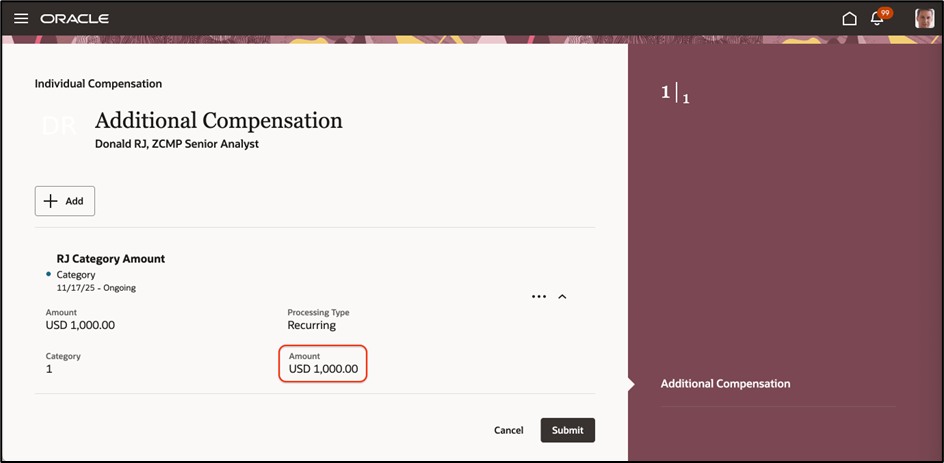
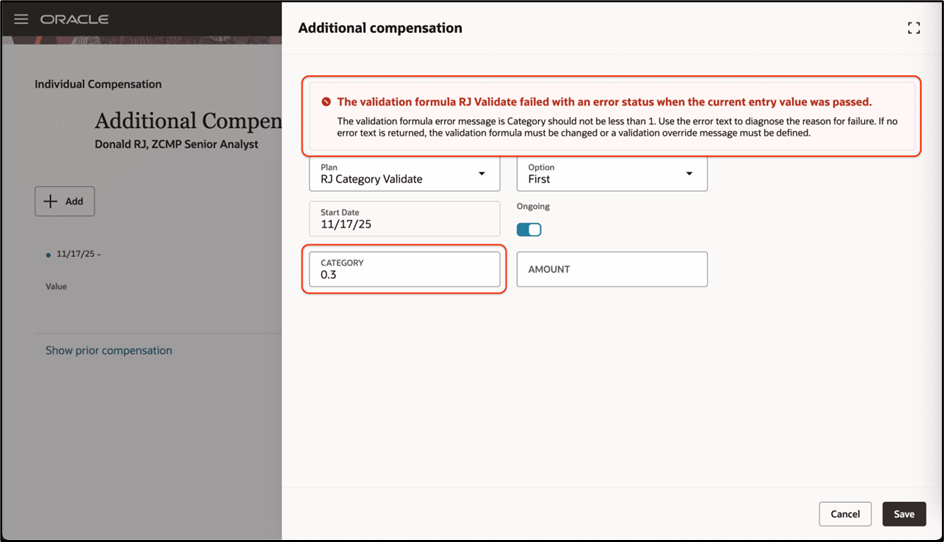
The Feature: In Redwood Individual Compensation pages, the system now performs a full calculation and validation check the moment a user clicks “Save,” rather than waiting for the final “Submit.”
- Why this matters: It eliminates the frustration of filling out a complex form only to have it rejected at the very end. Managers get instant feedback if an amount exceeds a plan limit or violates a business rule.
Calculation Rule
Any calculation rules configured in the ICP and dependent on other input values will now run when the user clicks Save, allowing users to view calculated values earlier.
Validation rule:
Any validation rules configured in the ICP and dependent on other input values will now display error messages when the user clicks Save, helping users correct issues before submission.
26A Migration/Upgrade Checklist:
Audit Profile Options: We need to Ensure ORA_CMP_WORKFORCE_COMPENSATION_REDWOOD_ENABLED is set to Yes to access the new worksheets.
Review AI Opt-ins: Check the ORA_HCM_GENAI_ENABLED profile option to ensure your AI Assist buttons are active.
VBS Testing: If we have custom fields in your old “Classic” worksheets, we must use Visual Builder Studio (VBS) to re-add them to the Redwood pages, as classic personalization does not carry over.
Overall Summary of the Workforce Compensation 26A Features
| Feature | Type | Benefited Users |
| AI Assist Enhancements | AI / Automation | Comp Admins |
| Prior Salary Graph | UI / Visualization | Line Managers |
| Redwood Approval Worksheet | User Experience | Senior Leadership |
| Validate on Save | Data Integrity | All Users |