Creating scalable, maintainable enterprise applications can be challenging, especially as user interfaces grow in complexity. Oracle Visual Builder Studio (VBS) simplifies this process with its low-code development capabilities and support for reusable components like Fragments.
Fragments are modular UI building blocks that can be embedded across multiple pages within your application. They’re ideal for managing complex layouts involving tabs, panels, or dynamic sections, helping developers maintain cleaner, more organized code. This approach not only accelerates development but also enhances performance and makes future updates easier.

What are Fragments?
A fragment is a reusable UI component that can be included within an App UI or embedded into the configuration of another App UI.
For instance, in a large application with complex pages, such as those using foldout layouts or multiple panels and tabs, managing and rendering the UI can become difficult and resource-intensive. By placing the content of each tab or panel inside a fragment, you can modularize the UI logic. This approach makes it easier to maintain individual sections separately. Moreover, fragments can be reused across different pages or even serve as standalone page templates.
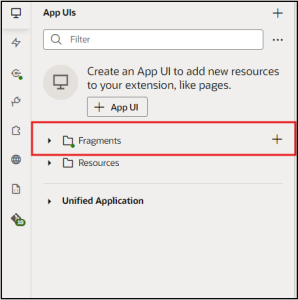
Fig 1: Image of the Fragments Page in Visual Builder Studio
Steps and Process to create Fragments and a custom page using Visual Builder Studio
Navigation: Configuration >> Visual Builder
- Click on the Visual Builder.
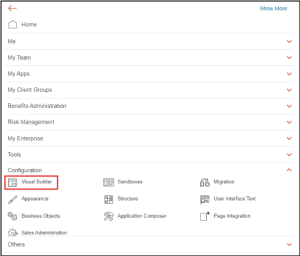
Fig 2: Navigation Path of VBS
- Select the Project and the respective Workspaces in which the Fragments are created.
- Click on the Workspace name “APP UI UAT”.
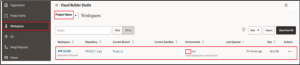
Fig 3: Selecting Project and Workspaces
- We can now see the Visual Builder Studio Page with all components and Design
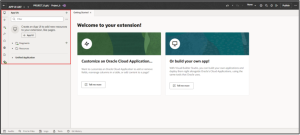
Fig 4: VBS view with APP UIs
- Click on + and click on the Create Fragment to create any new fragment, or we can directly click on the Fragments to create any new fragment.
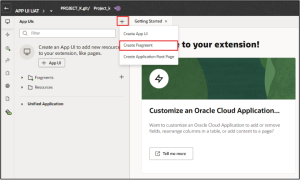
Fig 5: View of the Fragment creating Page
- Enter the Fragment ID name “Employees” and select the Used for “page”, “page Content” and click on Create.
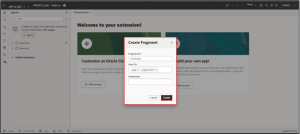
Fig 6: View of Create Fragment
- We can now see the Fragment “Employees” has been created.
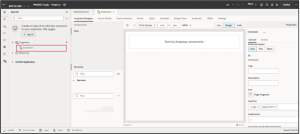
Fig 7: Fragment View
- We can give the Title and Description for the fragment as shown below
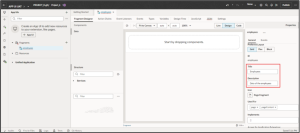
Fig 8: Fragment Title and Description
- By clicking on the Page Fragment, we can choose the type of page we need to use.
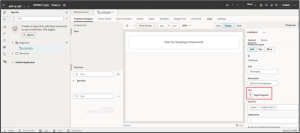
Fig 9: Page Format Icon View
- Select the Page Icon we have chosen, Select Single Custom page icon from the page fragment, and click on Select.
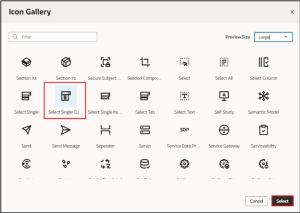
Fig 10: Choosing Page Fragment Icon
- Click on the Components and search for Select (Single) from the structure.
- Drag and down the component into the main page as shown below.
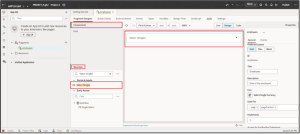
Fig 11: Components dragged into the main page
- We can change the label on the search bar by entering the name in the Label Hint.
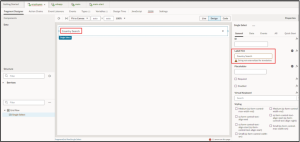
Fig 12: Change the Label in the search bar
- Click on the Quick Start and select the Add options
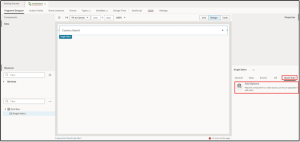
Fig 13: Add Options View
- Select the Options and Click on Next.
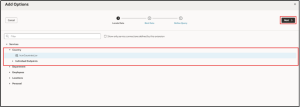
Fig 14: Select the Country Option
- Select the Dropdown options and click on Next
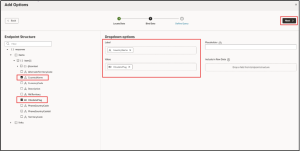
Fig 15: Dropdown Options Selection
- Once select all the information, click on the Finish
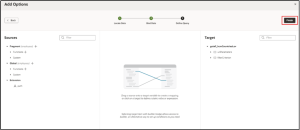
Fig 16: Click on Finish
- We can now see the Country list in the main search.
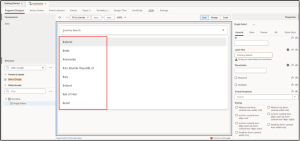
Fig 17: View of Country list
- We are creating a new variable for the country, and it is an input variable. Click on Create.
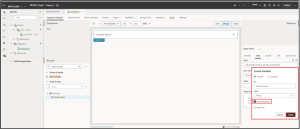
Fig 18: Input Variable Created View
- Click on the App UI’s main default icon
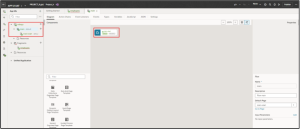
Fig 19: View of APP UI Diagram
- From the Components, search for the Fragment Container in the structure and drag it into the main page.
- Click on Select from Fragment to select the created
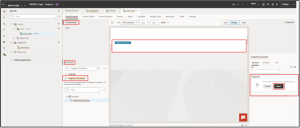
Fig 20: Fragment Container View
- We need to select the Fragment that we have already created, “Country”. We can also create new fragments.
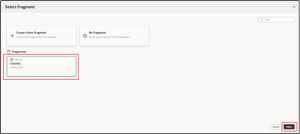
Fig 21: Selecting the created Fragment
- We can now see the Country list in the main APP UI.
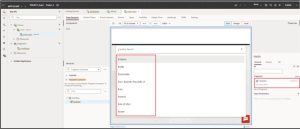
Fig 22: Country List in APP UI main search
- Click on the Preview in the top right corner of the page before publishing.
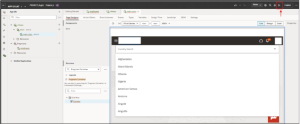
Fig 23: Clicking on the Preview button
- We are now seeing the custom page with the Country search bar.
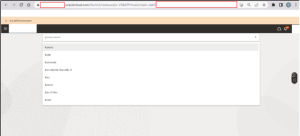
Fig 24: Custom Page view
Business Benefits of Using Fragments in Visual Builder Studio
- Reusability: Fragments allow you to create UI components once and reuse them across multiple pages, modules, or even applications. This reduces redundancy, enforces consistency, and saves significant development time. Teams can create a library of standardized fragments (e.g., headers, forms, filters) that can be quickly integrated wherever needed.
- Faster Development: By leveraging pre-built fragments, developers can rapidly assemble new pages without starting from scratch each time. This accelerates the development of the lifecycle, especially in large projects or when implementing similar features across different parts of an application.
- Modular Architecture: Fragments promote a clean separation of concerns by breaking complex UIs into smaller, manageable parts. This modular approach makes it easier to design, test, debug, and scale your application. Teams can work in parallel on different fragments without interfering with the main page logic.
- Easy Maintenance: Maintaining a large application becomes much simpler when using fragments. Changes made to a fragment are automatically reflected in all instances where it’s used. This centralized management minimizes the risk of inconsistencies and reduces maintenance overhead.
- Dynamic Data Binding: Fragments support dynamic data binding, allowing you to fetch and display real-time data from backend services. This ensures that your UI components are always in sync with the latest data, improving the overall user experience and responsiveness of the application.
- Improved Performance: Since fragments are loaded as needed, they help optimize page load times and reduce resource consumption. Instead of rendering an entire complex page at once, only the necessary fragments are loaded—leading to faster performance and better scalability, especially for large applications.
Conclusion
Fragments in Oracle Visual Builder Studio offer a smart, efficient way to build modern enterprise applications. By enabling the reuse of UI components, they not only reduce development time but also improve consistency, performance, and maintainability across your application.
Whether you’re working on complex layouts or looking to streamline your development process, using fragments can significantly enhance your project’s scalability and modularity. With proper planning and integration, fragments become a foundational part of a clean, maintainable application of architecture.
Streamline UI Development with Fragments in Visual Builder Studio
At Kovaion, we help organizations accelerate low-code development by unlocking the full capabilities of Oracle Visual Builder Studio (VBS). With our expertise in modular architecture and reusable components like Fragments, we enable teams to build scalable, maintainable applications faster and more efficiently. From custom page creation to seamless data integration, Kovaion empowers you to design dynamic, performance-optimized UIs with ease.
Partner with us to elevate your Visual Builder projects with best practices, expert guidance, and end-to-end implementation support.
Author: Yashwanth Gowda H R, Oracle Fusion HCM Techno-Functional Consultant