Streamline Compensation Tasks with New Save Feature in Redwood

Introduction
A new enhancement is now available in Redwood’s Salary and Individual Compensation pages—the Save button functionality. This feature allows users, especially managers/Comp Admins, to save their progress and return later to complete transactions, improving efficiency and flexibility in compensation-related tasks.
Background
Previously, the Redwood compact guided flows in Oracle HCM did not support saving in-progress transactions. This limitation often meant that users had to complete compensation or salary changes in one go. If interrupted, they’d lose their progress and have to start over. This was a significant usability gap, especially for managers handling multiple tasks or approvals.
Recognizing this, Oracle has now enabled the Save feature in both Salary and Individual Compensation Redwood pages, bringing them in line with user expectations and enterprise-grade usability standards.
Individual compensation pages where the save button is now enabled.
- Personal Contribution
- Individual Compensation
Navigation Paths
- To access Personal Contribution:
- Navigate to: Me → Compensation → Personal Contribution
- To access Individual Compensation:
- Navigate to: My Client Groups → Compensation → Individual Compensation
Set up the Profile Option for the individual compensation in Redwood
You need to enable the profile option for the individual compensation called ORA_CMP_INDIVIDUAL_COMPENSATION_REDWOOD_ENABLED.
By default, the profile option is set to N, meaning the feature is disabled.
- In the Setup and Maintenance work area, click the Tasks icon.
- Click Search.
- On the Search page, search for the task Manage Administrator Profile Values.
- Click the task name.
- On the Manage Administrator Profile Values page, search for the profile option code ORA_CMP_INDIVIDUAL_COMPENSATION_REDWOOD_ENABLED.
- In the Profile Values section, set the profile value:
- Y – Enables Individual Compensation.
- N – Default setting; keeps the feature disabled.
- Click Save and Close.
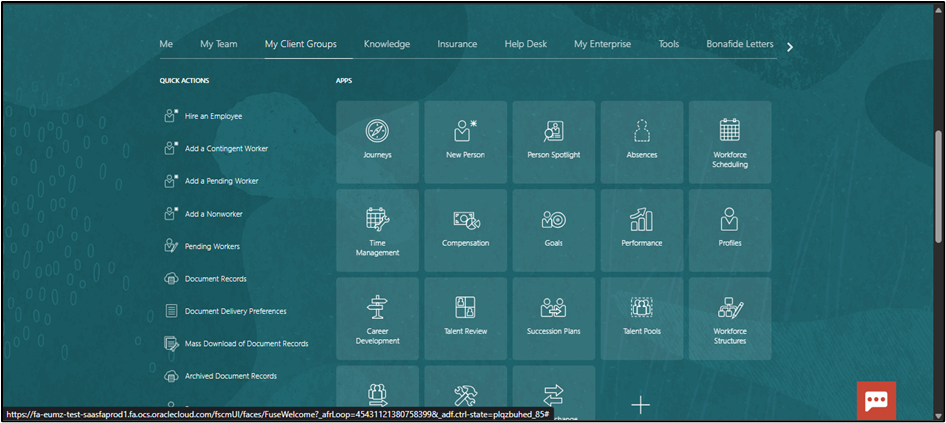
Fig: 1
Navigate to My Client Groups > Compensation
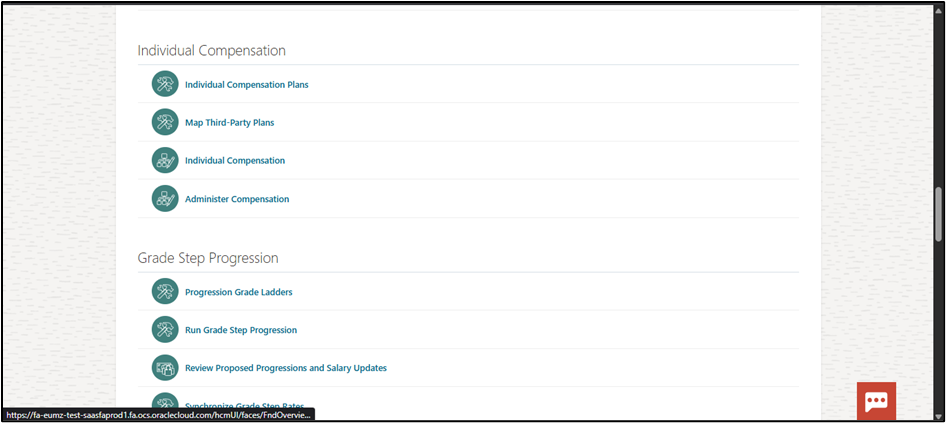
Fig: 2
Below is a snapshot of the Individual Compensation page before the Save button is enabled.
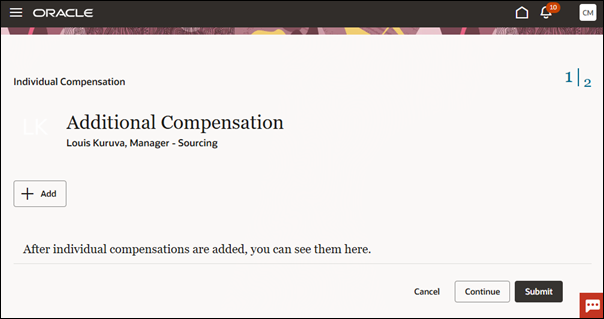
Fig: 3
Navigate to Settings and Actions → Administration > select “Edit Page in Visual Builder Studio
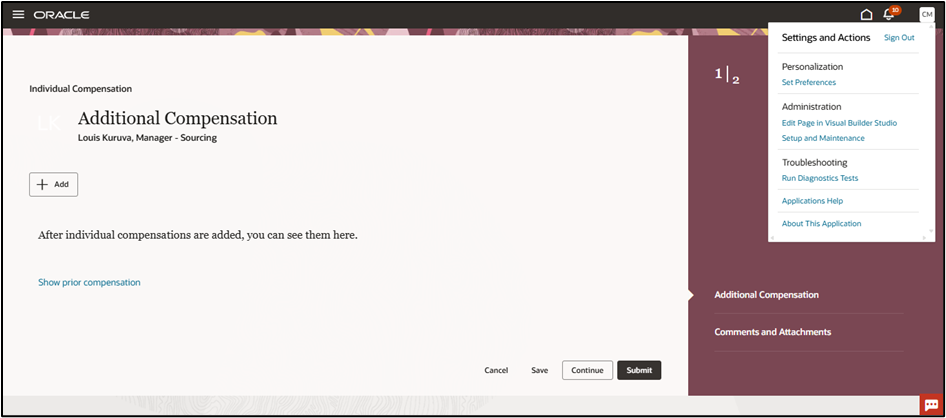
Fig: 4
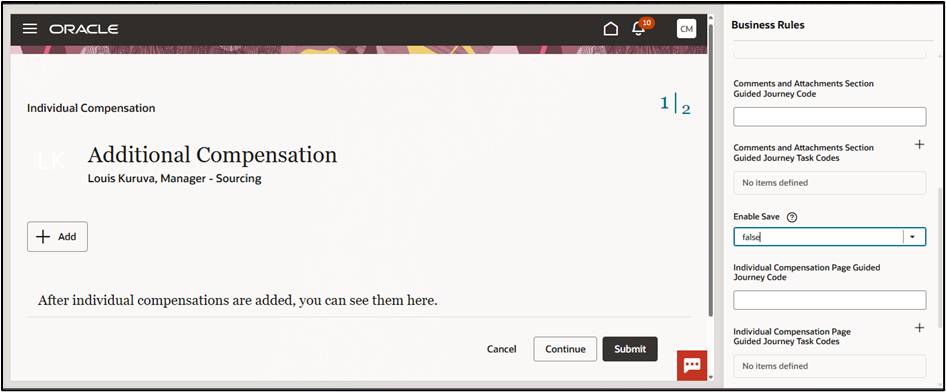
Fig: 5
In the Business Rules section, locate the rule controlling the Save option, and change the setting from false to true to enable the Save button.
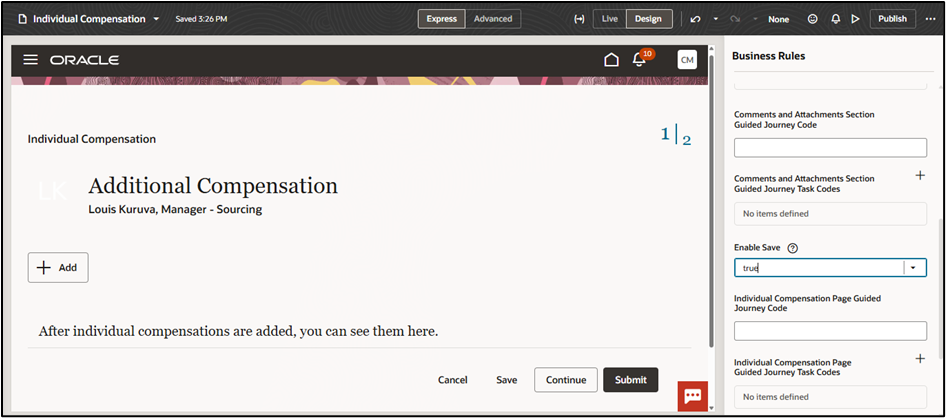
Fig: 6
Click Publish to apply the changes.
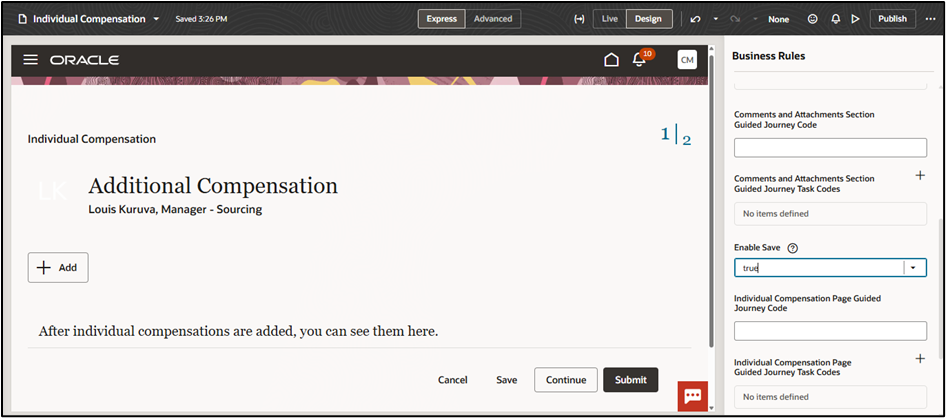
Fig: 7
Benefits of the Enhancement
- Allows partial completion and later resumption of compensation tasks
- Improves user experience by reducing the need to re-enter data
- Increases flexibility for managers handling multiple transactions
Tips and Considerations
- Only one transaction can be saved at a time.
- If a saved transaction exists when a user initiates a new one, they will be prompted to either:
- Resume the existing transaction and continue where they left off
- Discard the existing transaction and start fresh
Note: This behavior is different from traditional responsive or classic UIs.
- Validation Behavior:
- Record-level business rules are triggered after clicking Save within a drawer.
- Section-level business rules are evaluated after clicking Continue, Save, or Submit at the page level.
Conclusion
The new Save feature in Oracle Redwood Compensation enhances the compensation management experience by providing greater flexibility, efficiency, and control during compensation planning activities. By allowing users to save their progress and complete tasks at their convenience, organizations can reduce processing delays, improve data accuracy, and create a more seamless experience for managers and compensation administrators. As businesses continue to adopt Redwood experiences, features like these help drive user adoption, streamline HR processes, and support a more modern and productive workforce.
Elevate Compensation Management with Oracle HCM Solutions
Looking to simplify compensation planning and improve manager productivity in Oracle HCM? The new Redwood Save feature empowers users to work more efficiently by allowing compensation tasks to be saved and completed seamlessly, reducing interruptions and improving the overall planning experience. By leveraging Redwood innovations, organizations can streamline compensation processes, enhance user satisfaction, and drive greater operational efficiency.
At Kovaion, our experienced Oracle HCM consultants help organisations implement and optimise Oracle HCM solutions that transform workforce experiences and modernise HR operations. From Redwood adoption and compensation management enhancements to end-to-end Oracle HCM implementations, we deliver tailored solutions that help businesses maximise productivity, improve user engagement, and unlock the full value of their Oracle HCM investment.