Understanding Semantic Search in PeopleTools 8.63

For decades, enterprise application search has been limited by a frustrating reality: systems often force human users to think like databases. Finding a page typically requires knowing the exact menu path, page name, or transaction terminology.
With PeopleTools 8.63, Oracle introduces Semantic Search, extending traditional keyword search with vector-based semantic retrieval through OpenSearch. Instead of relying only on exact or closely matching terms, Semantic Search identifies relationships between a user’s query and indexed content based on semantic similarity.
This article explains how Semantic Search works, what is enabled out of the box, how to configure it step by step, and how to validate and troubleshoot the implementation.
What Works Out of the Box
Before configuring anything, it helps to understand what is already available. According to Oracle’s documentation, Semantic Search is enabled by default for the Menu search index (PTPORTALREGISTRY), and the delivered OpenSearch setup includes a default embedding model. For the delivered Menu search, no custom embedding model is required.
| Area | Delivered / Optional |
|---|---|
| Menu search (PTPORTALREGISTRY) | Semantic Search enabled by default; works with the delivered model |
| Delivered embedding models | all-MiniLM-L12-v2 (active) and paraphrase-multilingual-MiniLM, both 384 dimensions |
| Your own search definitions | Optional: map vector fields, redeploy, and fully index |
| Custom embedding model | Optional: register, deploy, and import into PeopleSoft |
| Chunking and dedicated ML node | Optional: for large text fields and heavy workloads |
Prerequisites for Semantic Search
Before implementing Semantic Search, ensure that the following requirements are met:
- PeopleTools 8.63: Semantic Search is a release 8.63 feature.
- OpenSearch: A PeopleSoft-supported OpenSearch version with ML capability available.
- Resources: Plan for additional CPU, memory, and storage. Embeddings must be generated and stored, making indexing the most resource-intensive phase.
- Search Framework: A working Search Framework setup with an existing, deployed search definition.
Key Features: How PeopleTools 8.63 Understands Intent
Traditional search relies on lexical matching, where the terms entered by the user are compared with terms in the indexed content. Semantic Search extends this approach by representing text as vectors and using those representations to identify semantically related content.
Vector Embeddings
During semantic indexing, selected text fields are processed by an embedding model and converted into numerical vectors. The same process is applied to the user’s query at runtime. OpenSearch then compares the query vector with the vectors stored in the index to find semantically similar content.
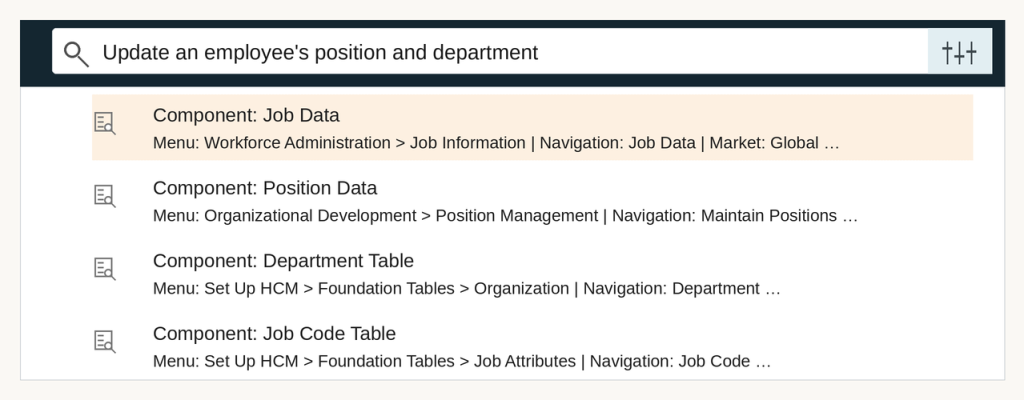
For example, an HR administrator wants to update an employee’s job information. Instead of searching for the exact component name “Job Data”, the user enters:
“Update an employee’s position and department.”
The indexed component is named Job Data, but the query does not contain those words. With Semantic Search, the relationship between the query and the indexed content can still be identified, helping the user locate the component.
Hybrid Search
PeopleTools 8.63 uses a hybrid approach that combines keyword search with semantic search. Keyword search finds exact or closely matching terms, while semantic search retrieves relevant results when the user’s wording differs from the indexed content.
PeopleTools uses an OpenSearch search pipeline to normalize and combine the scores from both approaches. This is important because keyword and semantic queries produce scores on different scales, and normalization allows both to contribute to the final ranking.
Implementation Sequence
The implementation follows these steps:
- Confirm prerequisites: Verify PeopleTools 8.63, OpenSearch, and sufficient system resources.
- Enable Semantic Search: Configure the option in General Settings.
- Map the vector fields: Use the Search Attribute Mapping page.
- Choose or activate the embedding model: Configure the Embedding Models page.
- Redeploy the search definition: Use Deploy Search Definition.
- Run a full index: Use Build Search Index.
- Test: Perform a search using a natural-language query.
Configuring Semantic Search in PeopleTools 8.63
Step 1: Confirm the Prerequisites
Ensure that the environment is running PeopleTools 8.63 with a supported OpenSearch environment. Use the OpenSearch version supported by your PeopleTools 8.63 deployment.
Semantic Search also requires sufficient CPU, memory, and storage because vector embedding generation consumes additional resources during indexing.
Step 2: Configure Semantic Search General Settings
Administrators can configure the main processing options from:
Navigation: PeopleTools → Search Framework → Semantic Search → General Settings
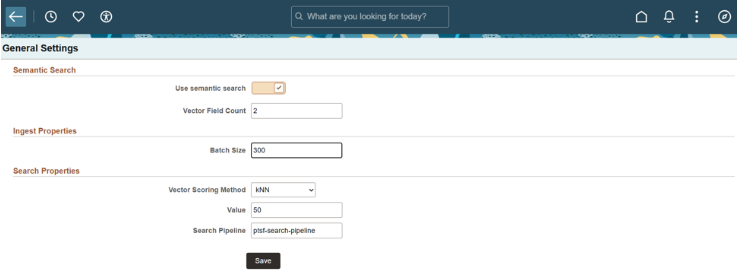
The page groups its settings into three sections:
- Semantic Search: Use Semantic Search, Vector Field Count
- Ingest Properties: Batch Size
- Search Properties: Vector Scoring Method, Value, Search Pipeline
Use Semantic Search
This option enables Semantic Search processing. When enabled, search definitions configured with vector fields can use semantic retrieval.
Enabling the option alone is not sufficient for an existing search definition. Definitions that use vector fields must be redeployed and fully indexed before semantic results become available.
To turn the feature off, clear this option and save.
Vector Field Count
Vector Field Count defines the maximum number of fields that can be selected as vector fields within a search definition. The delivered default is 2.
The following are illustrative examples of fields suitable for vector mapping:
- Catalog item descriptions
- Product details
- Supplier descriptions
- Contract descriptions
- Profile descriptions
For the delivered Menu search, the fields are menu labels and descriptions.
Select only appropriate string fields. Increasing the count raises CPU, memory, processing time, and storage requirements.
Batch Size
Batch Size controls how many documents are sent to the search server in one batch when Semantic Search is enabled. The delivered default is 300.
Smaller batches reduce memory and CPU pressure but may increase indexing time. Tune this setting based on observed indexing behavior in your environment rather than using one value everywhere.
Vector Scoring Method and Value
The Vector Scoring Method determines how semantic matches are retrieved. The Value field works with the selected method, and its meaning changes depending on the method. It is not a generic hybrid-search weighting parameter.
| Method | What Value Means | Effect of Changing It |
|---|---|---|
| kNN (default) | Number of nearest vector matches to retrieve (k). Delivered default: 50 | Higher k returns more candidates; lower k is narrower |
| Max Distance | Maximum vector distance from the query | Smaller distance gives a narrower set; larger distance broadens it |
| Minimum Score | Minimum similarity score required | Higher gives stricter results; lower gives broader results |
The appropriate Max Distance or Minimum Score depends on the embedding model, vector dimension, normalization, and OpenSearch configuration. Test these settings with your own data.
Search Pipeline
The Search Pipeline identifies the OpenSearch search pipeline used for hybrid search.
Oracle delivers ptsf-search-pipeline, which normalizes and combines keyword and semantic scores.
Step 3: Map the Vector Fields
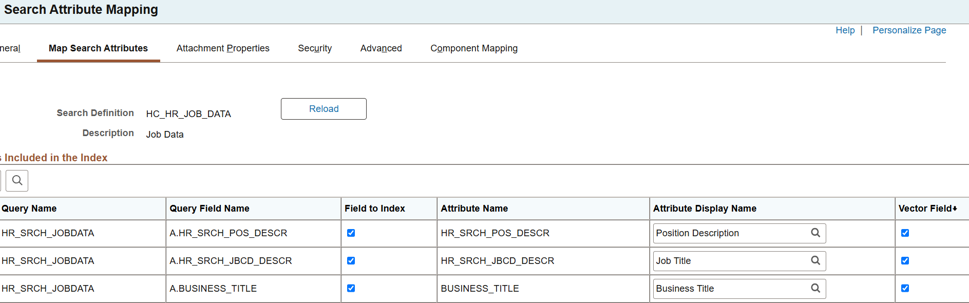
After configuring General Settings, select which fields should act as vector fields on the Search Attribute Mapping page.
Navigation: PeopleTools → Search Framework → Search Designer Activity Guide → Search Definition → Map Search Attributes
How to Choose the Right Fields
- Pick fields containing meaningful descriptive text that benefits from semantic matching, such as descriptions and labels.
- Avoid identifiers and codes, such as employee IDs.
- Stay within the configured Vector Field Count.
- When several attributes are selected, PeopleTools can combine their content and index it as a single vector.
After changing vector fields, redeploy and fully index the search definition.
Understanding Embedding Models
An embedding model converts text into vector representations that PeopleTools uses for semantic matching in OpenSearch.
The Embedding Models page is available under:
Navigation: PeopleTools → Search Framework → Semantic Search → Embedding Models

The configuration shown in this example contains two models, both with a dimension of 384:
Available Embedding Models
all-MiniLM-L12-v2: The active model in the screenshot. It is a general-purpose model suited to English content.
paraphrase-multilingual-MiniLM: Choose this model when users search or content is indexed in multiple languages.
Embedding Model Page Controls
- Active Model: The toggle that selects the one model used for Semantic Search.
- Deploy: Deploys the model in OpenSearch.
- Import: Imports a custom model that is already registered and deployed in OpenSearch.
- Dimension: The vector size the model produces. It must match the vector mapping.
An important point: changing the active model does not regenerate existing embeddings. After a change, redeploy and fully index the affected search definitions. This makes model selection an architectural decision rather than a simple toggle.
Using a Custom Embedding Model
Oracle’s custom-model procedure follows these steps:
- Register a model group in OpenSearch.
- Register the embedding model in that group.
- Deploy the model in OpenSearch.
- If the OpenSearch node cannot reach the model source directly, configure proxy settings.
- Import the model on the Embedding Models page and make it active.
- If its vector dimension differs from the current mapping, update the configuration before redeploying.
- Redeploy and fully re-index the affected search definition.
Redeploying the Search Definition
After changing vector-field or Semantic Search configuration, deploy or update the affected search definition through:
Navigation: PeopleTools → Search Framework → Administration → Deploy Search Object
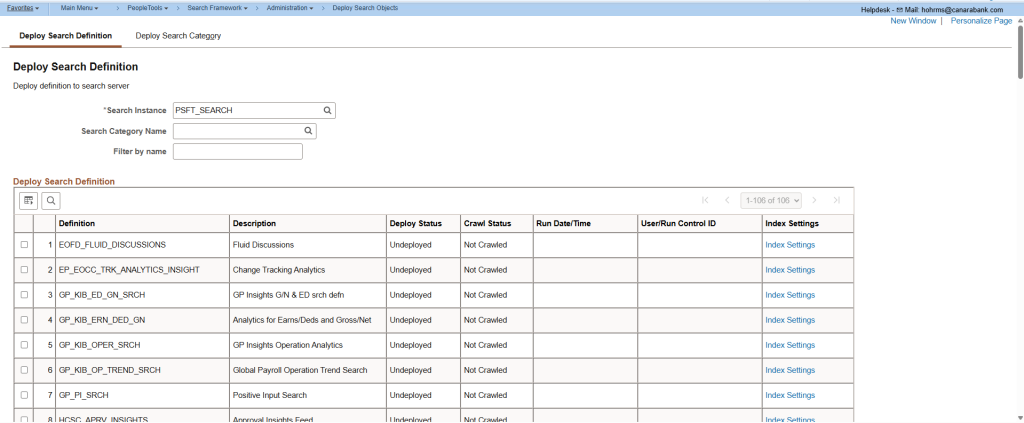
A change to an already deployed search definition must be synchronized with the search engine.
Running a Full Search Index
Navigate to:
Navigation: PeopleTools → Search Framework → Administration → Schedule Search Indexes
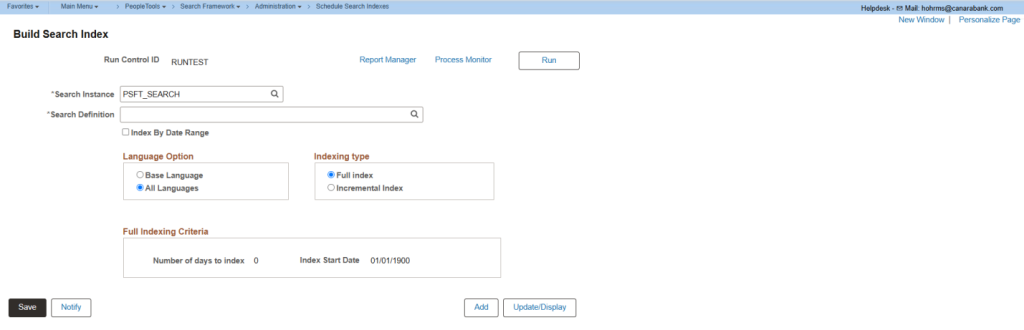
Select the required search definition and choose Full Index.
A full index is important after introducing or changing vector fields because the system needs to generate and store vector embeddings for the indexed data.
Advanced Configuration Options
Chunking for Large Text
When a vector field holds a large amount of text, PeopleTools can divide it into smaller chunks before generating embeddings. Each chunk can produce an additional vector, which increases indexing time and storage.
Enable chunking only for search definitions with large descriptive fields.
Dedicated ML Nodes
Semantic Search adds machine-learning processing to OpenSearch. A dedicated ML node isolates embedding workloads from other OpenSearch processing and improves resource management, particularly with heavy Semantic Search usage or large indexing volumes.
Oracle documents this in its “Configuring a Dedicated ML Node” topic.
Validating the Setup
To validate the Semantic Search configuration, open the menu search and enter a natural-language query, for example:
“Update an employee’s position and department.”
Confirm that Job Data (or a related job component) appears even though the search terms do not exactly match the component name.
Compare the results with the same query when Semantic Search is turned off.
Troubleshooting and Tuning
Use the following table to identify common issues and their possible causes.
| Symptom | Things to Check |
|---|---|
| No semantic results | Search definition not redeployed or not fully re-indexed; field not mapped as a vector field; embedding model not deployed or not active; Use Semantic Search not enabled |
| Results unchanged after switching model | Existing embeddings are not regenerated; redeploy and run a full index |
| Slow indexing | Lower Batch Size; reduce vector fields; review chunking; consider a dedicated ML node |
| Too many loosely related results | Reduce k, reduce Max Distance, or raise Minimum Score |
| Too few results | Increase k or Max Distance, or lower Minimum Score |
Related Feature: Typo Tolerance
PeopleTools 8.63 also introduces Typo Tolerance, a companion search feature that helps users find results despite spelling mistakes.
Semantic Search and Typo Tolerance together make PeopleSoft search more forgiving and intuitive.
Conclusion
Semantic Search in PeopleTools 8.63 marks an important step toward making enterprise search more intuitive and context-aware. By combining vector embeddings with hybrid search capabilities in OpenSearch, organizations can help users find relevant information based on intent rather than relying solely on exact keywords. With the right configuration, embedding models, and indexing strategies, organizations can deliver a more efficient and seamless PeopleSoft search experience.
As organizations continue to enhance their PeopleSoft environments, having the right technical expertise is essential to maximizing platform capabilities. Kovaion helps businesses optimize, modernize, and extend their PeopleSoft environments through expert consulting and tailored technology solutions. Explore our Semantic Search in PeopleTools 8.63 capabilities to discover how we can support your PeopleSoft initiatives.