Organization Calendar Events: Configuration and Key Features in the Redwood Experience

Introduction
Oracle HCM Cloud continues to modernize existing pages and processes through the Redwood Experience. Organization Calendar Events provides a centralized way to define and manage public holidays, organization-specific holidays, and other calendar-based events.
The Redwood page brings event creation, organization calendar maintenance, event-to-calendar association, worker assignment rules, and rule-evaluation information into a more streamlined experience. These capabilities help organizations maintain consistent calendar information and make the correct events available to the appropriate workers.
Key Features
| Feature | What it provides |
| Create and manage organization calendar events | Create public holidays and other business-specific calendar events from a centralized page. |
| Create and manage organization calendars | Maintain different calendars to meet business, organizational, or geographical requirements and add the required events to each calendar. |
| Assign calendars to workers using rules | Create or select configurable rules from the Workers tab to identify the workers who should receive a calendar. |
| View calendar rule evaluation status | In Update 26B, administrators can view statuses such as Complete, Error, Never Run, Running, and No Rule directly from the Redwood page. |
| Re-evaluate calendar assignment rules | Re-run eligible rules when worker information changes or when a previous evaluation encounters an error. |
| View rule-level status | Identify the status of individual rules on the Workers tab and determine which rule requires attention. |
| Receive rule evaluation error notifications | When evaluation fails, the relevant user receives a notification with failure information and a link to review the calendar and re-run the rule. |
| Reuse assignment rules | Use the same worker assignment rule across multiple organization calendars to reduce repetitive configuration. |
| Support Workforce Scheduling | Calendar events can be considered during scheduling. A shift can still be assigned on a public holiday, but the schedule manager receives a warning. |
| Improve worker calendar visibility | Workers can view applicable holidays and other non-working events in their calendars. |
| Use the Redwood user experience | Manage events, calendars, worker assignment rules, and rule-evaluation information in a modern, streamlined interface. |
| Support existing calendar events | Events created using the previous Manage Calendar Events task can appear in Redwood, although some details, such as coverage information, may have limitations there. |
Important: A reusable assignment rule can affect multiple organization calendars. Review the impact before modifying a rule that is already in use.
Configuration Walkthrough
The following steps show the end-to-end flow for creating an event, adding it to an organization calendar, and assigning that calendar to workers using rules.
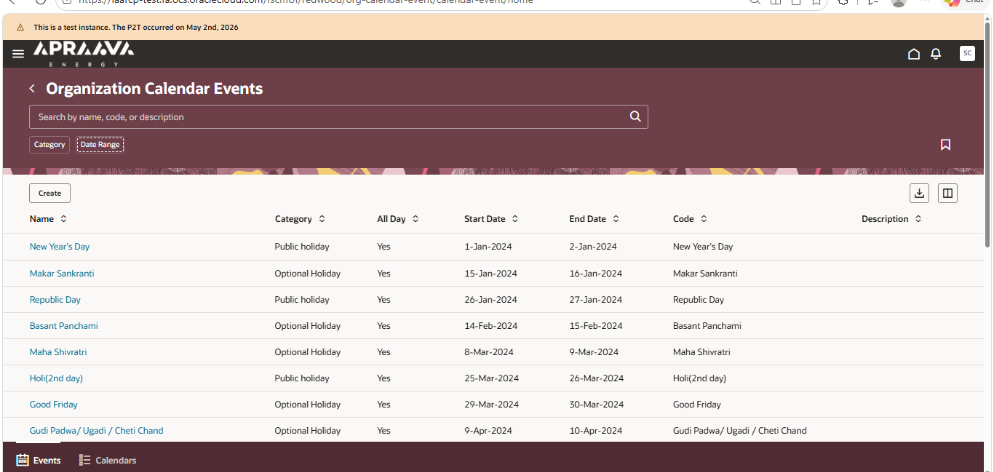
Step 1: Navigate to Organization Calendar Events
Navigation: My Client Groups → Workforce Scheduling → Organization Calendar Events
The Organization Calendar Events page opens in the Redwood Experience. From here, administrators can view existing events and move between the Events and Calendars tabs.
Step 2: Create a Calendar Event
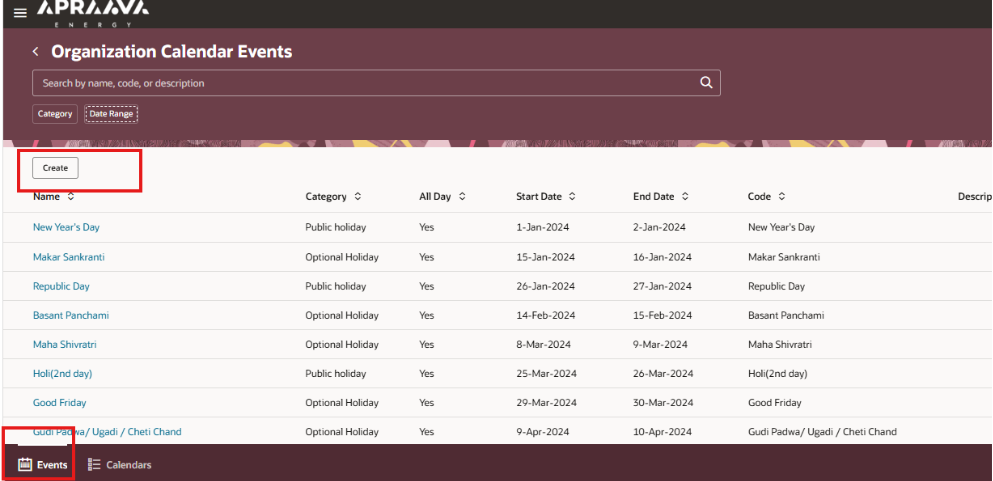
On the Events tab, click Create to start a new holiday or calendar event.
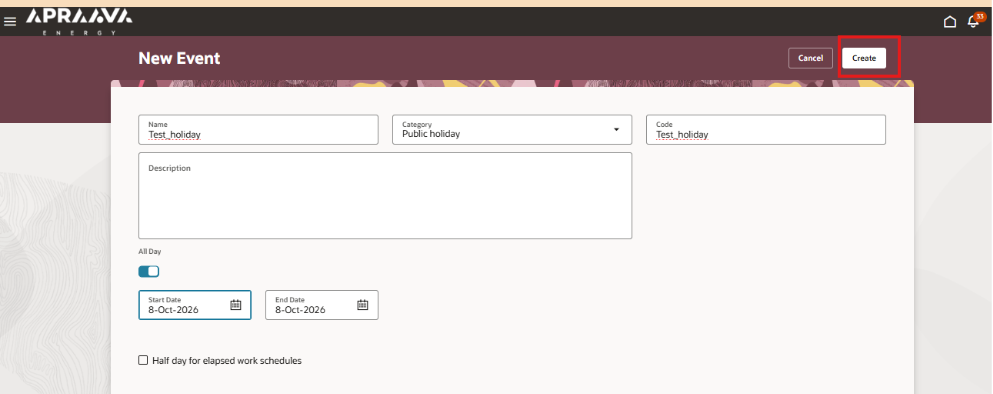
Enter the required event details:
- Name: Enter the holiday or event name.
- Category: Select the appropriate event category.
- Code: Enter a unique code for the calendar event.
- Start Date: Select the start date of the event.
- End Date: Select the end date of the event.
Step 3: Create or Open an Organization Calendar
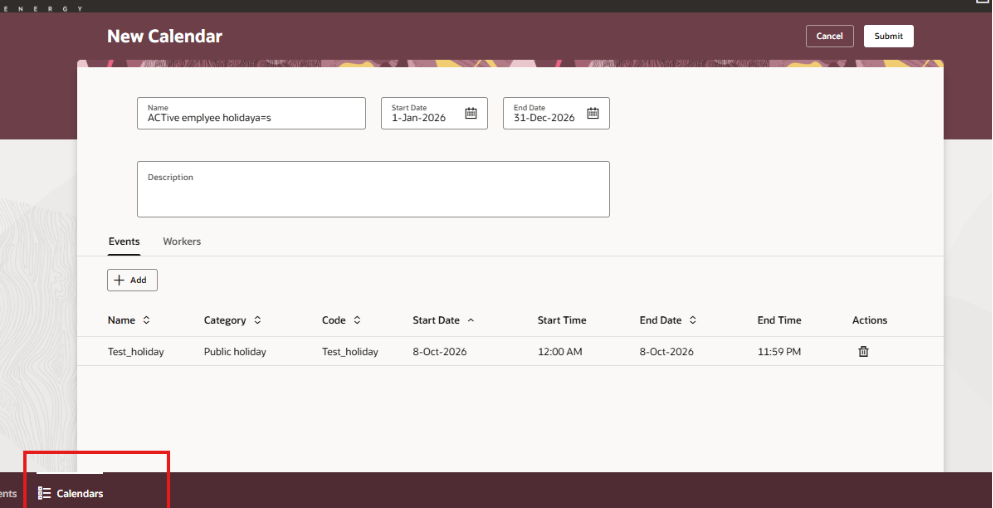
Open the Calendars tab, then create a new organization calendar or open an existing one. Define the calendar name and date range, then use the Events section to manage the events associated with the calendar.
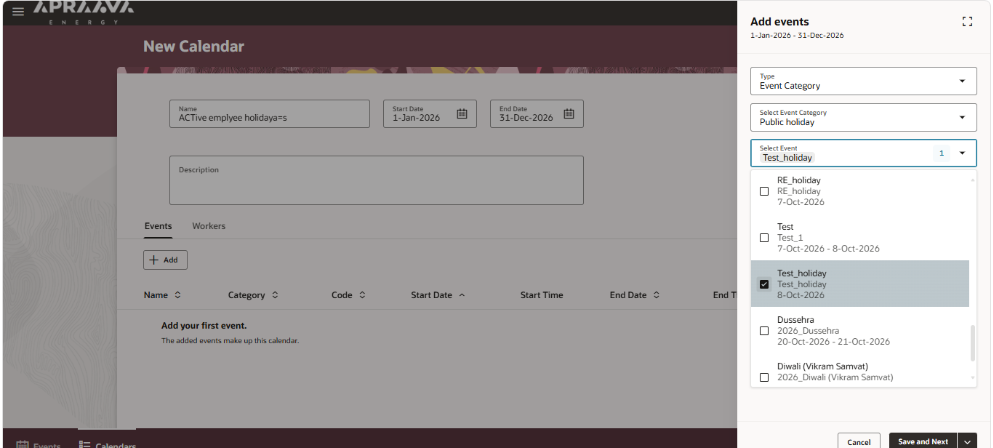
Step 4: Add the Holiday or Event to the Calendar
Click Add in the Events section. Select the appropriate event from the available list, then save it to associate the event with the organization calendar.
Step 5: Configure Worker Assignment Rules
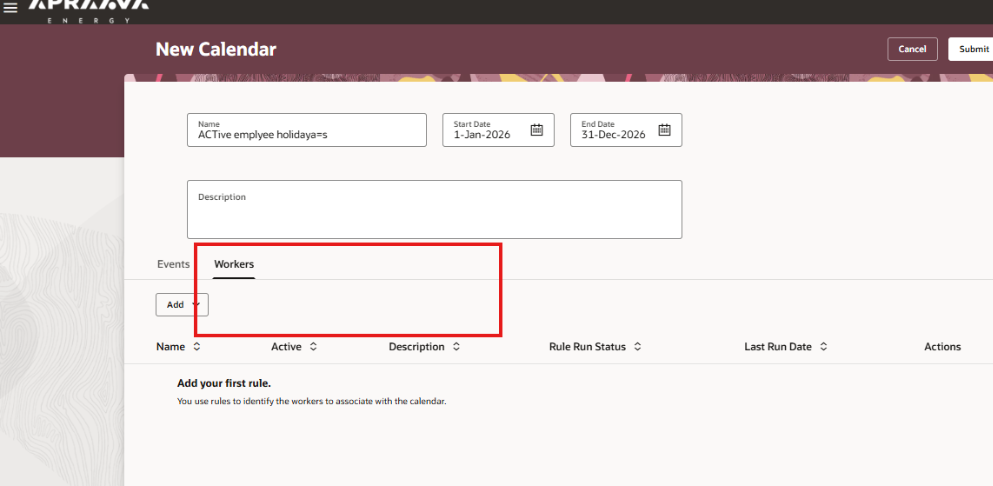
Open the Workers tab to define how the calendar should be assigned to eligible employees.
Step 6: Add a Worker Assignment Rule
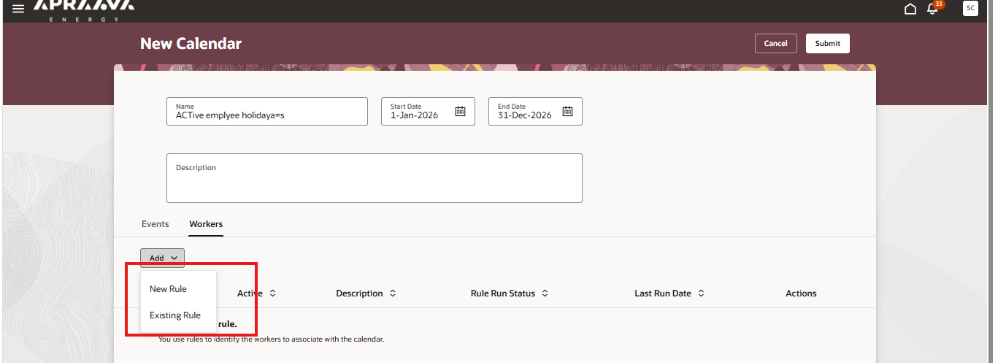
Click Add and choose whether to create a new rule or select an existing rule. Reusing an existing rule can reduce duplicate configuration when the same worker-selection logic applies to multiple calendars.
Step 7: Create and Validate the Rule
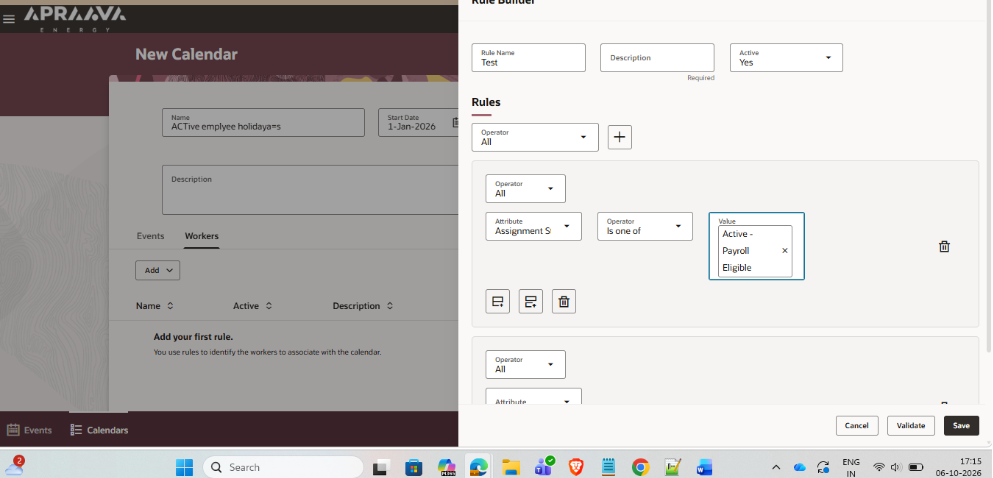
Enter a Rule Name and define the required attributes and conditions that determine which employees should receive the organization calendar. Click Validate to verify the rule. After validation succeeds, click Save to create the rule.
Step 8: Verify Rule Evaluation
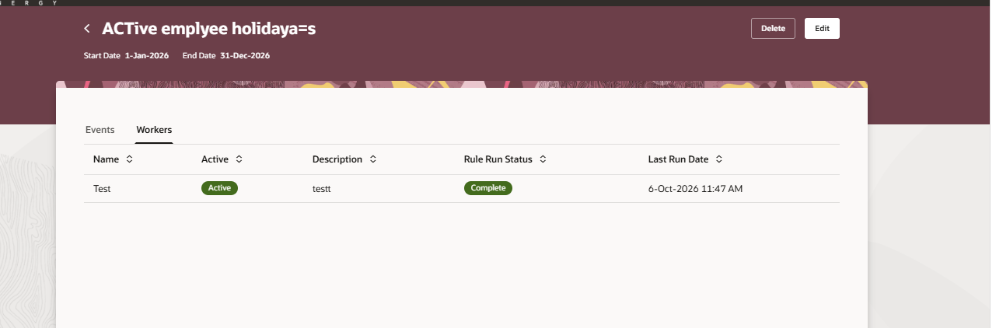
After the rule is saved and evaluated, check the Rule Run Status and the last run date. A successful evaluation confirms that the rule completed and the calendar can be assigned to the eligible employees.
Business Benefits
- Simplified calendar management: A centralized page makes it easier to create, manage, and maintain organization calendar events and calendars.
- Automated worker calendar assignment: Rules can identify eligible employees automatically based on defined worker attributes and conditions.
- Improved holiday management: Public holidays and organization-specific events can be maintained in centralized calendars for the appropriate employee population.
- Reduced manual administration: Reusable rules reduce repetitive work compared with assigning calendars to employees individually.
- Consistent calendar application: Predefined rules help apply the correct organization calendar consistently to workers who meet the configured criteria.
- Better workforce scheduling: Scheduling can account for holidays and provide warnings when shifts are assigned on public holidays.
- Improved employee visibility: Employees can see applicable holidays and other non-working events in their calendars.
- Better rule monitoring: Update 26B provides improved visibility into rule status, errors, last evaluation, and re-evaluation options.
Access Requirements
The available functionality depends on the roles and privileges assigned to the user. To configure and use Organization Calendar Events in Redwood, ensure the required Workforce Scheduling and HCM access is available.
- Enable the Organization Calendar Events Redwood Experience.
- Grant users the required privileges to access and manage Organization Calendar Events.
- Ensure administrators have access to Workforce Scheduling.
- Provide the required access to create and manage organization calendars and events.
- Provide the required privileges to configure worker assignment rules.
- Ensure users have the appropriate access to view or manage calendars based on their responsibilities.
- For rule-based worker assignment, configure the required worker attributes and conditions.
Tips and Considerations
- Define clear and meaningful event names and codes so that events are easy to identify and maintain.
- Use the correct event category when creating a calendar event.
- Create organization calendars around business and geographical requirements.
- Use worker assignment rules to target the appropriate employee population.
- Give assignment rules clear, descriptive names so their purpose is easy to understand.
- Before changing a reusable rule, consider the impact on every organization calendar that uses it.
- After creating or modifying a rule, verify the rule evaluation status and confirm that it completed successfully.
- If a rule evaluation fails, review the error, correct the configuration, and re-evaluate the rule.
- Regularly review worker eligibility so employees continue to receive the correct organization calendar.
- Be aware that events created in the previous experience may have some editing limitations in Redwood.
- Test calendar assignment with representative employees before moving the configuration to production.
- Consider the effect of organization calendar events on Workforce Scheduling, Absence Management, and Time Cards.
Conclusion
The Organization Calendar Events Redwood Experience provides a modern, centralized approach to managing calendar events, organization calendars, worker assignment rules, and rule evaluation in Oracle Fusion HCM.
By combining event management with configurable worker-assignment rules, organizations can reduce manual administration and improve consistency in calendar assignments. The rule-evaluation enhancements introduced in Update 26B also give administrators better visibility into rule status, making it easier to identify and resolve assignment issues.
Overall, the Redwood experience can simplify holiday management, improve calendar accuracy, support workforce scheduling, and provide employees with clearer visibility into relevant events. Organizations can also explore Oracle HCM Cloud configuration and capabilities to understand how these features support efficient human capital management.