Oracle HCM 26B – Change Worker Type Process
Oracle Fusion HCM Cloud continues to enhance the employee and HR experience with new Redwood capabilities across its applications. With the 26B release, Global Human Resources introduces the Redwood-based Change Worker Type process, providing a guided way to convert workers from one type to another within a single transaction.
The process supports conversions between Employee, Contingent Worker, and Nonworker types while helping maintain continuity of worker information. It also supports payroll integration, allowing relevant payroll information and required payroll objects to be created or updated as part of the transaction.
In this blog, we’ll explore the supported worker type conversions, profile options required to enable the process, guided flow, payroll integration, rollback support, and key considerations for using Change Worker Type in Oracle Fusion HCM Cloud.
Supported Worker Type Conversions
- Contingent Worker → Employee
- Employee → Contingent Worker
- Nonworker → Employee
- Nonworker → Contingent Worker
- Employee → Nonworker
- Contingent Worker → Nonworker
Overview
The Redwood Change Worker Type process lets an HR Specialist convert a worker’s type using one guided, auditable flow instead of a multi-step termination and rehire process. For example, a contingent worker who joined for a project can be converted into a regular employee once the engagement becomes permanent, all within a single transaction that preserves continuity of the worker’s information.
The process also supports rollback: if a change is made in error, the data changed during the transaction can be reversed.
Payroll Integration
Worker type changes now trigger automated payroll updates. Payroll relationships, calculation cards, and assignments are created or updated automatically, and payroll details for the new assignment can be entered directly within the same transaction. The process creates required payroll objects, such as the assigned payroll, automatic element entries, and statutory calculation cards, when applicable. Personal payment methods are copied to the new assignment, but balances, costing, and other payroll history are not transferred to the new payroll relationship.
Important Restriction
The Change Worker Type process does not allow transferring to a new legal employer in the same transaction. Legal employer changes (for example, an employee becoming a retiree, or vice versa, in the US) must be handled as a separate process.
Business Benefits
- Faster response to changing workforce needs: conversions complete in a single step rather than a multi-step process.
- Minimal training required: the guided flow lets HR teams handle conversions confidently.
- Lower compliance risk: a single auditable transaction removes the employment record gaps that multi-step processes can introduce.
- Improved worker experience: supports smoother role transitions and greater overall operational efficiency.
Steps to Enable and Configure
Before using the process, confirm the following profile options are set at the Site level:
| Profile Option | Required Value (Site Level) |
|---|---|
| ORA_HCM_VBCS_PWA_ENABLED | Y |
| ORA_PER_EMPL_CHG_WRK_TYPE_DFLT_FRM_SRC_ENABLED | Yes (default) |
When ORA_PER_EMPL_CHG_WRK_TYPE_DFLT_FRM_SRC_ENABLED is set to Yes, the transaction copies assignment attributes, manager relationships (including all reporting relationships), direct reports, and payroll information from the source assignment. For the Payroll step specifically, data is copied only when the Payroll region is visited during the flow. If that step isn’t accessed, payroll data isn’t copied or pre-populated. Set the option to No to prevent this data from being copied automatically.
Navigating to the Process
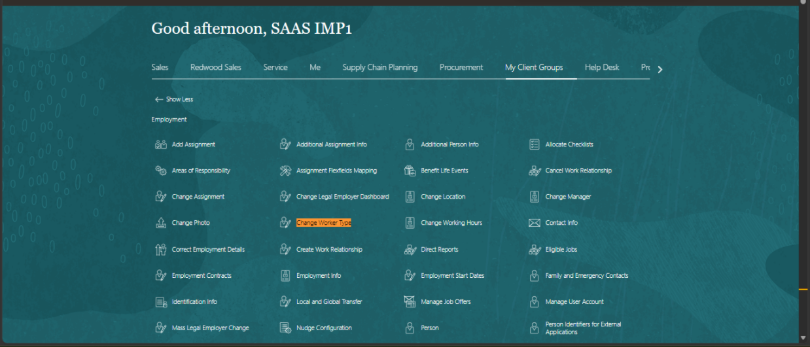
The Change Worker Type action is accessed from My Client Groups > Employment on the worker’s record.
Guided Flow: Info to Include
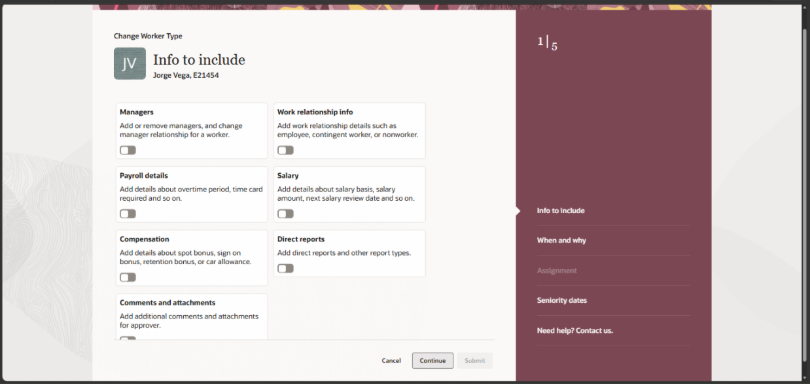
Selecting Change Worker Type opens a guided flow for the selected worker (Jorge Vega, E21454 in this example). The first step, Info to Include, lets the specialist choose which additional information to carry into the transaction: Managers, Work relationship info, Payroll details, Salary, Compensation, Direct reports, and Comments and attachments. The remaining steps are When and why, Assignment, Seniority dates, and Need help? Contact us.
When and Why
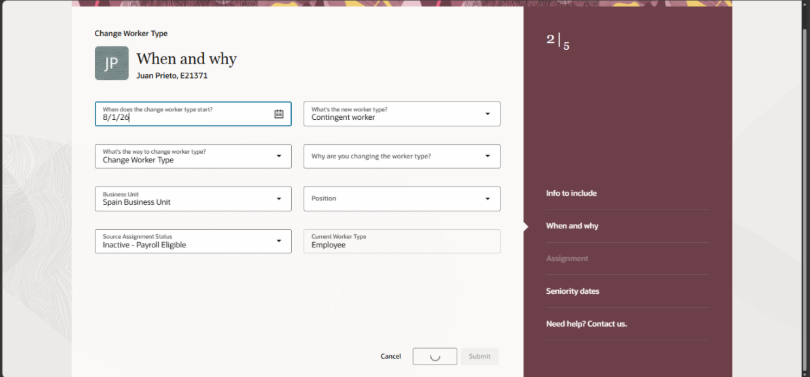
In the When and Why step, the specialist enters the effective start date of the conversion, the new worker type, the business unit, position, source assignment status, and the current worker type. In this example, Juan Prieto (E21371) is being changed from Employee to Contingent worker, effective 8/1/26.
Guided Flow: Assignment
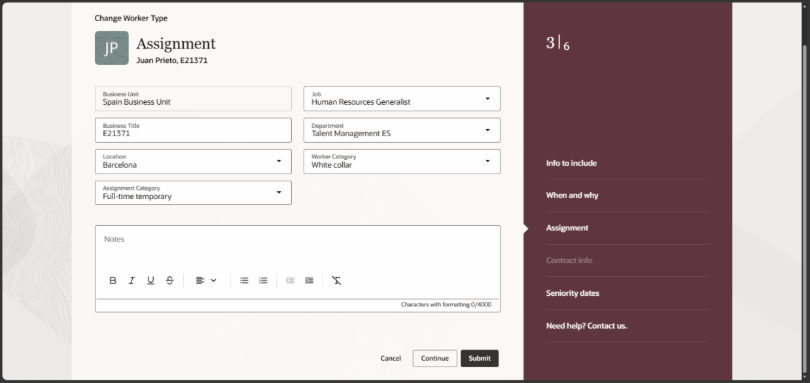
The Assignment step captures the details of the new assignment created by the conversion, including Business Unit, Job, Business Title, Department, Location, Worker Category, and Assignment Category, along with optional notes for the transaction.
Validating the Resulting Assignment
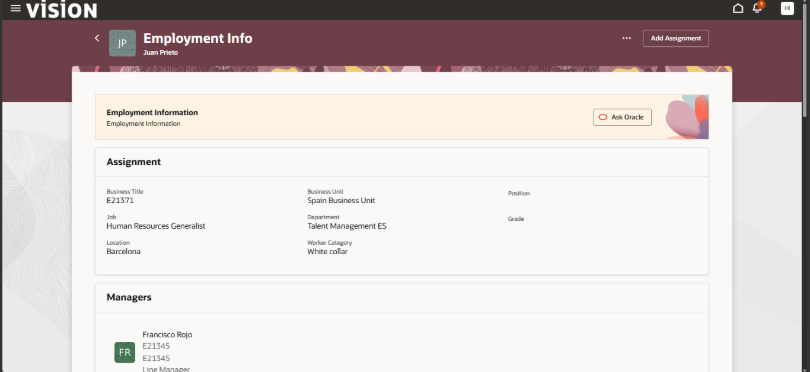
Once the transaction is submitted, the Employment Info page for the worker shows the assignment details reflecting the change, including Business Title, Business Unit, Job, Department, Location, and Worker Category, along with the reporting Manager.
Historical and Future Changes
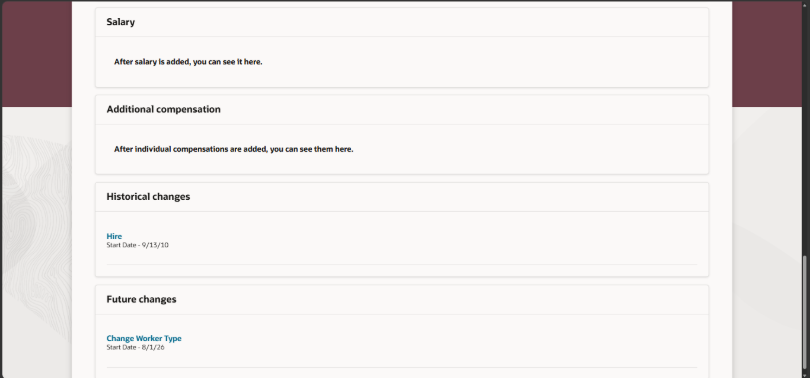
The Employment Info page also tracks Historical changes and Future changes for the worker, giving a clear audit trail of when the Change Worker Type transaction is effective.
Tips and Considerations
- To reverse an incorrect Change Worker Type transaction, cancel the newly created work relationship. The application automatically reactivates the original (launching) work relationship.
- To change the effective date, first cancel the work relationship created by the transaction, then re initiate Change Worker Type with the desired effective date.
- In the Payroll section, always provide the Tax Reporting Unit so the Tax Reporting Unit and assignment associations are created correctly on the Statutory Deduction calculation card. Missing associations can cause the worker to be omitted from the payroll run.
Access Requirements
| Aggregate Privilege | Role |
|---|---|
| ORA_PER_CHANGE_WORKER_TYPE (Change Worker Type) | Human Resource Specialist |
Conclusion
The 26B Redwood Change Worker Type process consolidates worker type conversions, such as contingent worker to employee, into a single guided, auditable transaction with built-in payroll automation and rollback support. Enabling the required profile options and following the guided steps (Info to Include, When and why, Assignment, Seniority dates) ensures a smooth conversion while preserving the worker’s continuity of records.
Simplify Worker Type Changes with Oracle HCM Cloud Services
Oracle HCM worker type conversions can involve multiple employment and payroll considerations. The Redwood Change Worker Type process simplifies this activity through a guided transaction that supports worker type conversion, assignment updates, payroll integration, and rollback.
Kovaion’s Oracle HCM Cloud Services help organizations configure, implement, integrate, and optimize Oracle Cloud HCM solutions based on their workforce and business requirements. Our expertise includes Global Human Resources, payroll integration, HCM configuration, data migration, testing, enhancements, upgrades, and ongoing support.
Looking to streamline worker type conversions and other Oracle HCM processes? Connect with Kovaion to explore how our Oracle HCM Cloud Services can support your implementation and optimization requirements.
FAQs
The Change Worker Type process is a Redwood-based guided flow that allows an HR Specialist to convert a worker from one worker type to another within a single transaction.
The process supports Contingent Worker to Employee, Employee to Contingent Worker, Nonworker to Employee, Nonworker to Contingent Worker, Employee to Nonworker, and Contingent Worker to Nonworker conversions.
Yes. Worker type changes can trigger automated payroll updates. Payroll relationships, calculation cards, assignments, and other required payroll objects are created or updated when applicable.
No. The Change Worker Type process does not allow a transfer to a new legal employer within the same transaction. Legal employer changes must be handled separately.
The required profile options are ORA_HCM_VBCS_PWA_ENABLED, which must be set to Y, and ORA_PER_EMPL_CHG_WRK_TYPE_DFLT_FRM_SRC_ENABLED, which is set to Yes by default.
Yes. To reverse an incorrect transaction, cancel the newly created work relationship. The application automatically reactivates the original launching work relationship.
The required aggregate privilege is ORA_PER_CHANGE_WORKER_TYPE (Change Worker Type), and the associated role is Human Resource Specialist.