How to Configure E-Signature on a Checklist Task in Oracle Fusion HCM
Electronic signatures are a routine requirement in onboarding, compliance, and HR checklist processes — offer letters, policy acknowledgements, tax declarations, and compliance forms all typically need a signed and time-stamped record. Oracle Fusion HCM makes this possible natively through the Checklist Template configuration, without requiring a third-party e-signature vendor.
This guide walks through the end-to-end setup: creating an e-signature integration, attaching it to a checklist task, and configuring the report path so the right signer details — name, date, address, and email — are captured on the signed document. Getting this configuration right the first time avoids rework, failed validations, and confusion during UAT.
What Is Native E-Signature in Checklist Templates?
Within Setup and Maintenance, every Checklist Template can be linked to an integration that captures a signature from the person performing a task. Oracle ships a default “Esign” integration out of the box, but in practice every implementation should create its own integration so the signature pad behaviour, validation rules, and document routing can be controlled independently of the delivered configuration.
Key Concept
| Component | Purpose |
| Checklist Template | Defines the sequence of onboarding / HR tasks assigned to an employee |
| E-Signature Integration | Controls the signature pad, validation, and how the request is submitted |
| Electronic Signature Configuration (on Task) | Links a specific task to an integration and defines the signed document |
| Report Path | BI Publisher path that determines the PDF layout and which signer fields are printed on it |
Prerequisites
- Access to the Setup and Maintenance work area
- Application Implementation Consultant or HCM Application Administrator role
- An existing Checklist Template (or the ability to create a new one)
- A BI Publisher report configured to accept signer parameters (SignDate, SignerName, SignerAddress, SignerEmail
Step-by-Step: Configuring E-Signature on a Checklist Task
The following walkthrough covers the complete configuration – from locating the Checklist Template to saving a task with electronic signature enabled.
Step 1: Open Checklist Templates
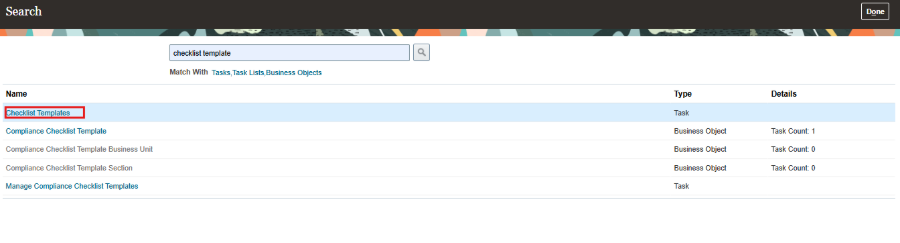
Navigate to Setup and Maintenance and search for “Checklist Template.” Click Checklist Templates from the search results to open the list of templates configured in the system.
Step 2: Open the Template and Go to Integrations
Open the Checklist Template you want to configure. In the top menu of the template, click Integrations. This is where the e-signature integration used by the template’s tasks is defined.

Step 3: Create a New Integration
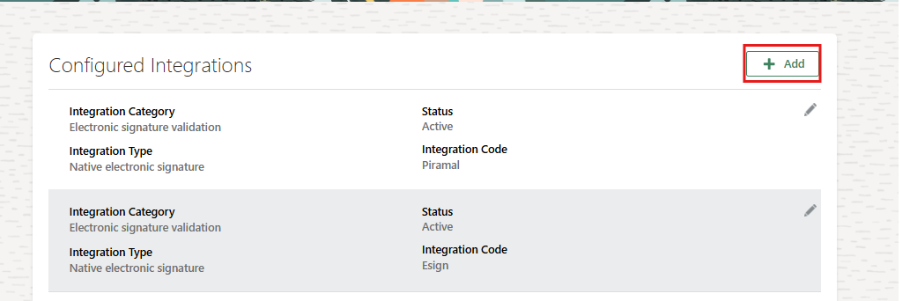
Oracle delivers a default Esign integration, but a new integration should always be created for the implementation rather than reusing the delivered one. On the Configured Integrations page, click + Add.
Step 4: Configure the Integration Details
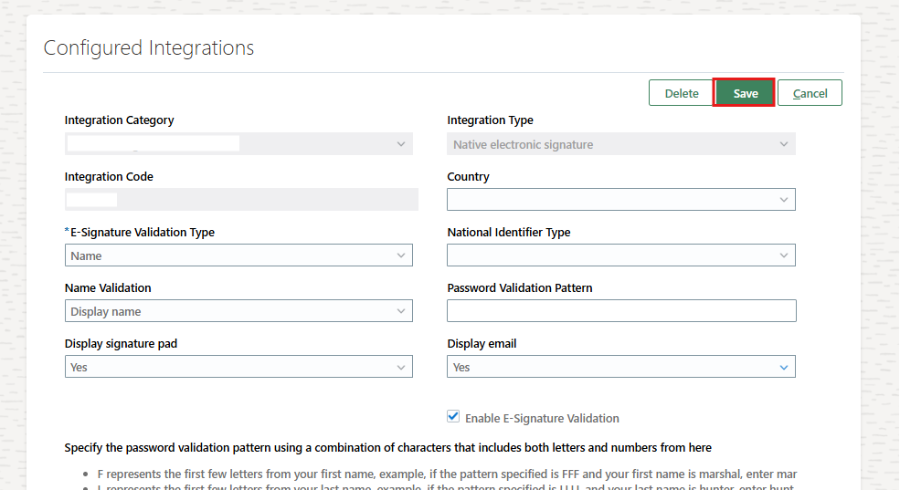
Fill in the integration details. The important fields on this page are:
- Display Signature Pad: Yes — shows the signature pad while the task is being performed
- Enable E-Signature Validation — enforces that a valid signature is captured before the task can be completed
- Save the integration once the details are filled in
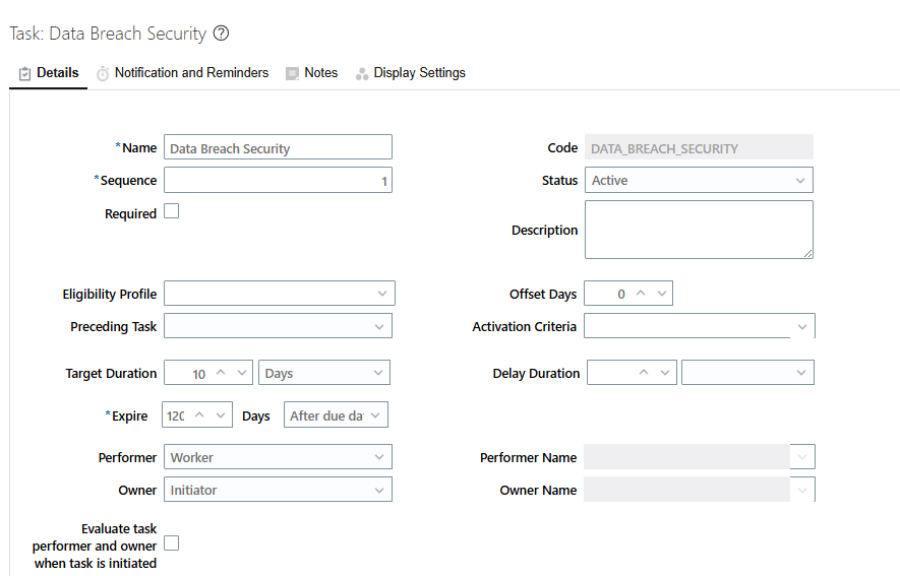
Step 5: Open the Task in the Checklist Template
Go back to Checklist Templates, open an existing checklist (or create a new task), and enter the task details as required. Scroll down to the Task section.
Step 6: Configure Electronic Signature Settings
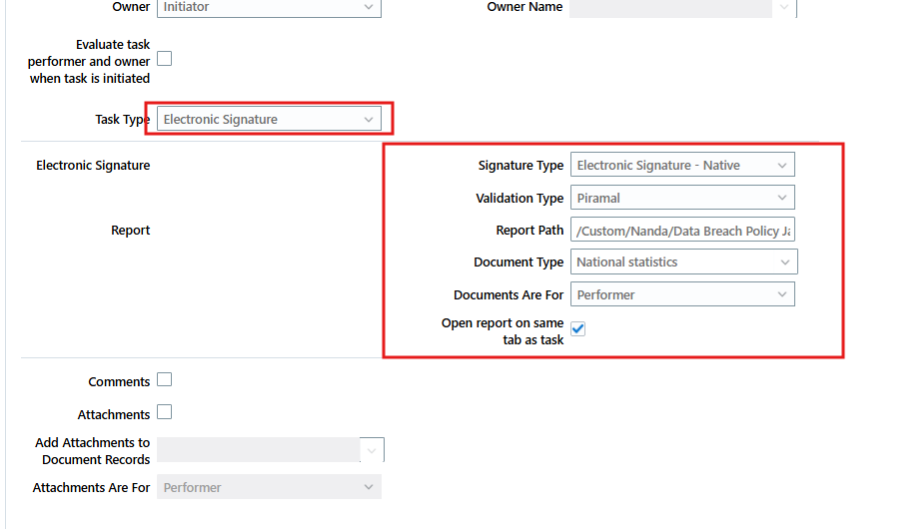
This is the most important step in the entire configuration — the Electronic Signature Configuration section on the task.
- Signature Type: Electronic Signature – Native
- Validation Type: select the Integration Code created in Step 4
- Document Type: set if the signed report needs to be stored in the system
- Documents Are For: Performer
- Open report on same tab as task: checked, if the report should open on the task tab
Configuring the Report Path
The Report Path determines two things:
- Which document opens for signature
- Which signature details are printed on the signed PDF
The example below shows a report path that captures SignDate, SignerName, SignerAddress, and SignerEmail on the output document:
Report_path?P_ALLOCATED_TASK_ID={AllocatedTaskId}&P_SIGN_DATE={SignDate}&P_SIGNER_NAME={SignerName}&P_SIGNER_ADDRESS={SignerAddress}&P_SIGNER_EMAIL={SignerEmail}&_xf=pdf
Step 7: Save and Assign
Save the task and the checklist, then assign it to the employee. The signature pad and validation will be enforced exactly as configured in the integration.
Testing the Configuration
Test Scenario
- Assign the checklist to a test employee record and complete the e-signature task end to end as the performer.
Test Steps
- Launch the assigned checklist task from the employee’s task list
- Confirm the signature pad displays before the task can be marked complete
- Complete the signature and submit the task
- Open the generated document from the task and confirm it renders
Expected Results
- The task cannot be completed without a captured signature
- The signed PDF opens using the configured Report Path
- SignDate, SignerName, SignerAddress, and SignerEmail appear correctly on the document
Validation Checks
- Confirm the Document Type record is created if document storage is enabled
- Verify the report opens on the same tab when that option is checked
- Test with a task that has Enable E-Signature Validation on to confirm the task blocks completion without a signature
Common Implementation Challenges
| Challenge | Root Cause | Resolution |
| Signature pad does not appear | Display Signature Pad not set to Yes on the integration | Reopen the integration and set Display Signature Pad to Yes, then save |
| Task completes without a signature | Enable E-Signature Validation not selected | Edit the integration and turn on E-Signature Validation |
| Signer details missing on PDF | Report Path parameters do not match the BI Publisher report’s parameter names | Align the P_SIGN_DATE, P_SIGNER_NAME, P_SIGNER_ADDRESS, and P_SIGNER_EMAIL tokens with the report’s data model |
| Report does not open on the task tab | “Open report on same tab as task” left unchecked | Enable the option on the task’s Electronic Signature Configuration |
| Wrong integration attached to a task | Delivered “Esign” integration selected instead of the custom one | Select the correct Integration Code created for the implementation under Validation Type |
Best Practices for E-Signature Checklist Configuration
Here are the key business benefits of configuring e-signatures for checklist tasks in Oracle Fusion HCM:
- Always Create a Dedicated Integration:
Avoid reusing the delivered eSign integration for production tasks. A dedicated integration keeps validation and signature pad behaviour independent per process.
- Keep Report Paths Consistent
Use a standard naming and parameter convention across all e-signature report paths so consultants can maintain them without re-discovering the parameter list each time.
- Test With Enable E-Signature Validation On
Always test the strict-validation path, not just the happy path, to confirm the task genuinely blocks completion without a captured signature.
- Document the Signer Fields Per Process
Not every process needs the same signer fields on the PDF. Maintain a short reference of which fields (SignDate, SignerName, SignerAddress, SignerEmail) are required for each document type.
- Confirm Document Storage Requirements Early
Decide upfront whether the signed report needs to be retained in the system as a Document Type record, since this affects downstream reporting and audit requirements.
Conclusion
Native e-signature on Oracle Fusion HCM checklist tasks is a straightforward configuration once the moving parts are understood: an integration that controls the signature pad and validation, and an Electronic Signature Configuration on the task that ties the integration to a report path. Getting the report path parameters right is what determines whether the signed document actually carries the signer’s name, date, address, and email — so it is worth validating this step carefully during UAT.
With the integration created once, it can be reused across multiple checklist tasks, making this a one-time setup effort that pays off across every onboarding and compliance process that follows.
Streamline Your Oracle Fusion HCM HR Workflows with Kovaion
Configuring native e-signatures in Oracle Fusion HCM is one part of building efficient, compliant, and connected HR processes. From checklist configuration and onboarding workflows to integrations, reporting, testing, and ongoing enhancements, the right implementation approach can help you get more value from your Oracle HCM investment.
Kovaion helps organizations design, configure, implement, and enhance Oracle HCM Cloud solutions around their specific HR processes and business requirements. Our expertise spans Oracle HCM Cloud configuration, onboarding, integrations, data migration, application testing, upgrades, managed services, and continuous enhancements.
Whether you are setting up native e-signature workflows, optimizing checklist processes, configuring HR business flows, or preparing for an Oracle HCM Cloud implementation or upgrade, our team can help you move from configuration requirements to a scalable solution.
Connect with Kovaion to discuss your Oracle HCM requirements and explore how our team can support your implementation, configuration, and optimization journey.
FAQs
Native e-signature allows employees or task performers to electronically sign checklist tasks directly within Oracle Fusion HCM without requiring a third-party e-signature solution.
Create an e-signature integration, enable the required signature and validation settings, and then link the integration to the task through the Electronic Signature Configuration section.
The e-signature integration controls the signature pad behavior and determines whether signature validation is required before the checklist task can be completed.
The Report Path identifies the document to be opened for signing and passes signer information such as SignDate, SignerName, SignerAddress, and SignerEmail to the BI Publisher report.
Yes. A Document Type can be configured in the Electronic Signature Configuration so that the signed document can be stored as a document record in the system.
The signature pad may not appear if Display Signature Pad is not enabled in the e-signature integration. The task should also be linked to the correct integration through the Validation Type setting.
Assign the checklist to a test employee and complete the task end to end. Verify that the signature pad appears, the task cannot be completed without a valid signature when validation is enabled, the signed PDF opens correctly, and the configured signer details appear on the document.