Fusion Setup, Reimagined: How FSCR Brings AI to Implementations
Setting up Oracle Fusion Cloud Applications is a big job. Every new project means hundreds of setup tasks across ERP, HCM, SCM, and CX. Teams must plan the scope, map tasks, load data, check the results, and keep track of every decision along the way.
Much of this work is the same from one project to the next, yet it is still done by hand. Consultants switch between setup screens, spreadsheets, and data load templates. Progress lives in people’s heads and long email threads. When the setup itself is not the hard part, keeping it fast and consistent is.
That is where FSCR comes in. The Fusion Setup and Configuration Skills Registry is a free, open set of AI skills, scripts, and sample workflows from Oracle. You connect it to an AI assistant and your Fusion environment. Then you can ask for help in plain language, such as “Help me plan my HCM setup”, and the AI guides you through the next steps.
Fresh from the Las Vegas Stage
FSCR made its debut on 26 October 2026 at Oracle AI World in Las Vegas, where Chris Leone, Oracle’s EVP of Applications Development, introduced it to a room full of phones held high. His pitch: it’s like having an expert Oracle product manager guiding your team through every setup step.
Why FSCR Matters
- Gives you a ready-made starting point for Fusion setup, so you don’t have to build plans and scripts from scratch.
- Handles common technical jobs for you, such as login, REST API calls, scheduled (ESS) jobs, setup export and import, and FBDI and HDL data loads.
- Saves your plans, exports, and decisions in a project folder, so you can stop and pick up later without losing work.
What AI Skills Bring
- Let users ask for help the way they would ask a colleague, for example, “Why is my login failing?”
- Cover every major area, with separate skill sets for ERP, HCM, SCM, and CX.
- Let you choose how much the AI does: give advice only, prepare files for you to review, or run approved actions directly.
Using FSCR: A Quick Walkthrough
Getting started with FSCR takes a little technical setup, but you only do it once. In this walkthrough, we’ll go from checking what you need to signing in to Fusion through FSCR. By the end, FSCR will be connected to your environment and ready to work.
Step 1: Check What You Need
- Fusion: Release 26D with the 16 Oct 2026 Weekly Maintenance Pack or higher.
- Python: 3.11 or 3.12 (3.10 minimum).
- AI assistant: Must read files and run Python. Tested with GPT 5.6 Terra Medium.
- Fusion access: Your own authorized login with the roles each task needs.
- IAM admin: Creates the Mobile Application with the Authorization Code Grant, callback http://127.0.0.1:8765/oauth/callback, and Fusion scopes. They then activate it and share the OAuth Client ID.
- Laptop: Git, a browser, and port 8765 free.
Step 2: Download the FSCR Repository
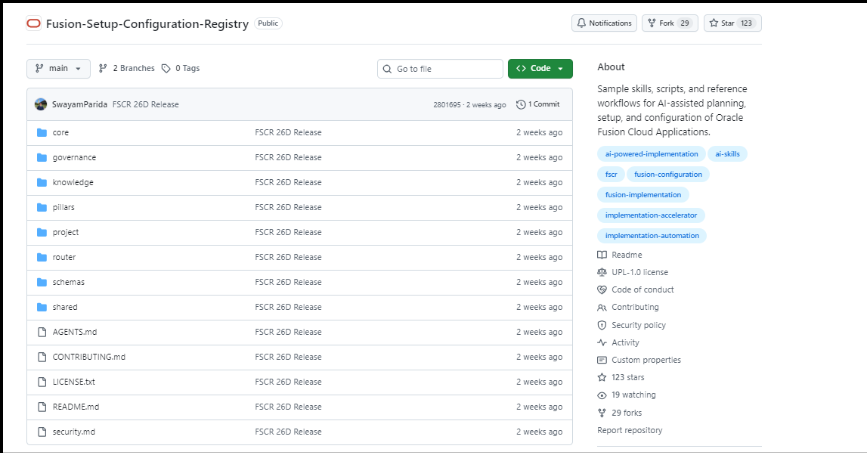
Download (clone) the FSCR repository from GitHub to your machine. The project folder inside it becomes your local workspace for this implementation.
Step 3: Give FSCR Permission to Connect to Fusion
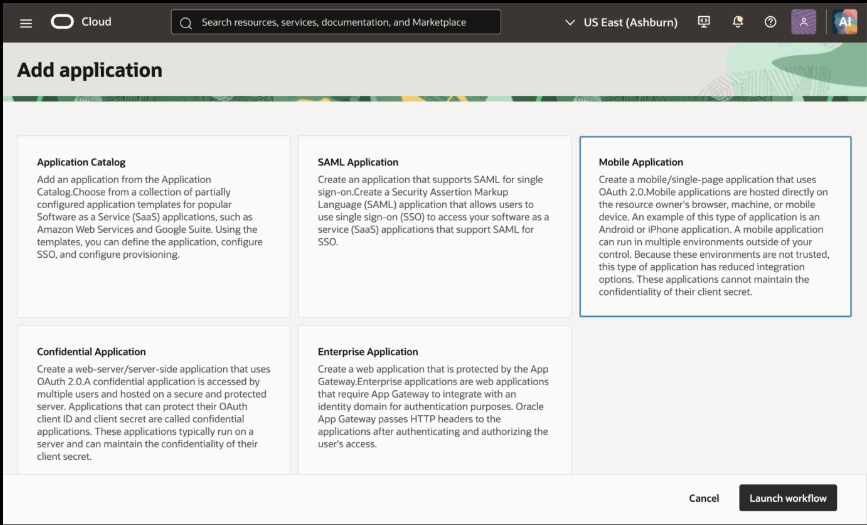
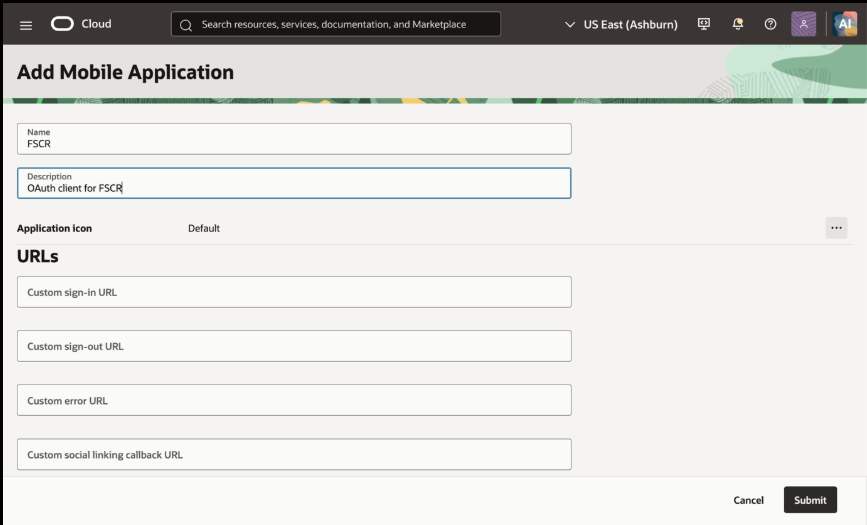
In Fusion’s security area (the Identity Domain), create a Mobile Application. This is like issuing FSCR an access pass. Fig 2 shows choosing Mobile Application, and Fig 3 shows naming it “FSCR”.
Good to know: No phone or mobile app is involved. “Mobile Application” is just Oracle’s name for an app that runs on a user’s own device, such as your laptop. FSCR runs on your laptop, so it uses this type, with a secure browser login instead of a stored password. You type your requests into an AI assistant on your computer (one that can read files and run Python), and FSCR connects to Fusion from there.
Add application page with Mobile Application selected
Step 4: Tell FSCR Where Your Fusion System Is
Fill in a small settings file (fusionEnv.properties) with your Fusion address and the access pass details from Step 3.
Step 5: Log In Once
In your AI assistant, ask it to log in. Your normal web browser opens, you sign in to Fusion as usual, and FSCR is now connected.
Note: FSCR is sample and reference material. It is not a Fusion Cloud product feature, so Oracle product support does not cover it.
Tip: Always review the plans, requests, and changes FSCR creates before you run them in your environment, especially in production.
From Plan to Go-Live: What FSCR Does Next
Once FSCR is connected, the real value starts. You describe your goal in plain words, and FSCR’s skills take you through each stage of the implementation.
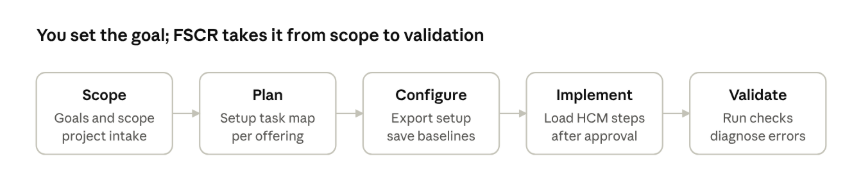
Fig 4: The FSCR implementation journey
| Stage | What you ask | What FSCR does |
|---|---|---|
| Scope | “Start a new Core HR implementation” | Captures your goals and scope |
| Plan | “Build my HCM task plan” | Maps the setup tasks for your HCM offerings |
| Configure | “Export my current HCM setup as a baseline” | Exports setup data and saves baselines to compare against |
| Implement | “Load my Core HR setup instructions and implement them” | Reads your HCM setup instructions and applies them in Fusion, only after you approve |
| Validate | “Check what failed” | Runs validation checks and diagnostics |
Built-in safety: Nothing is loaded into Fusion until your project’s Run Book is marked active. You always get a chance to review the plan before any change goes in.
Business Value at a Glance
- Faster implementations, because the AI plans and prepares much of the routine setup work.
- More consistent setups, with shared best practices, templates, and checklists built in.
- Less manual effort on data loads, exports, and validation.
- Free to use under the open Universal Permissive License (UPL).
Key Takeaway
FSCR turns Fusion setup into a conversation. You state the goal, the AI plans and prepares the work, and you stay in control of every change. To try it, clone the FSCR repository and start with “Introduce me to FSCR.”