Upgrading Visual Builder Studio (VBS) Workspace After a Quarterly Fusion Release
Every quarterly Oracle Fusion release brings new capabilities and enhancements across Oracle Fusion Cloud applications and Oracle Visual Builder Studio (VBS). However, newly released functionality does not always appear automatically in an existing VBS workspace. In some cases, the workspace must first be migrated to the updated source metadata format before the new capabilities become available.
One example is the “Validate Field Values” feature introduced for Express Mode with the 24B update, which delivered new HCM Redwood pages. Some customers found that even after the quarterly release went live, the button used to invoke this feature was not visible in their existing workspace. This can happen when the workspace is still using an earlier metadata format and has not yet been migrated to support the updated functionality.
Understanding this distinction is important when working with Oracle Visual Builder Studio and Oracle Fusion HCM. A missing feature does not necessarily indicate a product issue or failed release deployment. The workspace may simply require a one-time migration to align its metadata with the latest Fusion release. Once the migration is completed successfully, the newly released functionality can become available within the appropriate VBS experience.
In this post, we’ll explain why newly released features may not immediately appear in an existing VBS workspace and walk through the exact steps to upgrade the workspace. We’ll also cover how to handle uncommitted changes, access the migration settings, confirm that the migration completed successfully, and verify the “Validate Field Values” feature in Express Mode.
Key Concept
Visual Builder Studio workspaces are built on a metadata layer that defines pages, fields, and behaviors. When Oracle ships a quarterly release, new features often depend on an updated source metadata format. Your existing workspace, however, keeps running on whichever metadata format it was created with until you explicitly migrate it.
That’s exactly what happened with the 24B release: the underlying HCM Redwood pages needed to support “Validate Field Values” in Express Mode, but workspaces created before the update weren’t automatically converted. The fix isn’t a bug patch — it’s a one-time workspace migration that brings your metadata format in line with the new release, after which the new button and functionality appear as intended.
Step-by-Step Process to Migrate Your VBS Workspace
Here’s the process to follow to upgrade your workspace and enable the new feature:
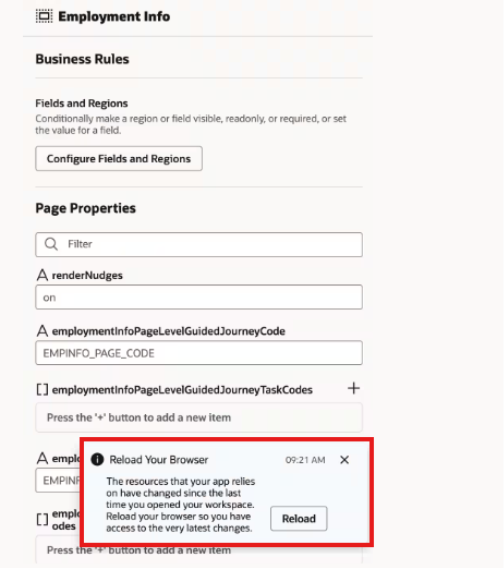
- Reload your browser when prompted. After a quarterly release, VBS will typically ask you to reload the page.
- Open the migration popup. A popup will appear indicating that a migration to a new source metadata format is available. Click “Open Settings” to proceed.
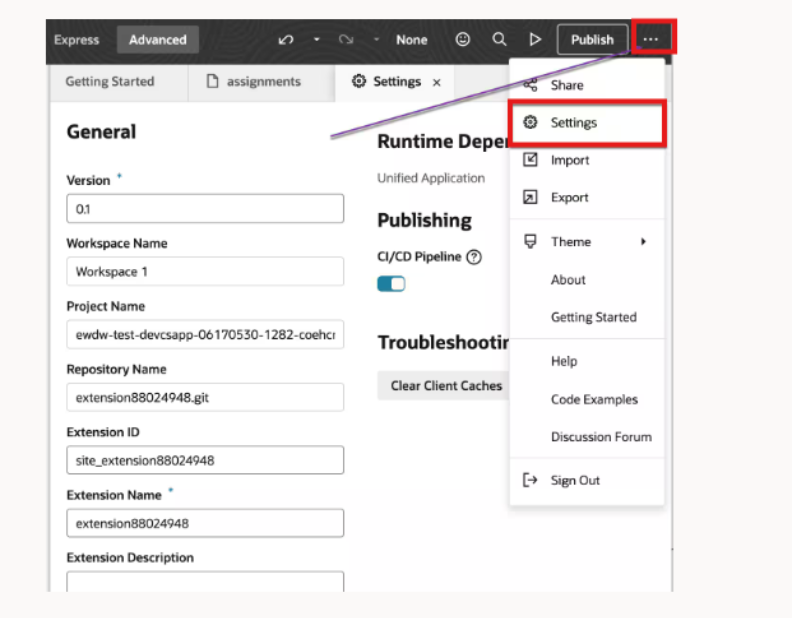
- Navigate manually if needed. If the popup disappears before you can click it, go to Advanced Mode → Settings to reach the same Settings page.
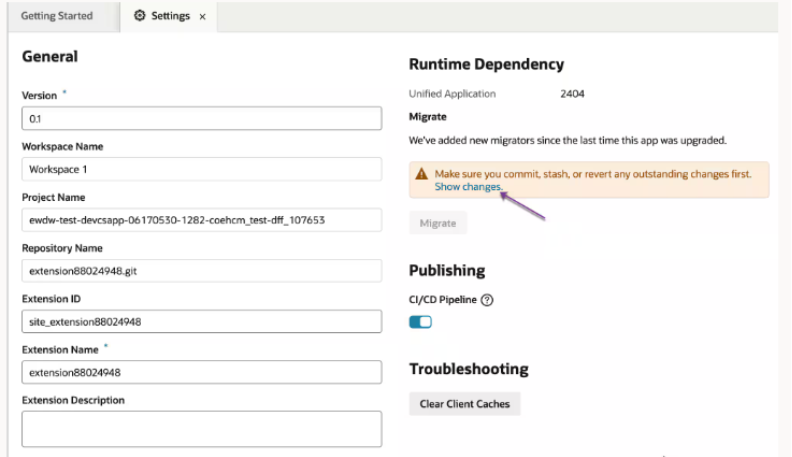
- Resolve uncommitted changes. If your workspace has uncommitted changes, you’ll see a message requiring you to commit or revert them. You cannot migrate until this is resolved.
- Migrate the workspace. Once your changes are committed or reverted, trigger the migration from the Settings page.
- Confirm completion. VBS will display a confirmation message once the migration finishes successfully.
- Return to Express Mode. Head back to Express Mode, where the “Validate Field Values” feature will now be available.
Visual Builder Studio Workspace Migration Examples and Best Practices
Before the upgrade, the Express Mode UI shows no way to invoke “Validate Field Values”:
The migration popup, or the equivalent path through Advanced Mode → Settings, is where the process begins:
If you have uncommitted changes, VBS will flag them before allowing the migration to proceed:
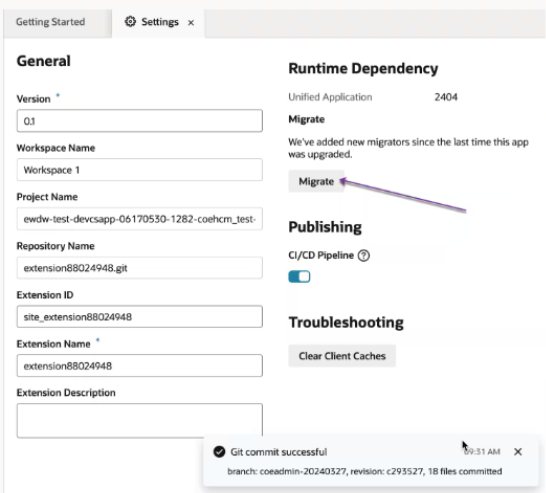
With changes committed or reverted, the migration itself can be triggered from Settings:
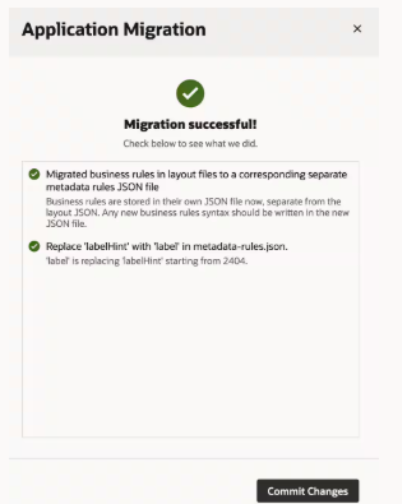
A confirmation message lets you know the migration completed successfully:
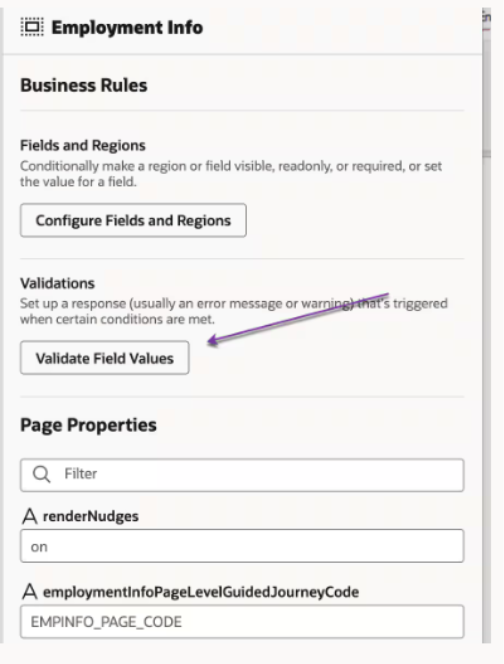
Back in Express Mode, the “Validate Field Values” feature is now visible and ready to use:
As a best practice, check your Settings page for available migrations right after every quarterly release, rather than waiting until a missing feature is reported by end users.
Common Mistakes to Avoid When Upgrading Your VBS Workspace
Upgrading a Visual Builder Studio (VBS) workspace after a quarterly Fusion release is a straightforward process, but a few configuration and process-related mistakes can prevent newly released features from appearing as expected. Understanding these common issues can help ensure that the workspace migration is completed successfully and that the updated functionality is available in Express Mode.
1. Assuming a Missing Feature Is a Bug
When a newly released feature is not visible in Express Mode, it is easy to assume that the feature has not been delivered or that the application has a defect. However, some new capabilities depend on an updated source metadata format. If the existing workspace was created before the quarterly release, it may require a workspace migration before the new functionality becomes available.
Before raising an issue, check the workspace Settings page to determine whether a migration to a new source metadata format is available. Completing the required migration can bring the workspace metadata in line with the current Fusion release and make the newly introduced functionality available.
2. Dismissing the Migration Popup Without Taking Action
After a quarterly release, VBS may display a popup indicating that a migration to a new source metadata format is available. Dismissing this notification without completing the migration can make it unclear how to access the migration option later.
If the popup is no longer visible, you can manually navigate to Advanced Mode → Settings to access the same Settings page. From there, check whether a workspace migration is available and proceed with the migration when the workspace is ready.
3. Attempting to Migrate With Uncommitted Changes
One common mistake is attempting to migrate the workspace while changes are still uncommitted. VBS requires these changes to be resolved before the migration can proceed. If uncommitted changes are present, the workspace displays a message requiring you to either commit or revert them.
Before starting the migration, review the workspace for any pending changes. Commit the changes that need to be retained or revert changes that are no longer required. Once the workspace changes have been resolved, return to the Settings page and trigger the migration.
4. Skipping the Browser Reload Step
After a quarterly Fusion release, VBS may prompt you to reload the browser. Skipping this step can prevent the updated workspace experience or migration notification from appearing as expected.
When VBS prompts you to reload the page after the release, complete the browser reload before checking for the migration option. If the migration popup still does not appear, access the Settings page manually through Advanced Mode → Settings.
5. Not Confirming That the Migration Completed Successfully
Another mistake is returning to Express Mode immediately after initiating the migration without confirming that the process has completed successfully. The updated feature may not become available until the workspace migration finishes.
After triggering the migration from the Settings page, wait for VBS to display the confirmation message indicating that the migration has completed successfully. Once the migration is confirmed, return to Express Mode and check whether the Validate Field Values feature is now available.
6. Assuming the Feature Will Appear Without Migrating the Workspace
A quarterly Fusion release updates the available capabilities, but an existing VBS workspace may continue using the source metadata format with which it was created until the required migration is completed. Simply reloading the workspace without completing an available migration may therefore not be sufficient.
If a feature such as Validate Field Values is missing after the release, verify the workspace metadata migration status and complete the migration when prompted. This helps ensure that the workspace is aligned with the updated release and can use the newly available functionality.
7. Not Checking the Workspace After Every Quarterly Release
Waiting until an end user reports that a newly released feature is missing can delay adoption of new Fusion capabilities. Instead, make workspace migration checks part of the post-release process.
After each quarterly Fusion release, reload the VBS workspace when prompted and check the Settings page for an available source metadata migration. Resolve any uncommitted changes, complete the migration, and verify the updated functionality in Express Mode. This proactive approach helps keep the workspace aligned with the latest release.
Conclusion
Keeping your Visual Builder Studio workspace up to date after each quarterly Fusion release is essential to accessing new functionality like the “Validate Field Values” feature in Express Mode. The key takeaway is simple: when a new feature seems to be missing, check the Settings page for an available metadata migration before assuming something is broken. By reloading your browser, resolving uncommitted changes, and completing the migration, you ensure your workspace stays aligned with the latest release — and that new features show up exactly where you expect them.
Optimize Your Oracle HCM Experience with Visual Builder Studio
Keeping your Visual Builder Studio workspace aligned with the latest Oracle Fusion quarterly release is essential for accessing new Redwood capabilities and maintaining an effective user experience. Proper workspace migration, configuration, and validation can help organizations adopt new features smoothly while minimizing disruption to existing HCM processes.
Kovaion’s Oracle HCM Cloud Services help organizations configure, implement, integrate, customize, and optimize Oracle Cloud HCM solutions based on their business requirements. Our expertise covers Oracle HCM configuration, Redwood experiences, Visual Builder Studio, integrations, data migration, testing, enhancements, upgrades, and ongoing support.
Looking to make the most of your Oracle Fusion HCM capabilities? Connect with Kovaion to explore how our Oracle HCM Cloud Services can help you manage HCM enhancements, Redwood experiences, and quarterly release updates effectively.
FAQs
Some newly released features depend on an updated source metadata format. An existing Visual Builder Studio (VBS) workspace may continue using the metadata format with which it was created until the workspace is migrated to the updated format.
Workspace migration updates the source metadata format so that the existing VBS workspace can support functionality introduced in the latest Oracle Fusion quarterly release. This can make newly released features available in experiences such as Express Mode.
If VBS displays a migration popup, click Open Settings to access the migration options. If the popup is dismissed or does not appear, you can manually navigate to Advanced Mode → Settings and check for an available workspace migration.
No. If the workspace contains uncommitted changes, you must first resolve them by either committing or reverting the changes. The migration can then be initiated from the Settings page.
You do not need to wait for the popup to appear again. Navigate to Advanced Mode → Settings to access the Settings page and check whether a migration to a new source metadata format is available.
After initiating the migration, VBS displays a confirmation message when the migration completes successfully. Once the migration is confirmed, return to Express Mode and verify that the expected functionality, such as Validate Field Values, is available.
Validate Field Values is a feature available in Express Mode for supported HCM Redwood pages. In the context of the Oracle Fusion 24B update, the feature required the relevant VBS workspace to be migrated to the updated source metadata format before it became available.
It is good practice to check the VBS workspace Settings page after each Oracle Fusion quarterly release. This helps identify available metadata migrations early and ensures the workspace can adopt newly released functionality when required.