Vacation Period Delegation in BPM Worklist – Covering a Coworker’s Approvals During an Absence

Overview
Approval workflows do not pause because someone is on leave. When an approver goes on vacation without arranging cover, transactions sit in the worklist untouched – promotions stall, absence requests time out, and someone eventually raises a ticket asking why nothing has moved.
Oracle Fusion gives every user a way to solve this themselves. Through the BPM Worklist Preferences page, a user can enable a vacation period, set the exact dates they are away, and nominate a coworker to handle their workflow tasks while they are out. No administrator involvement, no permanent role change.
This article walks through the full configuration end to end, using a worked example where a user delegates their tasks to a coworker for a three-day absence. It also covers the one distinction that matters most in this setup: the difference between delegating and reassigning.
Key Concept: Delegate Versus Reassign
The Vacation Period page offers two actions, and choosing the wrong one has real consequences for accountability. Oracle defines them clearly.
| Action | What actually happens |
|---|---|
| Delegate to | Someone else addresses the task on your behalf. The task remains assigned to you, so ownership and the audit trail stay with the original approver. |
| Reassign to | The task is passed on completely to the other person. Ownership transfers, and it does not come back to you. |
| Take no action | Available on My Rules only. Used to build exception rules, so a specific category of task stays with you while everything else is covered. |
For temporary absence cover, delegate is almost always the correct choice. The approver is coming back, the accountability should not move permanently, and the record should still show who the task belonged to.
Rule precedence: Rules defined under My Rules take precedence over the Vacation Period setting. Oracle’s own example – delegate everything to an assistant during vacation, but reassign hiring-related tasks to a manager – shows how the two layers combine.
Business benefit: Approvals keep moving during planned absence, without provisioning changes, without a permanent approver switch, and without an administrator in the loop.
Steps to Enable and Configure
The worked example below sets up a delegation from 19 July 2026 to 21 July 2026, with tasks going to a coworker while the original approver is away.
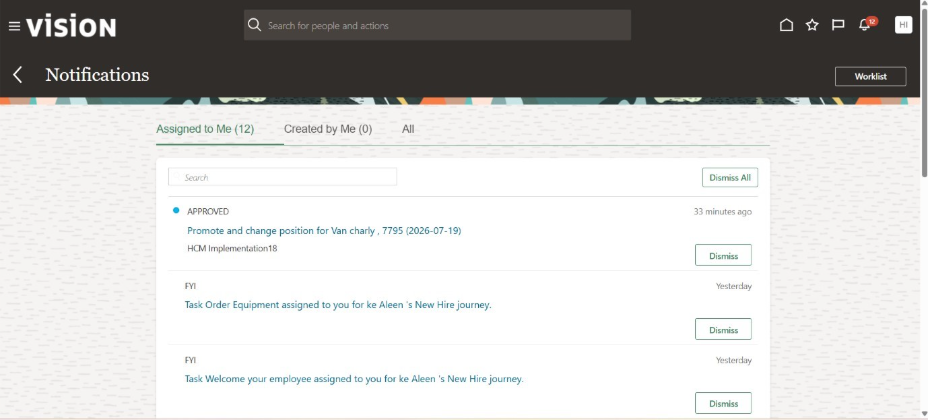
Step 1: Open the Worklist from the Notifications panel
From the Oracle Fusion home dashboard, click the Notifications bell icon in the global header to open the quick-access panel. Click the Worklist button to launch the full workflow management interface. Oracle’s documented path is Notifications, then Show All, then Worklist.
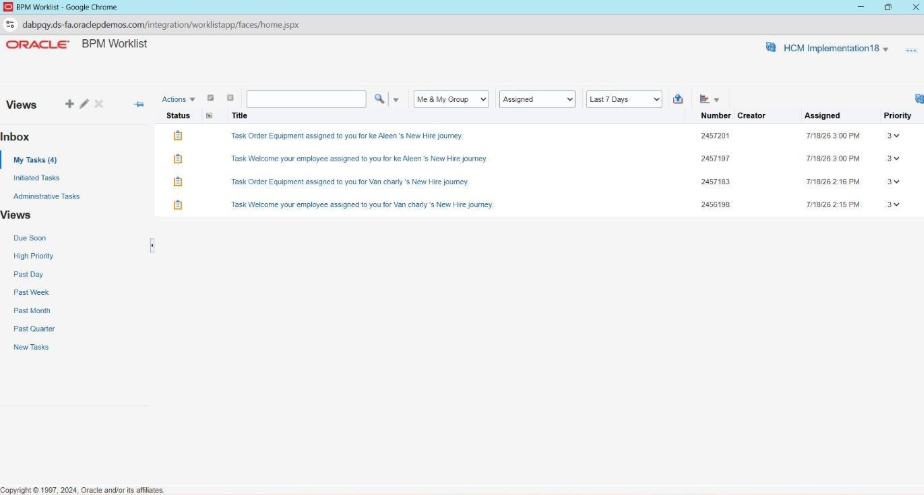
Step 2: Open Preferences in the BPM Worklist
Once the BPM Worklist opens, go to the top-right corner next to the user profile display. Click the dropdown arrow beside the username and select Preferences to reach the user configuration rules.
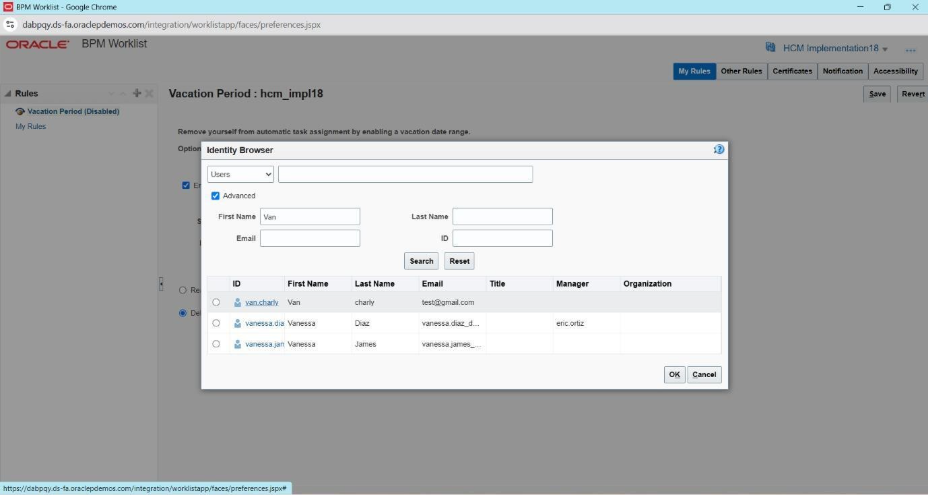
Step 3: Enable the vacation period and search for the delegate
On the My Rules tab, select the Vacation Period option in the Rules pane. Select the Enable vacation period checkbox, then click the search icon next to the Delegate to field to open the Identity Browser. Enter the coworker’s first name in the search filters to find matching internal user records.
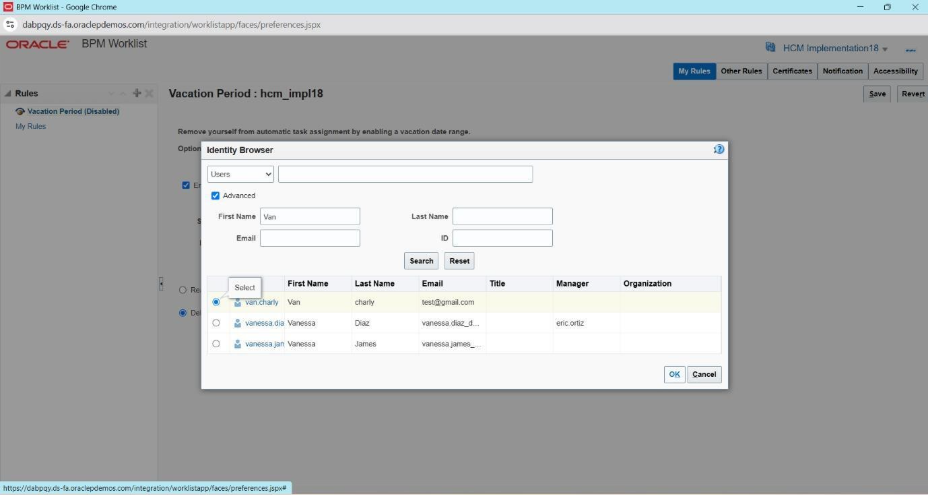
Step 4: Select the target coworker
From the search results, select the radio button next to the correct user profile. Confirm you have the right person by checking the user ID and email columns, not just the display name – similar names are common in large enterprises. Click OK to confirm the assignment.
Step 5: Define the absence dates and confirm the action type
Set the coverage boundaries by entering the Start Date and End Date using the calendar pickers. In this example, the period runs from 19 July 2026 to 21 July 2026. Confirm that the Delegate to radio button remains selected, so task ownership is temporarily shared with the nominated user rather than transferred outright.
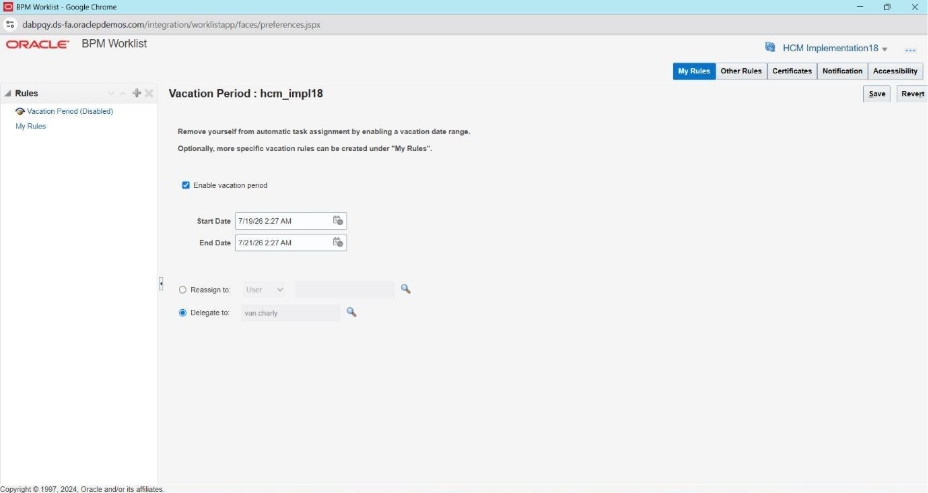
Step 6: Save and verify
Click Save in the upper-right area of the Preferences window. A confirmation dialog appears stating that the rule was saved successfully. Click OK to finish. The left Rules pane updates to show Vacation Period (Enabled), which is the quickest visual confirmation that the rule is live.
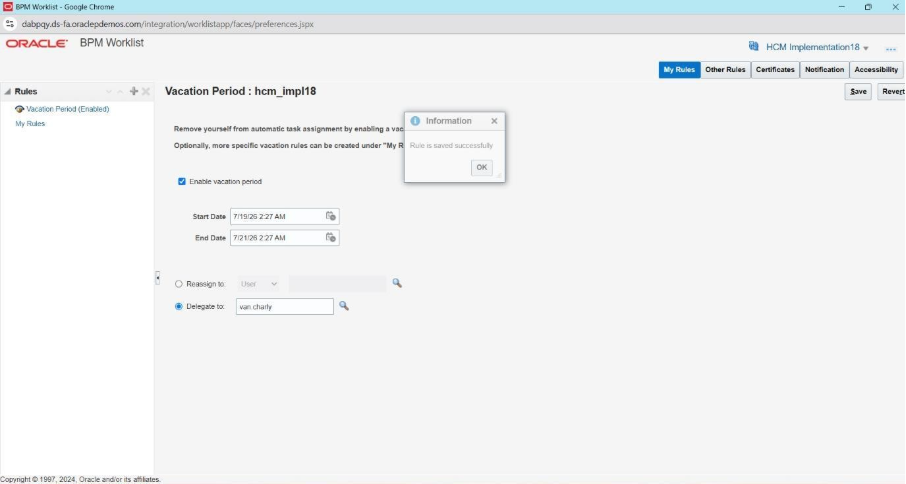
Tips and Considerations
- The status label is your verification. The Rules pane shows Vacation Period (Disabled) or (Enabled). If it still reads Disabled after saving, the Enable vacation period checkbox was not selected, regardless of what dates were entered.
- Dates carry a time component. The start and end values include a timestamp, not just a date. An end date set to the morning of the return day will stop covering tasks earlier than the user expects.
- The rule covers all tasks by default. The Vacation Period setting applies across every workflow task assigned to the user. To treat one category differently, build a separate rule under My Rules with a task-type condition.
- My Rules override the vacation period. Where both apply, the My Rules entry wins. This is the documented mechanism for delegating most work while routing specific approvals elsewhere.
- Multiple rules can be prioritized. If several rules exist under My Rules, use the Increase Rule Priority and Decrease Rule Priority icons in the Rules toolbar to control which one takes effect first.
- Administrators can set rules for others. A user with the appropriate administrative privileges can configure vacation rules on behalf of another user – useful when someone leaves unexpectedly and never set up cover.
Access Requirements
| Who | What they can do |
|---|---|
| Any workflow task assignee | Define a vacation period and My Rules entries for their own tasks through Notifications, then Worklist, then Preferences. No additional privilege is needed. |
| BPM Worklist administrator | Configure vacation and delegation rules on behalf of other users, and view rules that others have set. |
| Nominated delegate | Receives and acts on the delegated tasks. Needs an active user account so the record appears in the Identity Browser. |
Best Practices for Enterprise Implementation
1. Make Delegate the Standard, Reassign the Exception
Publish a one-line rule in your approvals policy: planned absence uses Delegate, permanent handover uses Reassign. Most incorrect setups come from users treating the two as interchangeable. Delegation keeps the approval history attached to the person who actually owns the decision, which is what auditors expect to see.
2. Choose a Delegate With Equivalent Authority
Delegate to someone with comparable approval authority and familiarity with the same transactions. Delegation moves the work but not the judgement – handing a compensation approval to someone who has never seen one produces either a rubber stamp or a stalled task.
3. Build It Into the Leave Process, Not the Leave Aftermath
Add a checkbox to your absence request process: has approval cover been arranged? Setting the rule two days before departure takes ninety seconds. Discovering there was no cover in week two of someone’s leave costs far more, and always lands on the support team.
4. Monitor Who Has Vacation Rules Enabled
Vacation rules are self-service and invisible to everyone else, which makes them easy to leave on indefinitely. Review who currently has an active vacation period as part of your periodic controls, and confirm the end dates are real rather than open-ended.
5. Test the Rule With a Live Transaction
Before relying on it, have someone trigger a real approval into the user’s worklist during the vacation window and confirm the delegate receives it. A saved rule and a working rule are not the same thing, and the gap only shows up under an actual transaction.
Common Mistakes to Avoid
Vacation delegation in Oracle BPM Worklist is straightforward to configure, but a few configuration mistakes can prevent the rule from working as intended. The following are the common areas to check when setting up or reviewing a vacation period.
1. Entering the Dates but Forgetting to Enable the Vacation Period
Entering the Start Date and End Date alone does not activate the vacation rule. The Enable vacation period checkbox must also be selected on the Vacation Period page. After saving the rule, verify that the Rules pane displays Vacation Period (Enabled). If the status remains Disabled, the vacation coverage is not active even if the dates have been entered correctly. Oracle’s documented configuration requires the vacation period to be enabled before the dates and delegation action take effect. :contentReference[oaicite:1]{index=1}
2. Selecting Reassign Instead of Delegate for a Temporary Absence
Delegate and Reassign are not interchangeable. Oracle defines Delegate as having another person address the task on your behalf while the task remains assigned to you. Reassign, on the other hand, passes the task completely to another person. For a temporary vacation period where the original approver is expected to resume responsibility, selecting Reassign can change the ownership of the task unnecessarily. Choose the action based on whether the task is being covered temporarily or transferred to another approver.
3. Selecting the Wrong User from the Identity Browser
When choosing a delegate, avoid relying only on the displayed name in the Identity Browser. Large organizations can have multiple users with similar or identical names. Before clicking OK, verify the available user details, such as the user ID and email address, to ensure that the task is being delegated to the intended coworker.
Oracle also provides options to restrict which users can be selected for workflow delegation through security-related configuration. Where such restrictions are enabled, they can also apply when users define vacation rules.
4. Setting an End Date That Expires Before the Approver Returns
The vacation rule is effective only for the period configured on the Vacation Period page. Setting an end date that is earlier than the actual return date can leave workflow tasks without the intended vacation coverage. When configuring the rule, verify both the Start Date and End Date and consider the time component associated with the dates when determining the coverage window.
5. Assuming the Vacation Rule Automatically Overrides Other My Rules
The Vacation Period setting does not necessarily take precedence over every other rule. Oracle documents that rules defined under My Rules take precedence over the Vacation Period setting. For example, you can delegate general approval tasks to an assistant during vacation while using a separate My Rule to route a specific task type to another person.
If a particular workflow task is not following the expected vacation delegation, review the user’s My Rules entries, their conditions, and their priority. Oracle allows multiple My Rules to be prioritized using the Increase Rule Priority and Decrease Rule Priority options.
6. Leaving the Vacation Period Enabled After Returning
A vacation period should be reviewed after the user returns to work. Leaving an active vacation rule in place can cause subsequent workflow tasks to continue following the configured delegation or reassignment behavior during its effective period. Include vacation rule review as part of the return-from-leave process and confirm that the rule is no longer active when coverage is no longer required.
7. Assuming Every Workflow Task Will Follow the Same Delegation Behavior
Before relying on vacation delegation for critical approvals, review whether specific My Rules or task conditions apply to the user’s workflow tasks. Oracle allows rules to target all tasks or tasks matching specific conditions, and higher-priority rules can take precedence over more general rules.
For organizations that need administrative visibility, Oracle also provides the Employee Vacation and Delegation Rules Report, which can be used to review the vacation and delegation rules configured by employees, including the person designated to receive delegated tasks.
Conclusion
Vacation delegation is a small piece of configuration with a disproportionate operational impact. It takes under two minutes to set up, requires no administrator, and prevents the class of problem that surfaces as an escalation two weeks later – approvals sitting untouched with no one aware.
The implementation effort is not in the clicks. It is in getting the organization to use Delegate rather than Reassign, to nominate people who can genuinely make the decision, and to set the rule before leave starts instead of after the backlog builds. Cover those three points in your approvals policy, and this becomes routine rather than reactive.
Streamline Oracle HCM Workflow and Approval Management
Effective approval management is essential for keeping HR and business processes moving, even when approvers are unavailable. Properly configured vacation delegation in Oracle BPM Worklist can help organizations maintain workflow continuity, manage temporary approval coverage, and reduce delays caused by unattended tasks.
Kovaion’s Oracle HCM Cloud Services help organizations configure, implement, integrate, and optimize Oracle Cloud HCM solutions based on their business requirements. Our expertise includes Oracle HCM configuration, workflow and approval processes, integrations, data migration, testing, enhancements, upgrades, and ongoing support.
Looking to optimize your Oracle HCM approval workflows? Connect with Kovaion to explore how our Oracle HCM Cloud Services can help improve workflow configuration, approval continuity, and overall HCM operations.
FAQs
Vacation Period Delegation in Oracle BPM Worklist allows users to configure a vacation period and delegate workflow tasks to another user while they are away. This helps ensure approval tasks continue to be addressed during a planned absence.
With Delegate, another user can address the task on behalf of the original approver while the task remains assigned to the original user. With Reassign, the task is transferred completely to another user. Delegate is generally used for temporary absence, while Reassign is used when ownership needs to be transferred.
Open Notifications > Show All > Worklist, go to Preferences, select My Rules, and open Vacation Period. Select the Enable vacation period checkbox, choose the delegate, specify the Start Date and End Date, select the required action, and save the rule.
Yes. The Delegate to option allows you to search for and select a specific user through the Identity Browser. Before confirming the selection, verify the user’s details to ensure the tasks are delegated to the intended coworker.
Yes. Rules configured under My Rules take precedence over the Vacation Period setting. This allows users to create exceptions, such as delegating general workflow tasks while routing a specific type of approval to another user.
Entering the Start Date and End Date does not activate the vacation rule by itself. The Enable vacation period checkbox must be selected. After saving, verify that the Rules pane displays Vacation Period (Enabled).
Yes. A user with the appropriate administrative privileges can configure vacation and delegation rules on behalf of other users. This can be useful when approval coverage needs to be arranged for a user who is unavailable to configure their own vacation rule.