Oracle Fusion HCM 26B: Viewing the Include for Automatic Conversion Field on Redwood Employment Pages
In Oracle Fusion HCM, pending workers can be converted automatically through the Convert Pending Workers Automatically scheduled process. The Include for Automatic Conversion field determines whether a pending worker is eligible to be picked up by this process, making it an important part of the pending worker conversion flow.
With the Oracle Fusion HCM 26B release, this field is now available for display on the Redwood Employment Info and View Employment Details pages. This provides HR specialists with direct visibility into a pending worker’s conversion readiness without having to navigate to the Pending Workers dashboard to check the value.
This blog explains what the Include for Automatic Conversion field controls, how it relates to the automatic pending worker conversion process, and how to make the field visible on the Redwood employment pages using Business Rules in Visual Builder Studio. It also covers how the field can be managed at scale using HCM Data Loader.
A quick word on pending workers
If you spend any time in Oracle Fusion HCM, the concept of a pending worker is familiar. A pending worker is a person record for someone who is on their way into the organization but has not formally started yet. Think of a new hire who has accepted an offer and whose details are already in the system, but whose actual employment has not begun. They remain holding until they are converted into a full employee or a contingent worker, usually on or around their start date.
That conversion can happen in two ways. You can do it manually, one person at a time, or you can let the system handle it in bulk through a scheduled process. The bulk route is where the Include for Automatic Conversion field comes in, and that field is exactly what the 26B release makes easier to see. Before getting to what changed, it helps to understand what this field actually controls.
What the Include for Automatic Conversion field really controls
When you want to convert pending workers without touching each one individually, you run a scheduled process called Convert Pending Workers Automatically. This process does not blindly convert everyone in a pending state. It only picks up the records where the Include for Automatic Conversion flag is set to Yes. In other words, the flag is a switch on each pending worker record that determines whether the automatic process is allowed to act on it.
So, a pending worker with the flag set to Yes will be picked up and converted the next time the process runs and matches the conversion criteria. A pending worker with the flag set to No stays in the pending state, and someone has to convert them manually. This distinction is useful in practice. Not every pending worker should be converted on the same schedule, and this flag is how you keep the ones that need special handling out of the automated run.
You set this value when you first create the pending worker, and you can change it later by editing the record or by updating several records together from the Pending Workers dashboard. It can also be set in bulk when you load pending workers through HCM Data Loader, which is common during data migration and mass onboarding.
The link to the scheduled process
The Convert Pending Workers Automatically process can be filtered by conversion date, proposed worker type, country, legal employer, business unit, department, and location. But underneath all of those filtering options, the first thing it checks is still the Include for Automatic Conversion flag. If that flag is No, none of the other criteria matter because the record is simply not a candidate for automatic conversion.
The small but real problem this release solves
Here is the situation an HR specialist could run into before this enhancement. You are looking at a pending worker on the Redwood Employment Info page, and you want to know one simple thing: is this person set up to be picked up by the automatic conversion process or not? That single piece of information, the value of the Include for Automatic Conversion flag, was not shown on that page. To check it, you had to navigate to another screen, usually the Pending Workers dashboard, just to read one field.
It sounds minor, and on any single record it is. But HR specialists perform this kind of check frequently, and every move to another page to confirm one flag adds friction and slows things down. When you are working through a batch of new hires and trying to confirm who is ready to convert and who is being held back, that friction adds up.
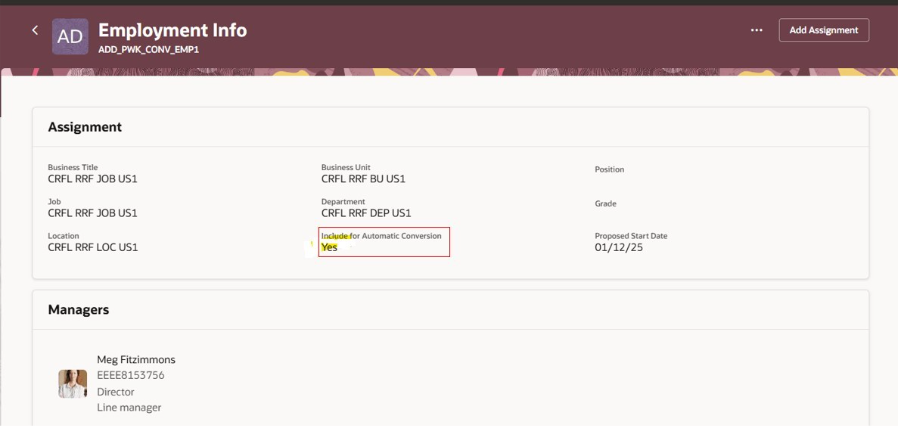
The 26B release closes that gap. The Include for Automatic Conversion field now appears directly on the Redwood Employment Info page and the View Employment Details page. HR specialists can confirm a pending worker’s conversion readiness in the same place they are already looking, without navigating to another page. This provides quicker visibility with fewer clicks when processing worker type conversions.
How to enable and configure it
This is the part worth being precise about because the field does not simply appear on its own. It is delivered as a field that you can choose to display, and you make it visible through Business Rules in Visual Builder Studio. If you have configured Redwood pages before, this pattern will feel familiar because showing or hiding a field on a Redwood page is part of the Visual Builder Studio configuration process.
The overall flow
- Open the Redwood Employment Info page and enter the configuration mode that takes you into Visual Builder Studio for that page.
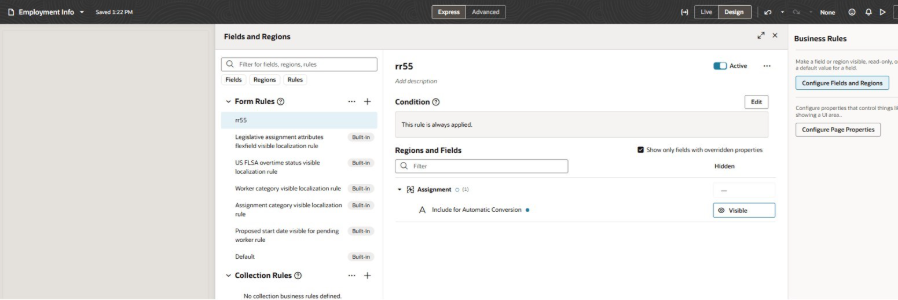
- In Business Rules, locate the Include for Automatic Conversion field and set it to be visible.
- Save and publish your changes so they take effect for your users.
- Repeat the same steps for the View Employment Details page, since the two pages are configured separately. Making the field visible on one page does not make it visible on the other.
The screenshot below shows where the field sits in Business Rules once you are in the right place.
Do not forget the second page
The single most common thing to miss here is the View Employment Details page. Because the enhancement covers both pages but each page is configured separately, it is easy to enable the field on Employment Info, see it working, and assume you are done. If your users report that they can see the flag in one place but not the other, this is likely the reason. Enable it on both pages.
Good to know
This is a display enhancement. Making the field visible lets HR specialists see the conversion readiness value on these pages. It does not, on its own, change how the value is set. You still set and change the flag through the Add or Edit Pending Worker flows, the Pending Workers dashboard, or HDL. What 26B provides is the visibility, not a new place to edit the value.
Setting the flag at scale with HCM Data Loader
Since many pending worker records arrive through data loads rather than being entered one at a time, it is worth knowing how this flag is controlled through HCM Data Loader. On the WorkRelationship business object, the attribute that maps to Include for Automatic Conversion is ReadyToConvert. Set it to Y and the flag on the resulting pending worker record shows as Yes.
A simple example of the metadata and data line looks like this:
METADATA|WorkRelationship|PersonNumber|ActionCode|LegalEmployerName|DateStart|WorkerType|PrimaryFlag|ReadyToConvert
MERGE|WorkRelationship|4175|ADD_PEN_WKR|US1 Legal Entity|2018/10/01|P|Y|Y
Once that loads, the pending worker shows the flag as Yes, and from there the Convert Pending Workers Automatically process will pick it up on its next run. With 26B in place, you can then confirm that same value directly from the Employment Info page rather than opening the dashboard to check it. The two capabilities complement each other. HDL sets the value at scale, and the Redwood page enhancement lets you verify it without leaving the record.
Why this matters day to day
On paper, this is a small feature, a single field made visible on two pages. But small visibility changes like this are the ones HR teams actually feel because they remove a repeated bit of friction from a task people perform frequently. Confirming conversion readiness used to mean a detour to another screen. Now it is right there next to the rest of the worker’s employment information.
If your organization relies on the automatic conversion process to move new hires from pending to active, this is worth enabling early. It gives HR specialists a clearer and faster view of who is queued for conversion and who is being held back, which can help keep onboarding processes moving smoothly.
Streamline Oracle HCM Processes with Kovaion
Managing pending workers and employment processes effectively requires the right Oracle HCM configuration, data management practices, and ongoing optimization. Kovaion’s Oracle HCM Cloud Services help organizations configure, integrate, optimize, and support Oracle Cloud HCM environments based on their business and workforce requirements.
From Oracle HCM implementation and configuration to HCM Data Loader, integrations, testing, upgrades, enhancements, and ongoing support, Kovaion helps organizations manage their Oracle HCM environment across different stages of the workforce lifecycle.
Looking to optimize your Oracle HCM processes? Connect with Kovaion to explore how our Oracle HCM Cloud Services can support your HCM implementation, configuration, integration, and ongoing optimization requirements.
FAQs
The Include for Automatic Conversion field determines whether a pending worker can be picked up by the Convert Pending Workers Automatically scheduled process.
The 26B enhancement makes the Include for Automatic Conversion field visible on the Redwood Employment Info and View Employment Details pages.
The field can be made visible through Business Rules in Visual Builder Studio. The Employment Info and View Employment Details pages need to be configured separately.
It is a scheduled process used to automatically convert eligible pending workers into employees or contingent workers based on the applicable conversion criteria.
Yes. The value can be changed through the applicable pending worker processes or managed for multiple records through the Pending Workers dashboard.
For the WorkRelationship business object, the ReadyToConvert attribute controls the Include for Automatic Conversion value. Setting ReadyToConvert to Y sets the flag to Yes.
No. The enhancement provides visibility of the value on the Redwood pages. The value continues to be set or changed through the applicable pending worker processes, Pending Workers dashboard, or HCM Data Loader.