Oracle Fusion Recruiting Cloud: End-to-End Process from Job Requisition to New Hire
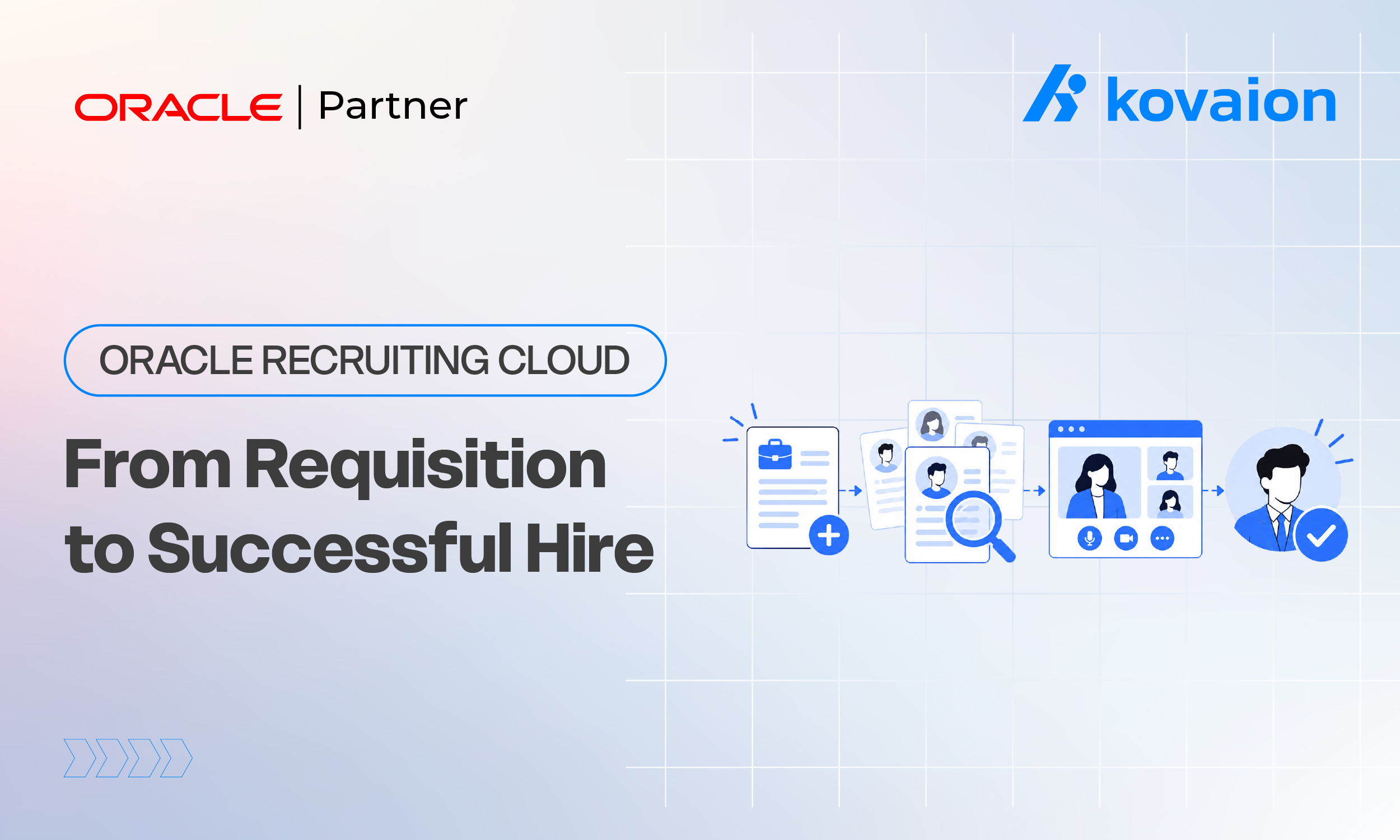
If you work with Oracle Fusion Cloud HCM, understanding the complete hire-to-employee lifecycle in Oracle Recruiting Cloud (ORC) is essential for effectively managing the recruiting process. The workflow covers every key step, from creating and posting a job requisition to adding candidates, managing job applications, progressing candidates through the selection process, creating and extending offers, and finally converting an accepted candidate into an employee in the system.
Understanding how these stages connect helps Oracle HCM professionals navigate the recruiting process more efficiently, identify configuration dependencies, and troubleshoot issues that may occur during candidate progression and employee conversion. This walkthrough takes you through the Oracle Recruiting Cloud end-to-end hiring process, following the sequence of activities as they flow through the application.
The process can be broken down into five clear stages:
- Creating the Job Requisition
- Posting the Requisition
- Adding a Candidate and Creating a Job Application
- Moving the Candidate Through Selection and Offer
- Converting the Candidate to an Employee
Let’s go through each stage in detail.
Stage 1: Creating the Job Requisition
Navigation: My Client Groups → Hiring
- Click Add Requisition.
- Choose the Requisition Type – for this walkthrough, select Standard.
- Select the job you’re recruiting for. In the demo, two jobs had already been created, and one was selected to recruit against.
- Set the Number of Openings – here, 10 positions were needed.
- Assign the Hiring Manager.
At this point, the requisition form pulls in several defaulted values based on your setup in Setup and Maintenance → Manage Hiring, including defaults based on your configuration.
Filling in the Requisition Details
- Location: Choose from your configured master locations – e.g., United States → California.
- Job Family: This is a mandatory field. If no value is defaulted, add a substitute value, such as “Accounting.”
- Worker Type: Regular employee, full-time.
- Education Level: e.g., 4-year / Bachelor’s degree.
- Driver’s License Required: Yes or No, depending on the role.
- Relocation: If the candidate isn’t required to relocate, mark “No” – they’ll work from the base location.
- Click Continue.
Posting Details
- Confirm the Recruiting/Legal Employer, e.g., a demo entity such as “Vision Corporation.”
- Confirm the Department and Location tied to that legal entity.
- Attachments are optional at this stage — you can leave them blank and add them later.
- Selection Process: Choose a pre-configured selection process. In the demo, the “Vision” selection process template was already seeded.
- Application Flow: This is configured separately under Setup and Maintenance → Recruiting → Application Flows. It controls what candidates see and fill in when they apply.
- Set “Ready to Apply” to Yes if you want the requisition to auto-populate applications and go live for candidates once posted.
- Add a brief internal/career site description for the posting.
- Click Submit.
At this point, the job requisition has been created and submitted.
Stage 2: Posting the Requisition
Once the requisition is submitted, it needs to be posted so it becomes visible to candidates and available for internal actions.
- Go back into the requisition.
- Click Posting.
- Save it — the status will show “Posting in Progress.”
- Posting runs as a background scheduled process, so it can take a few minutes. Refresh periodically to check the status.
- Once complete, the requisition status changes to Posted.
Note: If the status doesn’t update immediately, don’t assume something failed. Oracle’s posting process can rely on scheduled processes, and these can take a few minutes to complete, especially in a test or demo pod.
Stage 3: Adding a Candidate and Creating a Job Application
With the requisition live, the next step is to bring a candidate into the system and link them to the job.
Adding the Candidate
Navigation: Candidate Search
- Search for the candidate to confirm they don’t already exist.
- If not found, create a new candidate record – enter basic details and the source, such as “LinkedIn,” if that’s where they were sourced from.
- Add any attachments, such as a resume, if available.
- Save and Close.
Creating the Job Application on Behalf of the Candidate
- Navigate back to the job requisition.
- Go to Actions → Create Job Application on Behalf of Candidate. This is a recruiter/hiring-manager action that lets you submit an application for a sourced candidate rather than waiting for them to self-apply.
- Select the candidate from your candidate list.
- Fill in relevant candidate profile details: licenses and certifications, if applicable; education, such as an MBA in Business Administration matching the requisition’s education requirement; and employment history.
- Save each section as you go.
At this point, the candidate has one active job application tied to the requisition.
Stage 4: Moving the Candidate Through the Hiring Pipeline
This is where the candidate progresses through the configured selection process stages. A typical Oracle Recruiting selection process includes stages such as:
Review → Interview → Offer → Hire
Advancing the Candidate
- Open the candidate’s job application.
- Move them through the pipeline stage by stage – e.g., mark as “Reviewed”, then progress to “Selected for Offer.”
- Save and close after each transition.
Creating the Job Offer
- From the requisition or application, go to Actions → Create Job Offer.
- Select the appropriate offer letter template. In the demo, an India-specific offer letter format was used.
- Enter the salary basis and compensation details.
- Attach any supporting files if needed.
- Click Submit.
This will process as a background job as well – give it a moment to complete.
Extending and Accepting the Offer
- Once the offer is created, use Extend Offer to send it to the candidate.
- Since this is a demo/recruiter-driven walkthrough, the offer is accepted on behalf of the candidate directly in the system. In a live/production process, the candidate would typically accept via the candidate portal.
- Confirm the action — the system will begin converting the accepted candidate into a pending worker.
Note: This conversion can also involve a background scheduled process, so there may be a wait involved here as well. This is normal in Oracle Cloud and not necessarily a sign of an error.
Stage 5: Converting the Candidate to an Employee
Once the offer is accepted, you must formally convert the candidate into an employee record.
Navigation: My Client Groups → Person Management → New Person → Pending Workers
- Locate the relevant pending worker request, identified by a request number.
- Select it and run the Convert to Employee action.
- This triggers another scheduled background process – monitor it under your scheduled processes list until it completes.
- Once finished, go to My Client Groups → Person Management.
- Search for the newly converted employee by name.
- Open their record to confirm all details – job, department, location, and compensation – have carried over correctly from the requisition and offer.
At this point, your candidate has officially become an employee in Oracle Fusion HCM.
Summary: The Five Stages at a Glance
| Stage | What Happens | Key Navigation |
|---|---|---|
| 1. Requisition Creation | Define job, openings, location, job family, worker type, and education | My Client Groups → Hiring → Add Requisition |
| 2. Posting | Make the requisition live and visible | Requisition → Posting |
| 3. Candidate & Application | Add candidate and link them to the requisition via a job application | Candidate Search + Actions → Create Job Application |
| 4. Selection & Offer | Move through selection stages, create and extend the offer | Requisition/Application → Actions → Create Job Offer |
| 5. Conversion | Turn the accepted candidate into an employee | Person Management → Pending Workers → Convert |
Key Takeaways
- Oracle Recruiting Cloud’s end-to-end flow has five functional milestones: requisition → posting → application → offer → hire/conversion. Several steps can involve background scheduled processes, so patience can be part of the workflow.
- Several fields, including Job Family, Education Level, Selection Process, and Application Flow, rely on prior configuration in Setup and Maintenance. If these aren’t configured correctly, the requisition creation step can stall on mandatory fields.
- The “Create Job Application on Behalf of Candidate” action is essential for recruiter-sourced candidates, such as candidates sourced from LinkedIn, who aren’t self-applying through the career site.
- Because posting, offer creation, and employee conversion can involve scheduled processes, always check the Scheduled Processes monitor if something appears to be “stuck” before assuming that the process has failed.
This gives you a complete, repeatable playbook for demonstrating or testing the full Oracle Fusion Recruiting-to-Hire process in a sandbox or training pod.
Bottom Line
The Oracle Fusion Recruiting Cloud process connects job requisition creation, requisition posting, candidate management, selection, offer management, and employee conversion into a structured recruiting-to-hire workflow. Understanding how these stages connect – along with the configuration dependencies and scheduled processes involved – can help Oracle HCM teams troubleshoot issues and execute recruiting processes more effectively.
Streamline Recruiting with Oracle HCM Cloud Services
Oracle Recruiting is an important part of the broader Oracle HCM Cloud ecosystem, connecting recruiting and hiring processes with the wider workforce lifecycle. Kovaion’s Oracle HCM Cloud Services help organizations with HCM implementation, configuration, integration, data migration, application testing, upgrades, support, enhancements, and ongoing optimization.
Whether you are implementing Oracle Recruiting Cloud, refining recruiting workflows, integrating HCM with other enterprise applications, or looking for ongoing Oracle HCM support, Kovaion can help align your HCM environment with your business processes.
Looking to optimize your Oracle Recruiting and HCM processes? Explore Kovaion’s Oracle HCM Cloud Services to see how our team can support your HCM transformation journey.
FAQs
The Oracle Recruiting Cloud process typically covers job requisition creation, requisition posting, candidate and job application management, candidate selection and offer management, and conversion of the accepted candidate to an employee.
Navigate to My Client Groups → Hiring, select Add Requisition, choose the requisition type and job, define the number of openings, assign the hiring manager, complete the required requisition details, and submit the requisition.
Posting can involve background or scheduled processing. If the status does not change immediately, allow the process time to complete and check the relevant scheduled processes before assuming there is an error.
From the job requisition, use Actions → Create Job Application on Behalf of Candidate. This allows a recruiter or hiring manager to create an application for a sourced candidate who has not self-applied through the career site.
A selection process can include stages such as Review, Interview, Offer, and Hire. The exact stages depend on the selection process configured for the organization and requisition.
After the offer is accepted, the candidate can move through the configured hiring process and may become a pending worker. The HR team can then complete the appropriate process to convert the pending worker into an employee or another worker type, depending on the scenario.
Navigate to My Client Groups → Person Management → New Person → Pending Workers, locate the relevant pending worker request, select Convert to Employee, and monitor the associated scheduled process until completion. The resulting employee record can then be reviewed in Person Management.