Enhanced Guided Journey Parameters for Redwood Employment in Oracle Fusion HCM 26B

Oracle Fusion HCM 26B introduces an enhancement that makes Guided Journeys more contextual within Redwood employment flows. With Enhanced Guided Journey Parameters for Redwood Employment, organizations can pass employee, assignment, and transaction-related information from Redwood pages directly to Guided Journey tasks.
This capability is particularly useful when Guided Journeys are connected to BI reports, external URLs, policies, or other contextual resources. Instead of asking HR users to manually enter or look up employee or assignment details, the relevant parameters can be passed automatically based on the record and transaction currently in view.
In this article, we explore how Oracle Fusion HCM 26B Guided Journey context parameters work with Redwood Employment flows, the parameters available across the When and why and Assignment steps, supported employment processes, configuration requirements, and how you can use them to build more context-aware BI reports and external resources.
What Are Guided Journeys in Oracle Fusion HCM?
Guided Journeys are one of those features that quietly make a Redwood page far more useful than it looks. The idea is simple: you attach helpful content to a page or a specific section, so users have the guidance they need without having to search for it. This content can include tutorials, company policies, embedded videos, external URLs, or BI reports.
You build Guided Journeys under My Client Groups > Journeys Setup > Guided Journey, give the journey a name and code, and add tasks to it. You can then attach the journey code to a page or section through Visual Builder Studio. When a user opens the page, a panel drawer provides access to the attached content.
With Oracle Fusion HCM 26B, the Enhanced Guided Journey Parameters for Redwood Employment enhancement expands how contextual information can be passed from Redwood employment flows to Guided Journey tasks. This makes Guided Journeys more context-aware, allowing attached guidance to work with information related to the employment record currently on screen and provide a more relevant user experience.
How Context Parameters Improve Redwood Employment Flows?
Picture an HR specialist on the Employment Info page for a particular employee. You have attached a guided journey with a BI report task, something like a compensation history report or a service record. The user clicks it, and the report opens. But the report has no idea which employee is on screen. It either runs for everyone, or it stops and asks the user to type in a person number.
That is a strange experience. The user is already looking at the employee. The system already knows who it is. Yet the user has to look up an identifier and key it in manually, which is slow and easy to get wrong.
Context parameters solve this. Instead of the guided journey task being a static link, it receives the values of the record currently in context and passes them through to the report or the URL. The report opens already filtered to the right person, the right assignment, and the right action. No lookup, no typing, no mistakes.
What 26B adds?
Parameter support for guided journeys in employment flows has been building across releases. The 26B enhancement widens the set of values that get passed across, so that alongside identifiers like PERSON_ID and ASSIGNMENT_ID, you also get the user-facing Person Number and Assignment Number. That matters more than it sounds, because a lot of custom reports and downstream systems key off the number a human recognises rather than the internal ID.
Where Can You Use Guided Journey Parameters in Redwood Employment Flows?
This is supported through a section-level guided journey on the When and why and Assignment steps across the Redwood employment processes. The coverage is broad, which is what makes the feature worth adopting rather than treating as a niche trick:
- Add Assignment, Add Contingent Worker, Add Nonworker, Add Pending Worker
- Edit Pending Worker, Convert Pending Worker, Create Work Relationship
- Employment Info, View Employment Details, Correct Employment
- Hire an Employee, Local and Global Transfer, Transfer
- Promote, Promote and Change Position
- Change Location, Change Manager, Change Working Hours
If your organization has already moved these flows to Redwood, every one of them becomes a candidate for context aware guidance.
Oracle Fusion HCM 26B: Supported Guided Journey Context Parameters
Here is the set of parameters available, along with which of the two steps each one is supported in. This distinction is worth reading carefully, because a parameter that works fine in the Assignment step may not be available in the When and why step, and that catches people out.
| Attribute | Parameter Name | When and Why Step | Assignment Step |
|---|---|---|---|
| ACTION_CODE | Action Code | Yes | Yes |
| ASSIGNMENT_ID | Assignment ID | Yes | Yes |
| ASSIGNMENT_NUMBER | Assignment Number | No | Yes |
| ASSIGNMENT_STATUS_TYPE | Assignment Status Type | Yes | Yes |
| ASSIGNMENT_TYPE | Assignment Type | Yes | Yes |
| BUSINESS_UNIT_ID | Business Unit ID | Yes | Yes |
| EFFECTIVE_START_DATE | Action Date | Yes | Yes |
| EMPLOYEE_CATEGORY | Employee Category | No | Yes |
| EMPLOYMENT_CATEGORY | Employment Category | No | Yes |
| GRADE_ID | Grade ID | No | Yes |
| HOURLY_SALARIED_CODE | Hourly Salaried Code | No | Yes |
| JOB_ID | Job ID | No | Yes |
| LEGAL_ENTITY_ID | Legal Entity ID | Yes | Yes |
| LEGISLATION_CODE | Legislation Code | Yes | Yes |
| LOCATION_ID | Location ID | No | Yes |
| ORGANIZATION_ID | Department ID | No | Yes |
| PERIOD_OF_SERVICE_ID | Period Of Service ID | Yes | Yes |
| PERSON_ID | Person ID | Yes | Yes |
| PERSON_TYPE_ID | User Person Type ID | No | Yes |
| POSITION_ID | Position ID | Yes | Yes |
| REASON_CODE | Action Reason Code | Yes | Yes |
| SYSTEM_PERSON_TYPE | System Person Type | Yes | Yes |
Understanding Guided Journey Parameters for the When and Why and Assignment Steps
Notice the pattern. The When and why step carries the broad transactional context: who, when, what action, and which legal entity or business unit. The Assignment step adds the granular assignment attributes on top: grade, job, location, department, employment category, and so on. If the content you are surfacing needs assignment level detail, attach your guided journey at the Assignment section, not the When and why section.
Pending Worker Parameters in Oracle Fusion HCM 26B
Two parameters, PROJECTED_START_DATE (Proposed Start Date) and PROPOSED_USER_PERSON_TYPE (Proposed Worker Type), apply only to pending workers. They are genuinely useful in the pending worker flows, but do not expect them to populate for an active employee. If you build a report around them and test it on a regular worker, you will see empty values and assume the feature is broken when it is behaving exactly as designed.
How to Configure an External URL Task with Guided Journey Parameters?
The clearest way to see this working is with an External URL task, because you can literally watch the parameter values land in the URL. Here is the flow end to end.
- Go to My Client Groups > Journeys Setup > Guided Journey.
- Click Create and fill in the required details, including the journey name and a journey code. Note the code down; you will need it when you attach the journey to the page.
- In the Tasks section, click Add and choose the task type External URL.
- Build the URL using parameter tokens in curly braces. The general shape is https://host?name={value}, where the name is whatever your target system expects, and the value is a parameter name from the table above.
A fuller example looks like this:
https://host?ActionDate={Action Date}

           &ActionCode={Action Code}

           &PersonId={Person ID}

           &AssignmentId={Assignment ID}

           &ReasonCode={Action Reason Code}

           &JobId={Job ID}

           &LegalEntityId={Legal Entity ID}

           &BusinessUnitId={Business Unit ID}

           &PositionId={Position ID}
Note that the token inside the braces is the Parameter Name from the table, written exactly as shown, spaces and all. This trips people up, because the instinct is to use the underscored attribute name. Use the readable parameter name in the token.
- Navigate to the Redwood employment page you want to attach this to, for example Employment Info.
- From the Settings and Actions menu, click Edit Page in Visual Builder Studio.
- Enable the guided journey on the When and why section or the Assignment section, supplying the journey code and the task code you created earlier.
- Change some field values in that section and check the URL that gets generated. The values should update to match what is on screen. That is your confirmation that the parameters are flowing.
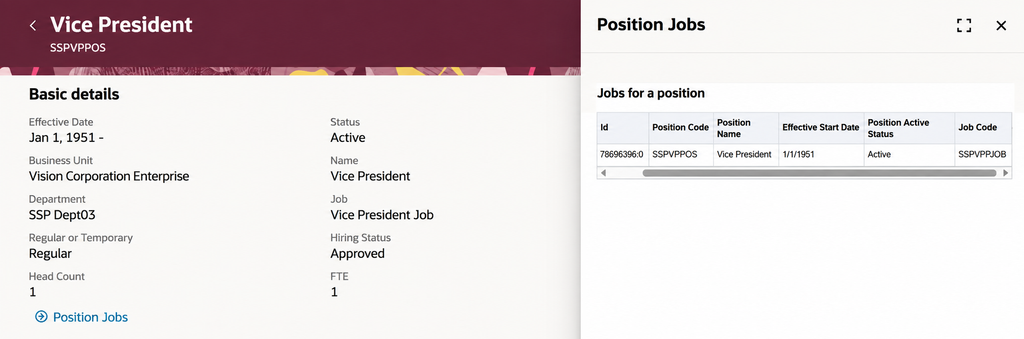
Here is what that looks like from the user’s side. The guided journey opens in a panel drawer alongside the page, with the report already run in context.
Using Context Parameters for BI Reports in Oracle Fusion HCM
The External URL example is the easiest one to test, but the use case that delivers the most value is the Report task type. This is where the feature stops being a convenience and starts being genuinely powerful.
Think about what you can now build. A guided journey on the Promote flow that surfaces the employee’s compensation history, already filtered to that person. A journey on Local and Global Transfer that pulls a policy document specific to the target legal entity and legislation. A journey on Employment Info that runs a service record report for exactly the assignment being viewed. In every case the HR specialist gets the information in context, inside the transaction they are already performing, without breaking off to run a report separately.
For those of us who build BIP reports, this changes how you design them. Instead of a report with a person number prompt that someone has to fill in, you build a parameterized report and let the guided journey supply the parameter from page context. The report becomes a component of the transaction rather than a separate errand.
Prerequisites for Guided Journeys in Redwood Employment Flows
The feature itself does not need to be switched on, which is convenient. But journeys and guided journeys have to be enabled in your environment for any of this to work, and that is a common reason a first attempt goes nowhere.
Use the Manage Administrator Profile Values task in Setup and Maintenance and confirm both of these are set to Y at site level:
ORA_PER_JOURNEYS_ENABLED          = Y

ORA_PER_GUIDED_JOURNEYS_ENABLED   = Y
You will also need the ability to edit Redwood pages in Visual Builder Studio, since attaching the journey code to a page or section is done there rather than in the application setup screens.
Best Practices for Using Redwood Guided Journey Parameters
- Parameter names have changed between releases. If you personalized these pages in an earlier release, review them after patching. Parameter names have shifted before, and existing selections may need to be redeployed rather than silently continuing to work.
- Section level and page level are not the same thing. For employment flows this is a section-level capability on the When and why and Assignment steps. Attaching at the wrong level is a common reason the parameters appear empty.
- Test on the right worker type. As noted above, the pending worker parameters only populate for pending workers. Pick your test record deliberately.
- Use the parameter name, not the attribute. The token inside the curly braces is the readable parameter name from the table, not the underscored attribute code.
Business Benefits of Context-Aware Guided Journeys
On the surface, this is a list of parameters, which is not the most exciting thing Oracle shipped this release. But it is the kind of enhancement that changes what you can build. Guided journeys go from being static helper content to being genuinely contextual, and the reports you attach to them stop being generic and start answering questions about the specific person on screen.
If you already have guided journeys configured on your Redwood employment pages, it is worth revisiting them with this in mind. Chances are at least one of them would be more useful if it knew who it was talking about.
Business Benefits of Enhanced Guided Journey Parameters in Redwood Employment
How Enhanced Guided Journey Parameters for Redwood Employment Deliver Business Value
Enhanced Guided Journey Parameters for Redwood Employment can help organizations make Oracle Fusion HCM employment transactions more contextual and efficient. By passing employee and assignment information directly from Redwood employment flows into Guided Journey tasks, HR teams can access relevant information without repeatedly searching for records or manually entering identifiers.
- Improved HR productivity: HR specialists can access relevant reports, guidance, and information directly within the employment transaction.
- Reduced manual effort: Employee and assignment context can be passed automatically, reducing the need to manually enter person or assignment identifiers.
- Fewer data entry errors: Automatically passing contextual parameters helps reduce the risk of selecting or entering the wrong employee or assignment.
- More relevant BI reporting: Parameterized BI reports can open with the appropriate employee, assignment, action, or organizational context already applied.
- Better user experience: Guided Journeys become more contextual and useful instead of functioning as static guidance or generic links.
- Greater value from Redwood employment flows: Organizations can extend the functionality of their Redwood pages by connecting transactional context with reports, policies, and external resources.
Conclusion: Making Oracle HCM More Context-Aware
With the enhanced Guided Journey parameters in Oracle Fusion HCM 26B, organizations can deliver more contextual experiences across Redwood employment flows. By passing employee, assignment, and transaction details directly to reports or external resources, HR teams can reduce manual lookups, improve information accuracy, and access relevant insights within the flow they are already working in. When configured effectively, this capability can help make Guided Journeys a more connected and valuable part of everyday HCM operations.
At Kovaion, we provide Oracle Fusion Cloud HCM services to help organizations optimize and transform their HCM processes, including Redwood experiences, Guided Journeys, reporting, and other Oracle HCM capabilities.
Connect with Kovaion to explore how our Oracle Fusion HCM expertise can help your organization build more connected, efficient, and context-aware HR operations.
Frequently asked Questions
-
Enhanced Guided Journey Parameters for Redwood Employment allow contextual information from Oracle Fusion HCM Redwood employment flows to be passed into Guided Journey tasks. This can include employee, assignment, action, and organizational information that helps reports, external URLs, and other tasks understand the record currently being viewed.
+ -
The capability is available across multiple Redwood employment processes, including Employment Info, Hire an Employee, Promote, Transfer, Local and Global Transfer, Change Manager, Change Location, Add Assignment, and other supported employment flows.
+ -
The 26B enhancement expands the parameters available to Guided Journeys and includes user-facing values such as Person Number and Assignment Number, in addition to identifiers such as Person ID and Assignment ID.
+ -
Yes. Guided Journey parameters can support parameterized BI reports by passing contextual employee and assignment information from the Redwood employment flow. This allows reports to open with relevant information already filtered to the employee or assignment being viewed.
+ -
The When and why step provides broader transactional context, such as the person, action, date, legal entity, and business unit. The Assignment step provides additional assignment-level information, including attributes such as job, grade, location, department, and employment category.
+