Creating and Designing a BI Publisher Layout for a Job Report in Oracle Fusion HCM

Oracle Fusion HCM uses Oracle BI Publisher to create highly formatted reports based on data retrieved from Data Models. Once a Data Model is created and validated, the next step is to design a BI Publisher Layout that presents the retrieved information in a structured and user-friendly format.
Oracle BI Publisher supports two complementary ways to build that layout. The first is Auto Generate Layout, which automatically creates a default RTF template directly from the Data Model, giving a working report in a few clicks. The second is manual layout design using the Report Editor’s Table component, which provides full control over which columns appear, their order, and their formatting.
This guide brings both approaches together into a single, end-to-end walkthrough for a Job Report:
- Part A builds the Job Data Model from scratch and uses Auto Generate Layout to produce a working report quickly.
- Part B shows how to design a custom table layout for the same Data Model, adding and formatting each column by hand for full control over the final output.
Used together, these two methods give report developers both speed and precision when building Oracle Fusion HCM BI Publisher reports.
Prerequisites
- Oracle Fusion HCM BI Publisher access is available, with appropriate permissions to create, save, and run report layouts.
- Access to Oracle Transactional Business Intelligence / BI Publisher’s Report Editor.
- For Part A: a Report Definition will be created using the Job Data Model, so no Data Model needs to exist beforehand.
- For Part B: the Job Data Model has already been created and validated (see Part A), and its SQL query returns the expected Job records.
- Familiarity with the Data Model’s available fields, such as JOB_NAME, JOB_ID, JOB_STATUS, JOB_CODE, SET_CODE, EFF_START_DATE, EFF_END_DATE, EEO_CATEGORY, and FLSA_STATUS.
Part A: Creating a BI Publisher Layout with Auto Generate Layout
Part A covers building the Job Data Model from scratch and using the Auto Generate Layout feature to produce a working report template automatically.
Step-by-Step Procedure
Step 1: Navigate to Reports and Analytics
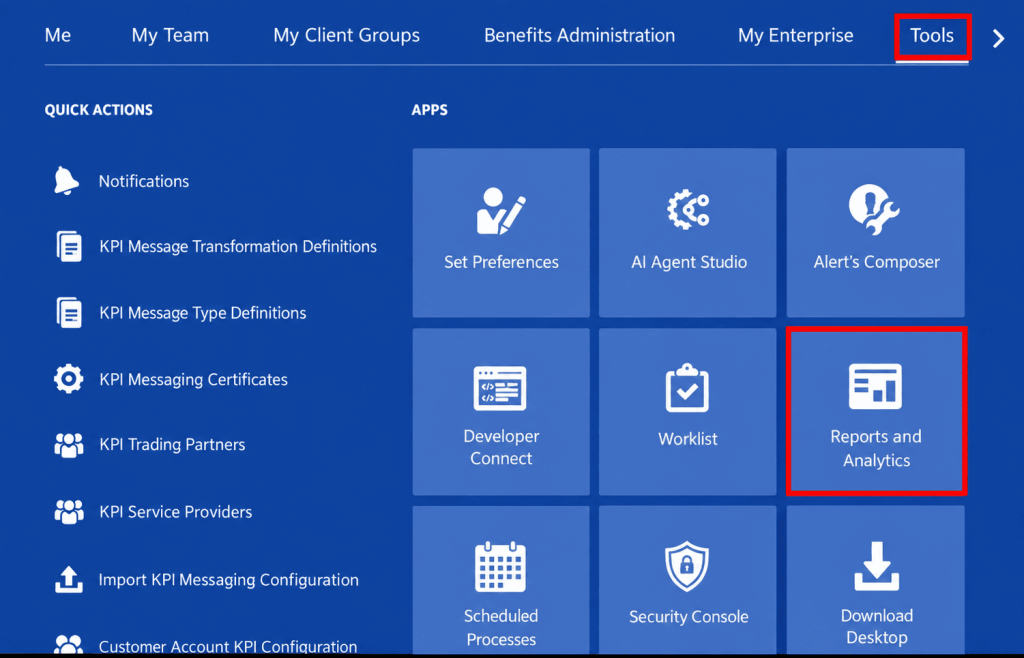
From the Oracle Fusion HCM home page, go to the Tools tab and select the Reports and Analytics application under Apps.
Step 2: Open Reports and Analytics
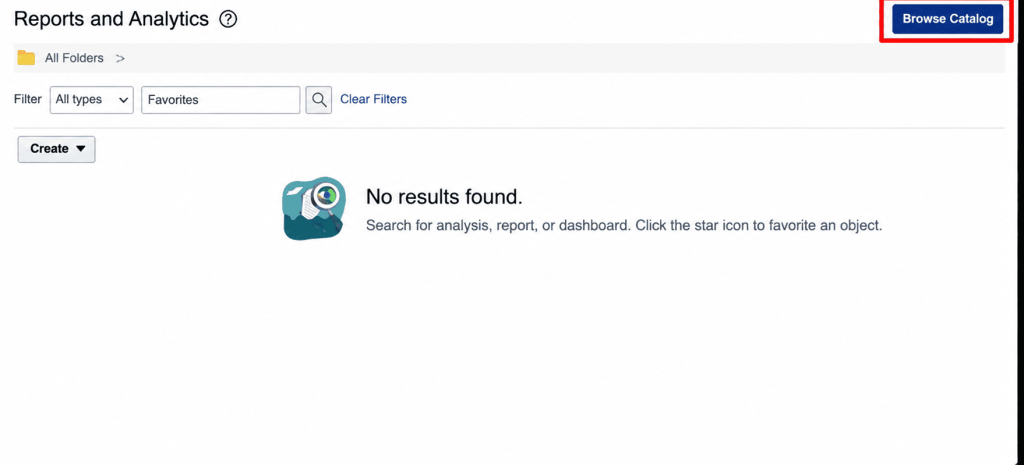
The Reports and Analytics panel opens, displaying All Folders along with filter options and a Create button used to build new catalog objects such as Data Models and Reports.
Step 3: Create a New Data Model
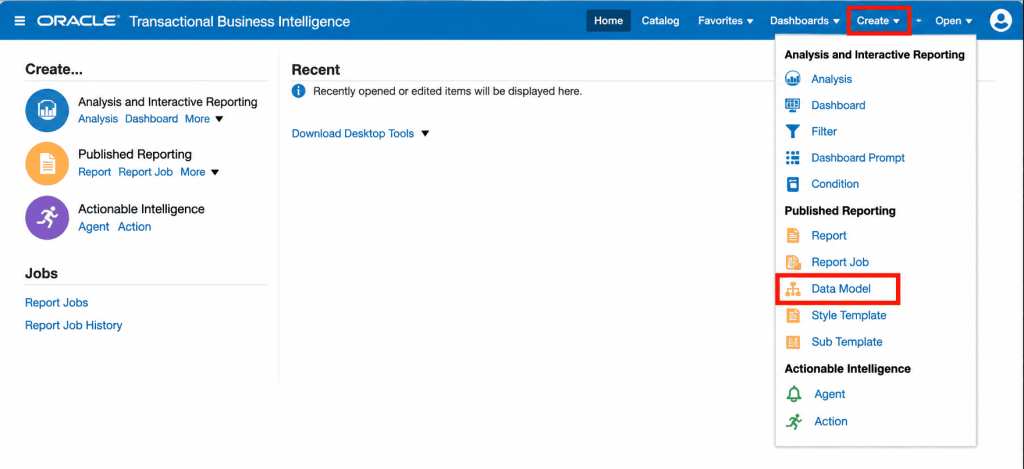
From the Create menu in Oracle Transactional Business Intelligence, select Data Model under Published Reporting to begin building the Job Data Model.
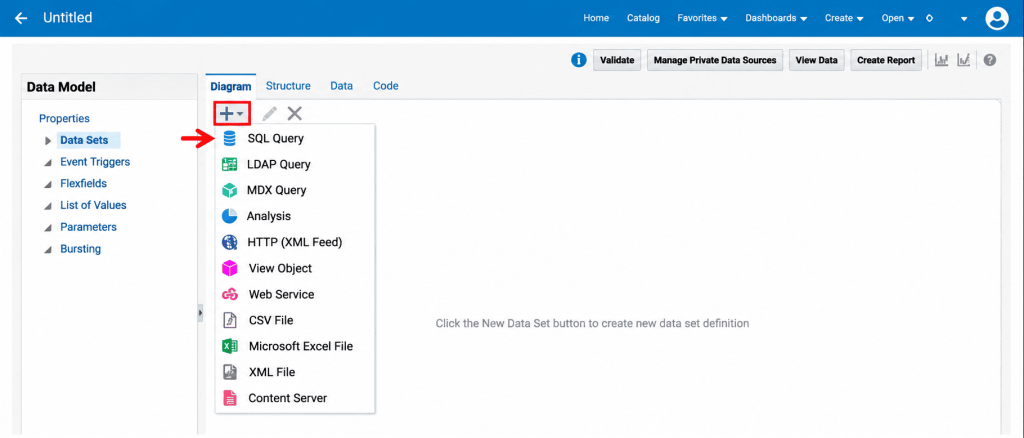
Step 4: Add a New Data Set
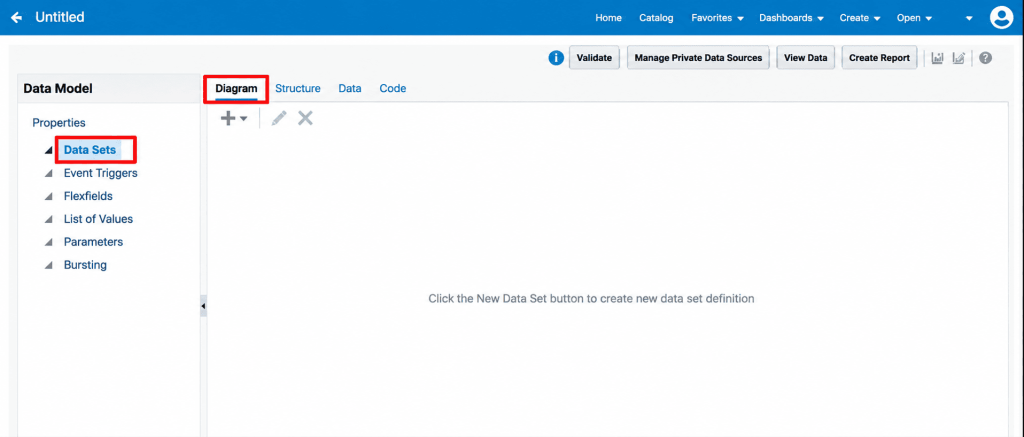
In the new Data Model, the Diagram tab is displayed with the Data Sets node selected. Click the New Data Set button to define the data source for the report.
Step 5: Select SQL Query as the Data Set Type
Oracle BI Publisher supports several data set types. For this report, select SQL Query from the list to write a query against the HCM application database.
Step 6: Define the SQL Query
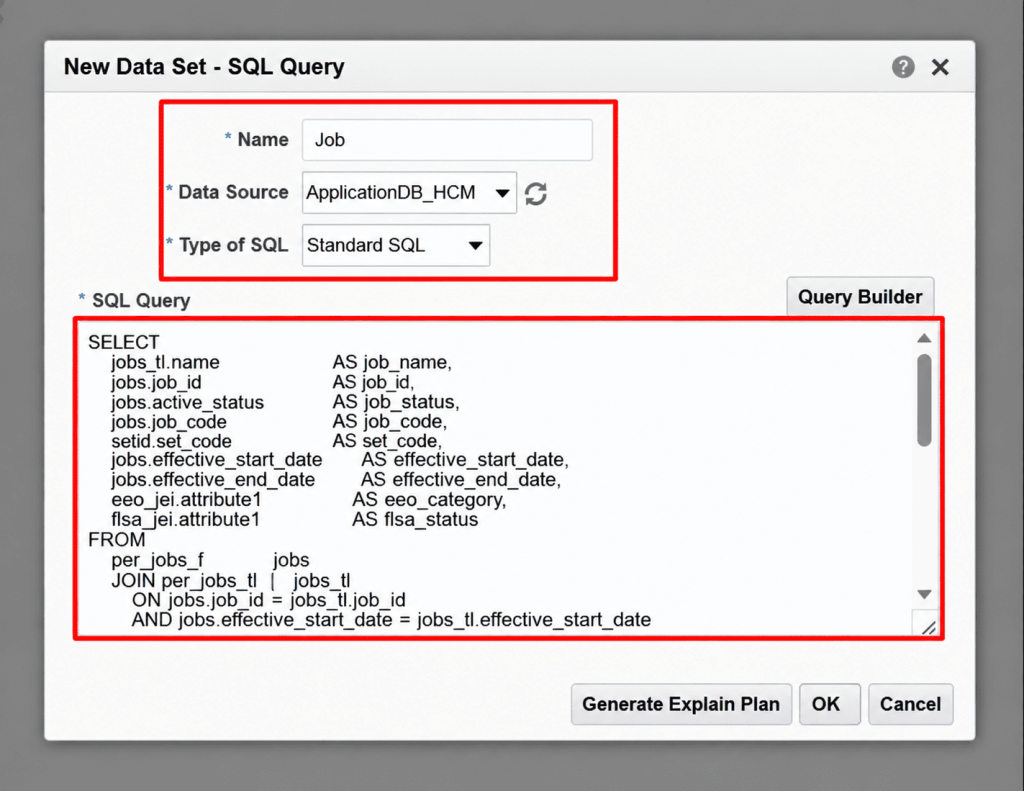
In the New Data Set – SQL Query dialog, enter a name (Job), select the ApplicationDB_HCM data source, and enter the SQL query that retrieves job name, job ID, status, code, set code, effective dates, EEO category, and FLSA status from the PER_JOBS_F and related tables.
Step 7: Save the Data Model
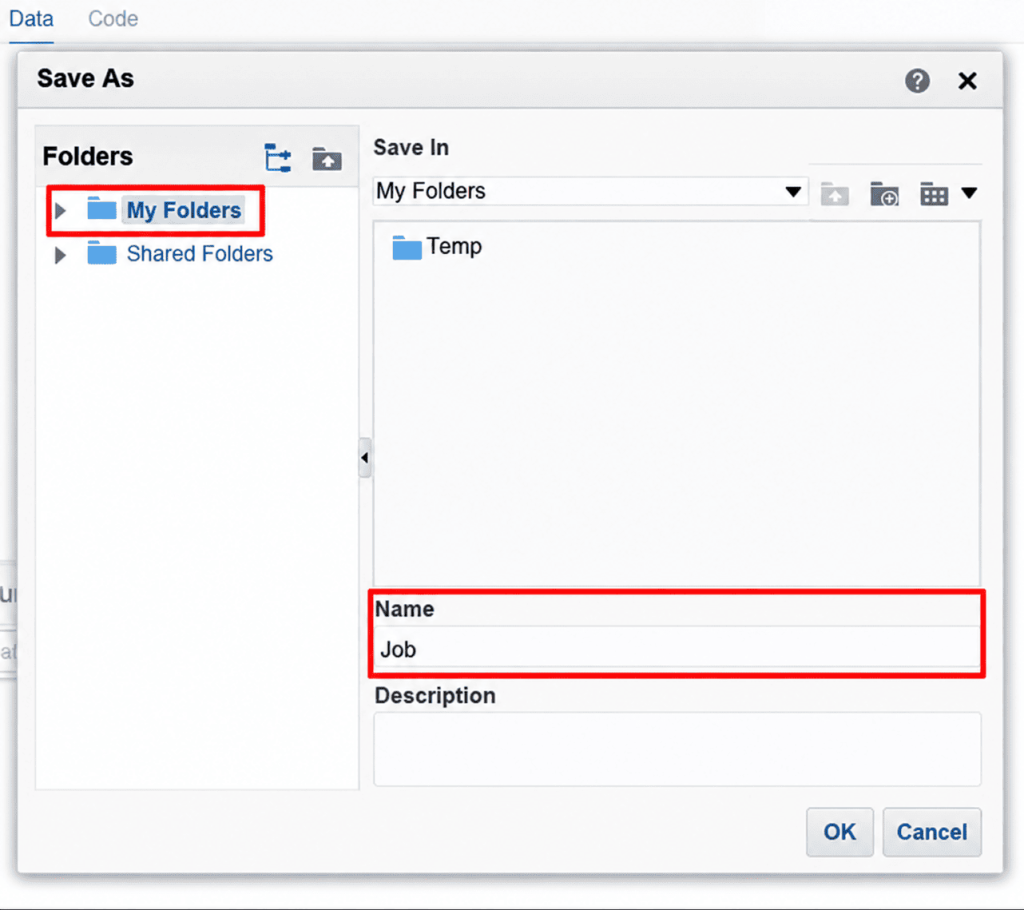
After the data set is created, save the Data Model. In the Save As dialog, choose the target folder under My Folders and confirm the name (Job).
Step 8: Verify the Data
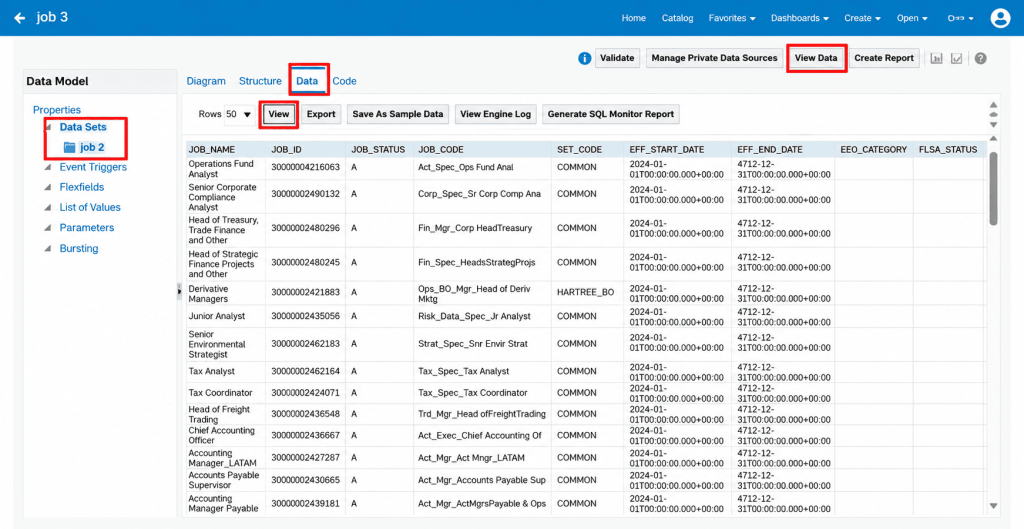
Open the Data tab of the Data Model and click View to confirm that the query returns the expected columns and sample rows, such as Job Name, Job ID, Job Status, Job Code, Set Code, effective dates, EEO Category, and FLSA Status.
Step 9: Start Creating the Report
From the Data Model, click Create Report to launch the Create Report wizard. On the Select Data step, choose Use Data Model and select how the report should be built – Guide Me for a wizard-driven layout or Use Report Editor for full manual control.
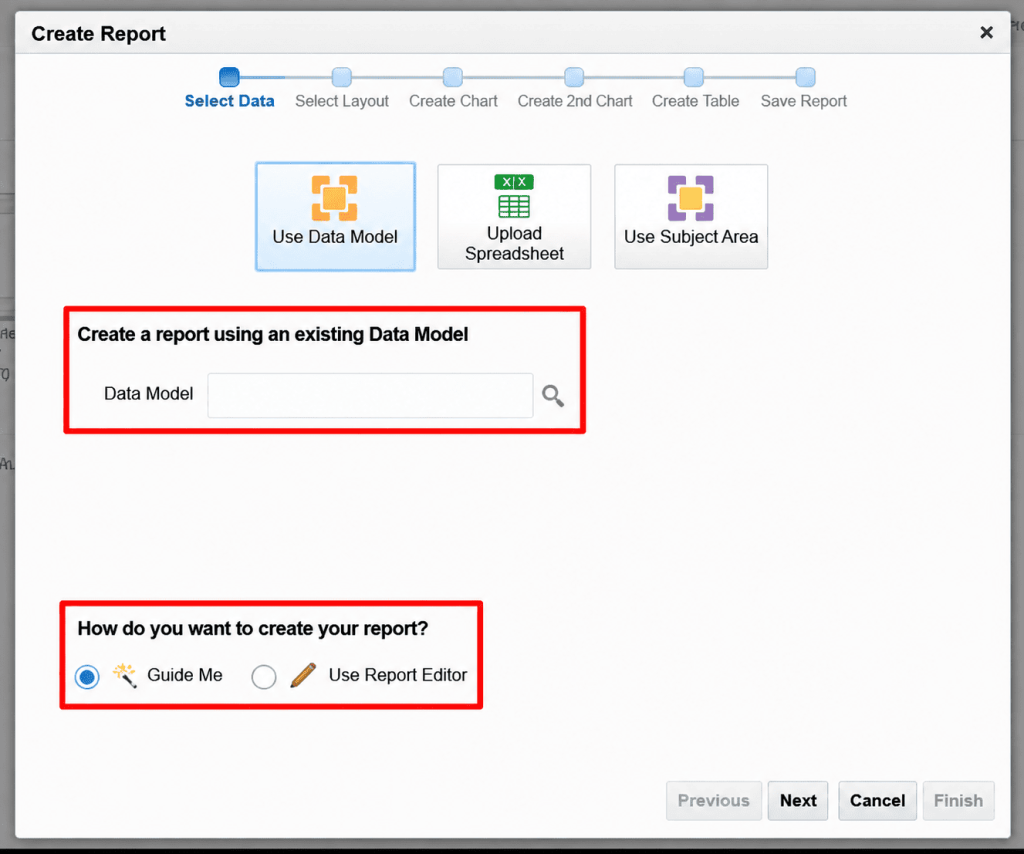
Step 10: Point the Report to the Data Model
Browse to and select the saved Job Data Model in the Data Model field, and choose Use Report Editor so the report opens directly in the layout editor.
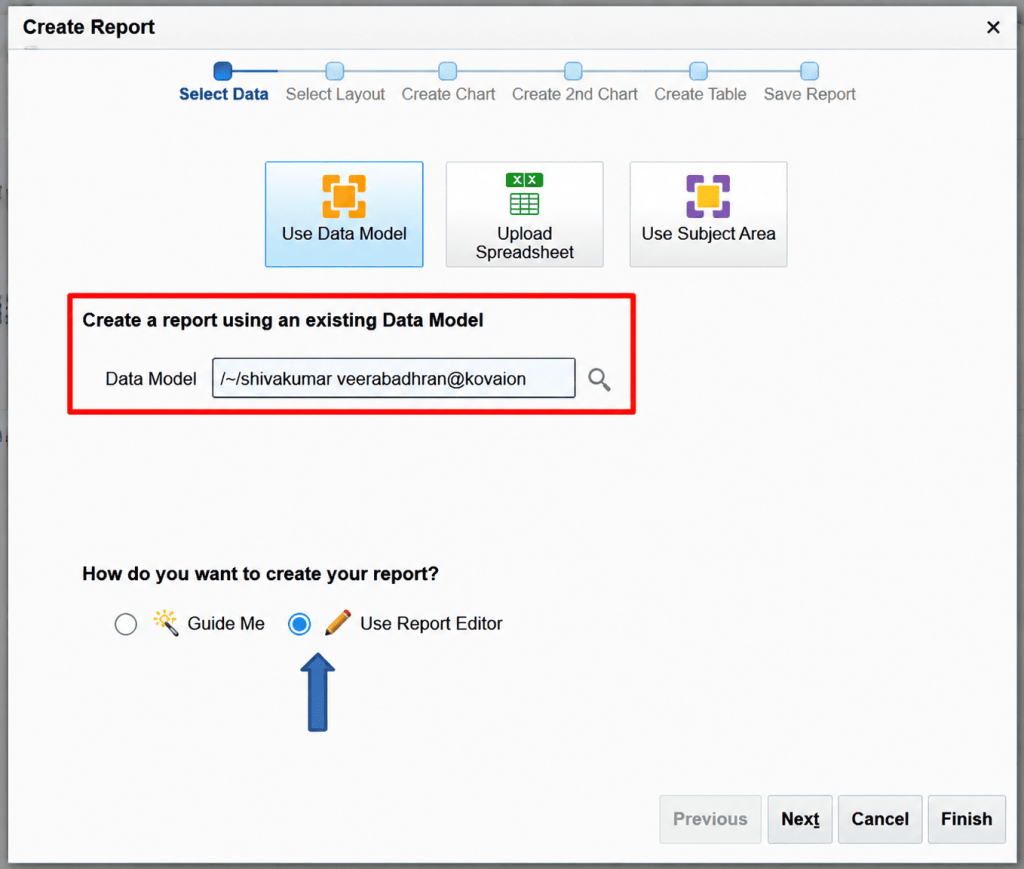
Step 11: Open the Report Editor and Generate the Layout
The Report Editor opens for the Job report, displaying the Parameters, Properties, and View Report options, along with the Create Layout section. Under Upload or Generate Layout, click Generate to auto-create an RTF template.
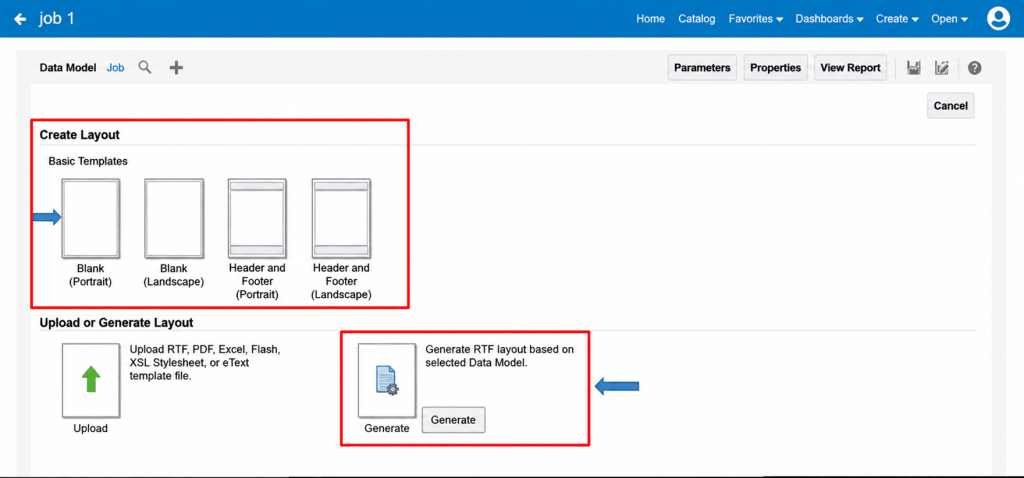
Step 12: Auto Generate Layout
In the Auto Generate Layout dialog, enter a meaningful template name (Job) and click Generate. Oracle BI Publisher then reads the Data Model structure, detects all available report fields, and creates a default RTF template with the columns automatically mapped.
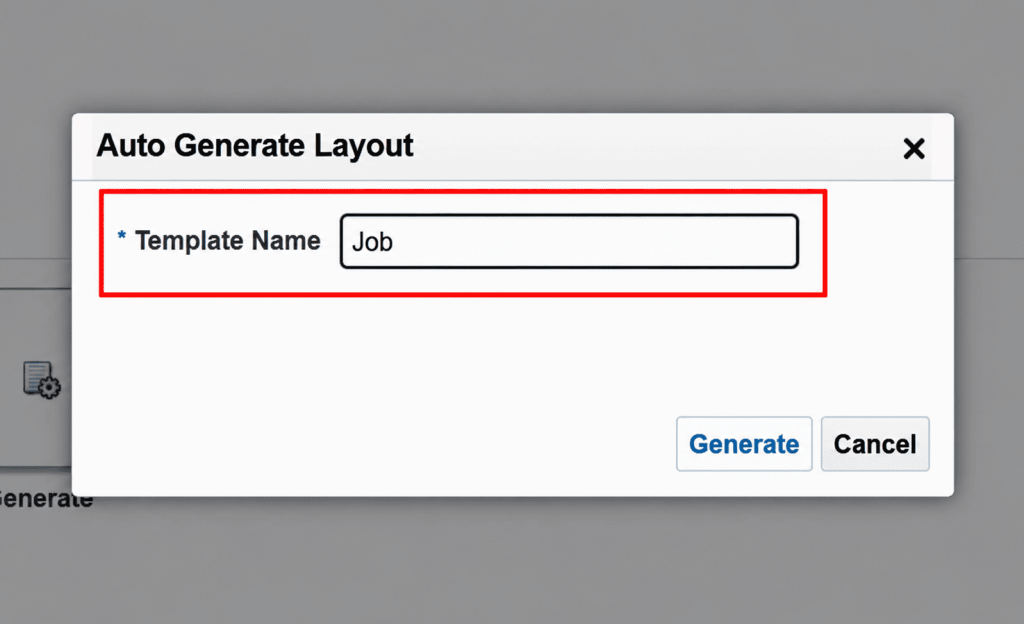
Step 13: Verify the Generated Layout
- After the layout is generated:
- Open the generated template.
- Verify that all report columns are displayed.
- Confirm the column headings are correct.
- Ensure data formatting meets reporting requirements.
Typical Job Report columns include:
- Job ID
- Job Code
- Job Name
- Set Code
- Job Status
- Effective Start Date
- Effective End Date
- EEO Category
- FLSA Status
Step 14: Run the Report
Click View Report to execute the report. Verify that:
- Data is returned successfully. • All columns appear correctly.
- Dates are formatted properly.
- No fields are missing.
If required, customize the generated RTF template using Microsoft Word with the Oracle BI Publisher Template Builder, or continue to Part B to design a fully custom table layout instead.
Part B: Designing a Custom BI Publisher Table Layout
Part B picks up from the Job Data Model created in Part A and shows how to design a table layout manually in the Report Editor, for cases where a precise, curated set of columns and formatting is required.
Step-by-Step Procedure
Step 15: Create the Report and Name It
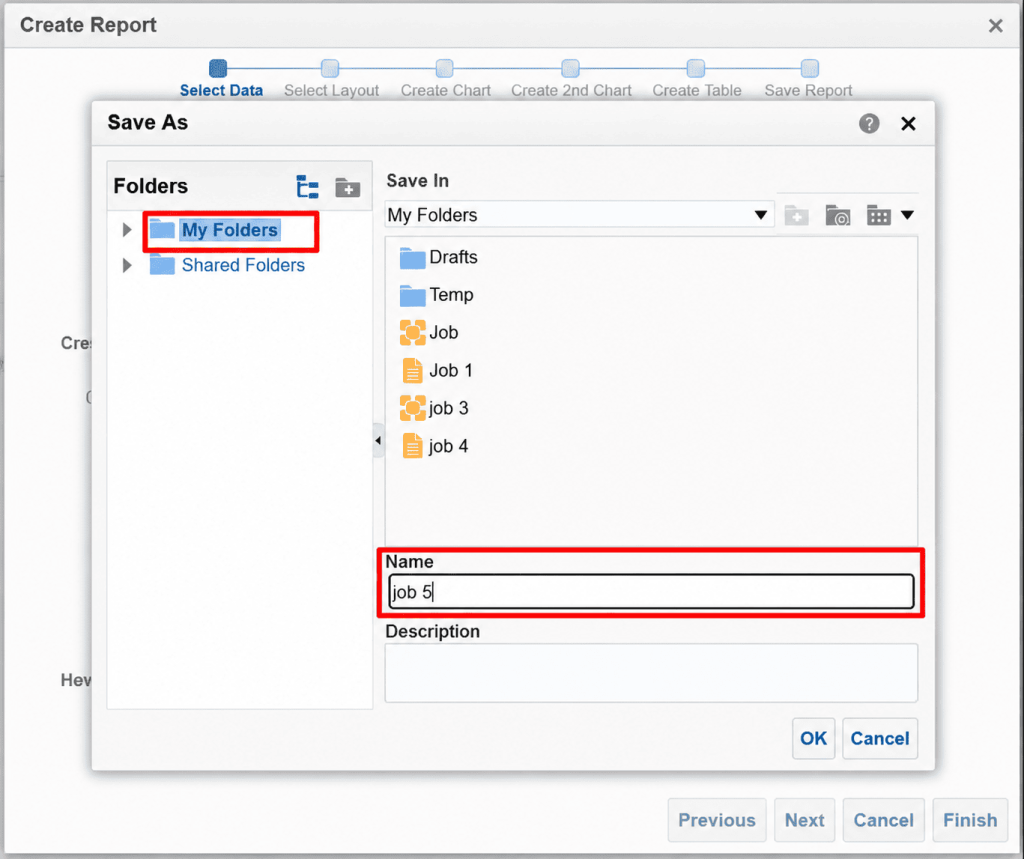
From the Create Report wizard, after selecting the Job Data Model, save the new report. In the Save As dialog, choose the target folder and enter a name for the report, for example, ‘job 5’, then click OK.
Step 16: Open the Report Editor and Insert a Table
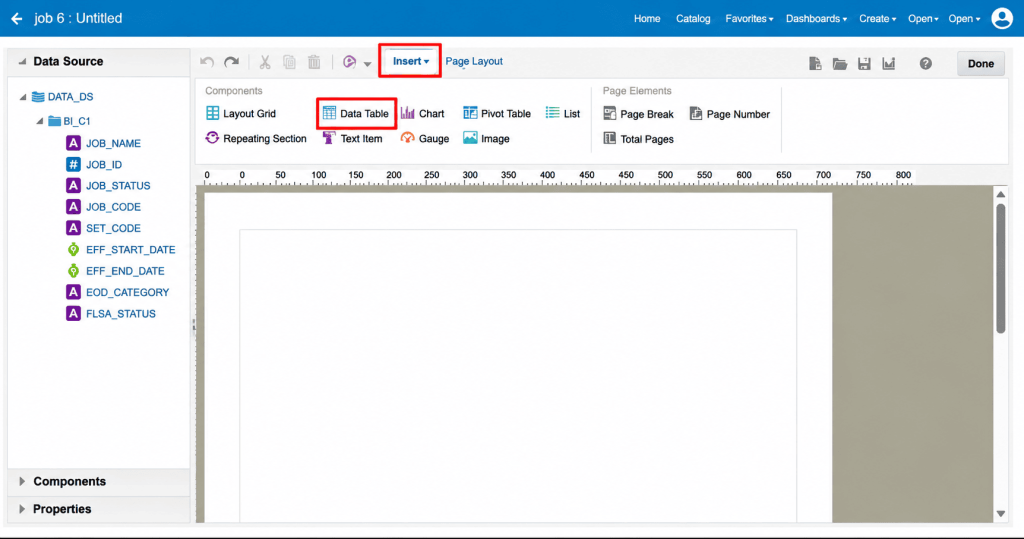
The Report Editor opens to a blank canvas on the Insert tab. From the Components section, drag a Table component onto the page to begin building the layout.
Step 17: Choose the Table Size
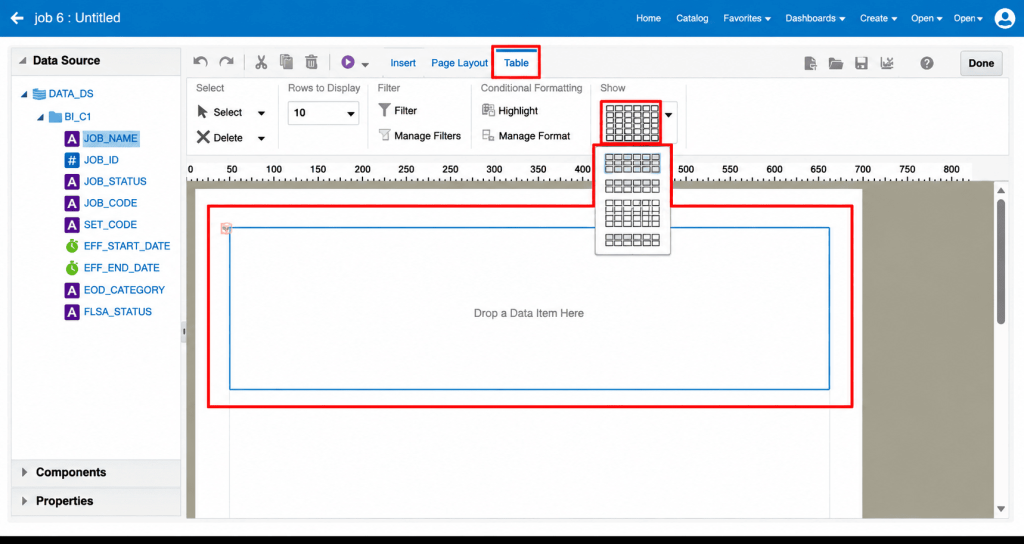
With the table selected, open the Table tab and use the Show grid picker to choose how many columns and rows the table should start with. The table displays a ‘[Drop a Data Item Here]’ placeholder until a field is added.
Step 18: Add the First Column
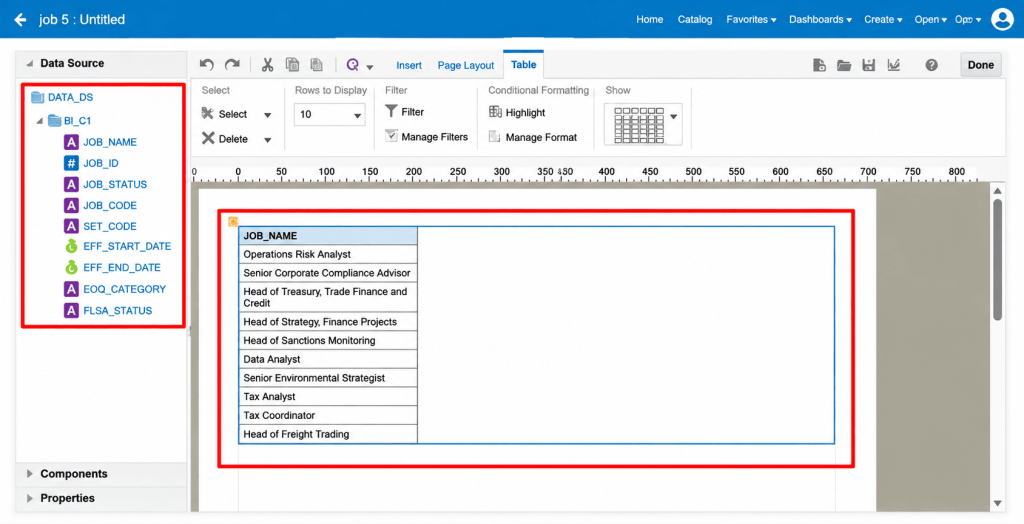
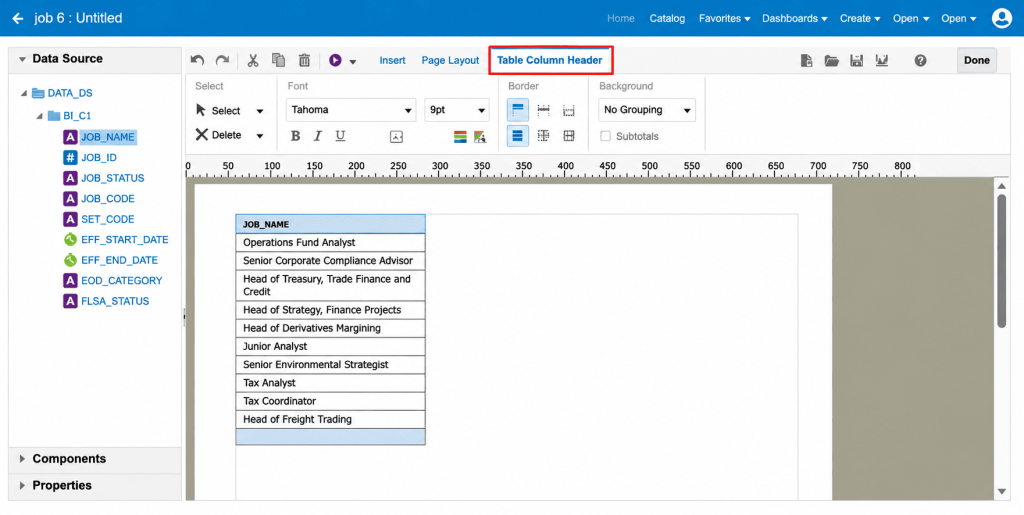
Drag the JOB_NAME field from the Data Source panel into the first table column. The table immediately populates with sample values such as Operations Fund Analyst and Senior Corporate Compliance Advisor.
Step 19: Format the Column Header
Select the JOB_NAME header cell to open the Table Column Header tab. Set the Font to Tahoma, size 8pt, and choose the alignment to keep the header styling consistent with the rest of the report.
Step 20: Add the Remaining Columns
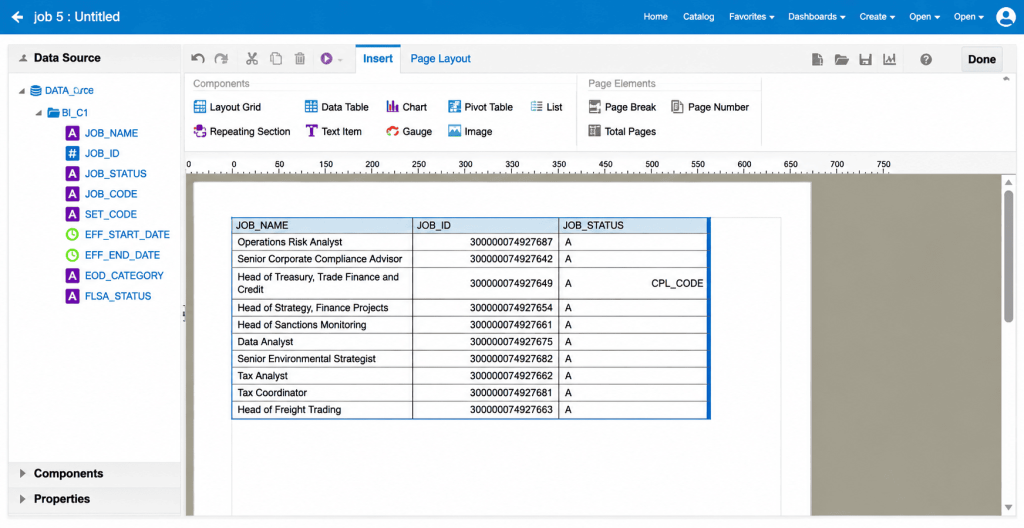
Return to the Insert tab and drag the remaining fields — JOB_ID, JOB_STATUS, and JOB_CODE — from the Data Source panel into the table, one column at a time, in the order they should appear on the report.
Step 21: Set the Page Orientation
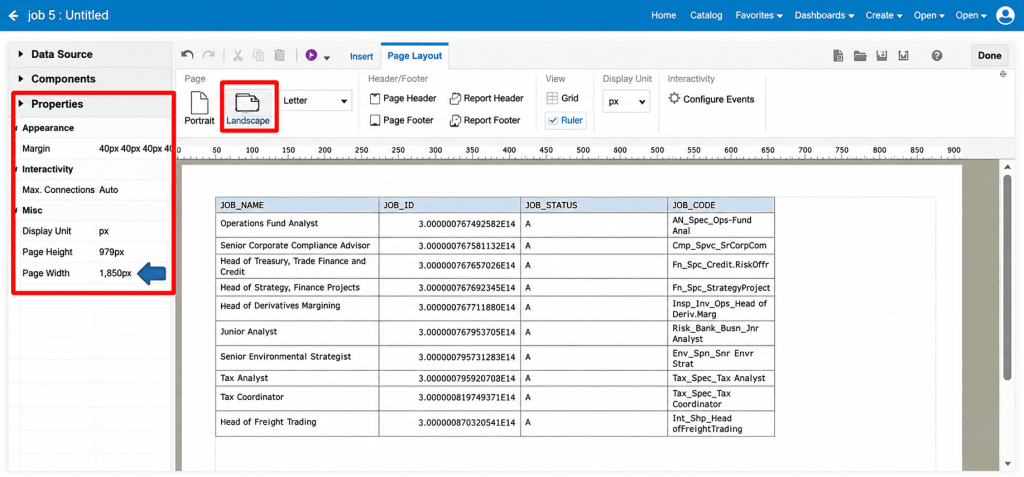
Open the Page Layout tab and select Landscape orientation so that all columns fit comfortably across the page width as more fields are added.
Step 22: Save the Layout
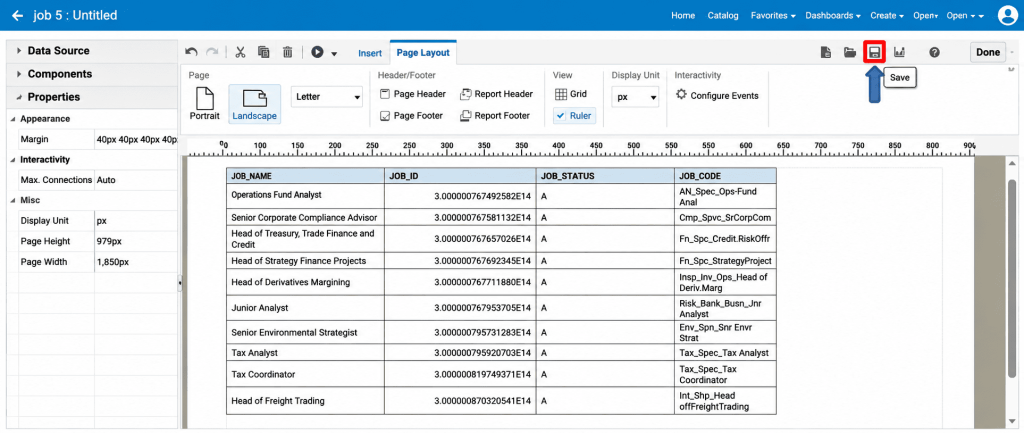
Still on the Page Layout tab, click Save to store the layout against the report.
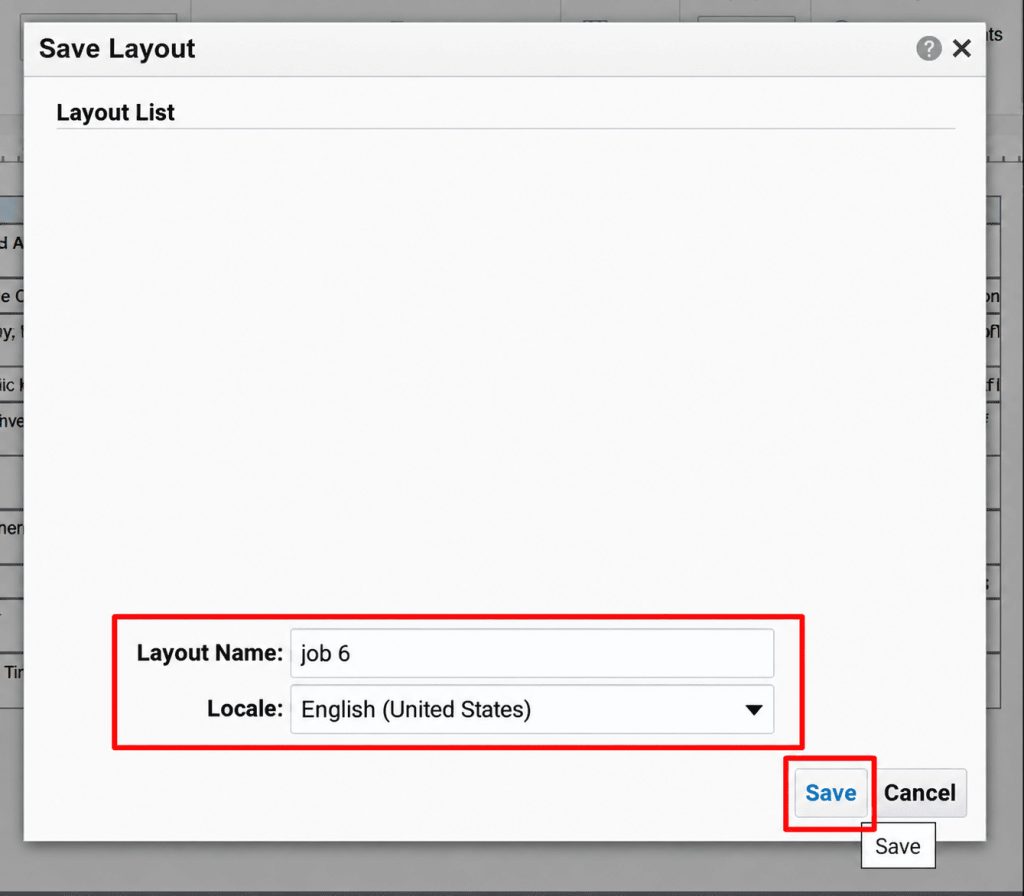
Step 23: Name the Layout
In the Save Layout dialog, enter a Layout Name, for example ‘job 6’, confirm the Locale, and click Save.
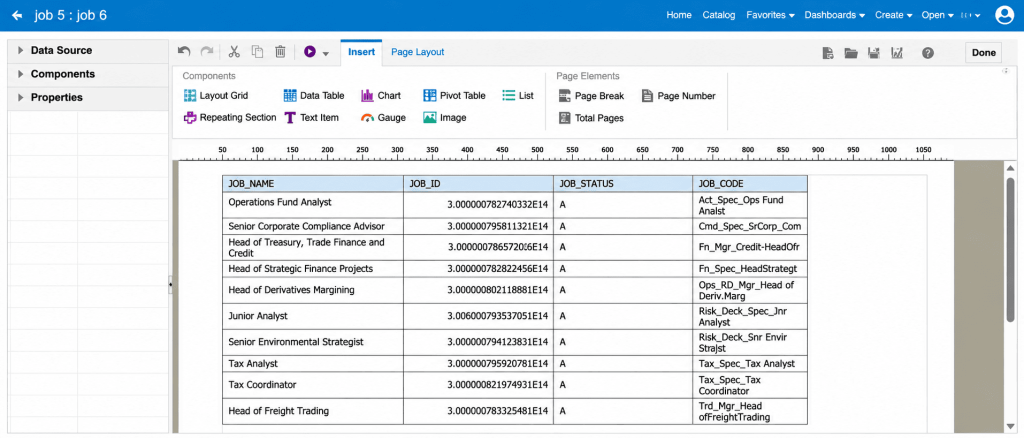
Step 24: Continue Building the Column Set
After saving, the Report Editor title bar updates to show the report and layout name together (job 5 : job 6), confirming the save was successful. Continue adding the remaining fields — SET_CODE, EFF_START_DATE, EFF_END_DATE, EEO_CATEGORY, and FLSA_STATUS — following the same drag-and-drop and formatting steps until the full column set is complete.
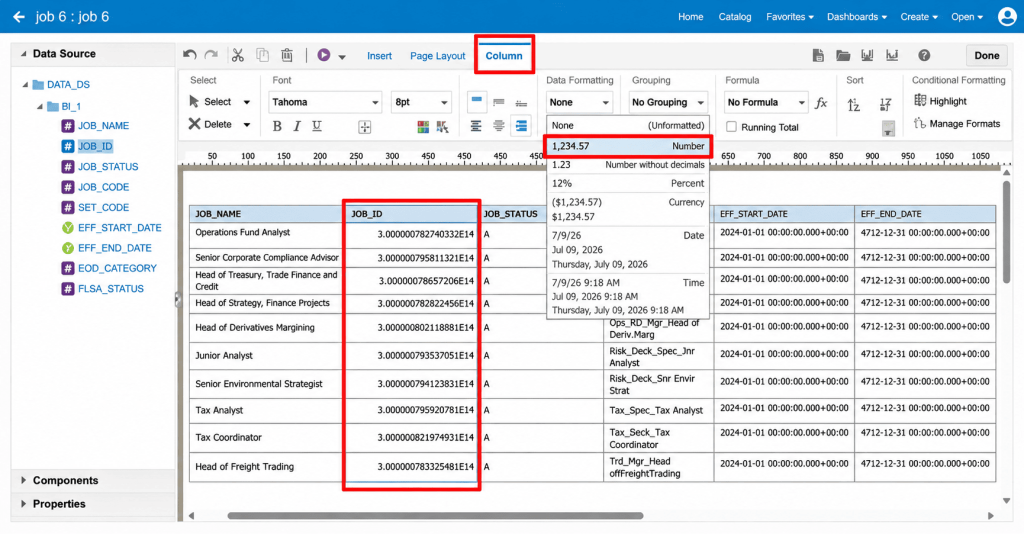
Step 25: Apply Data Formatting to the Columns
Select a column and open the Column tab (shown here for JOB_ID). Use the Data Formatting dropdown to choose the correct format for that field — for example, Number for a numeric identifier such as JOB_ID.
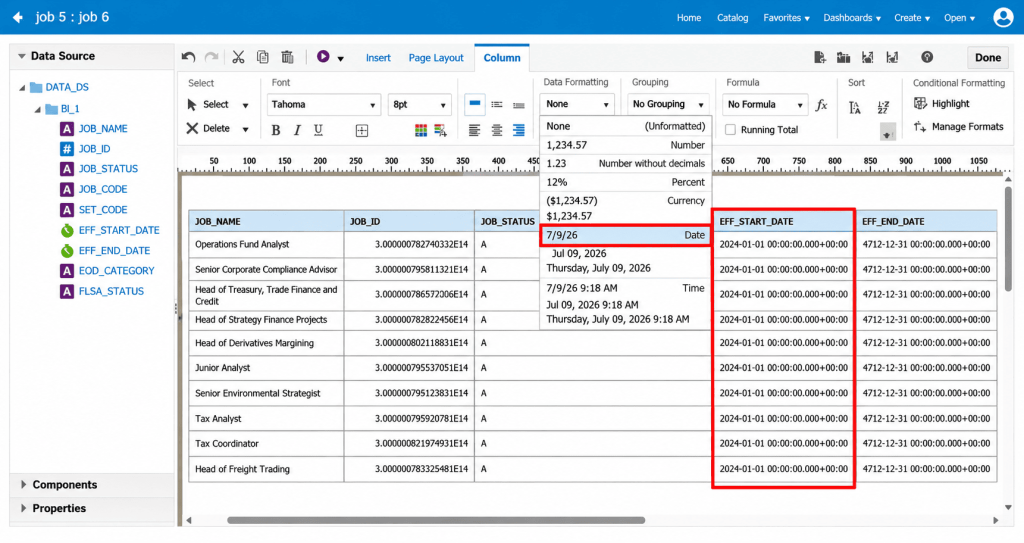
Repeat the same step for each date field. For EFF_START_DATE and EFF_END_DATE, choose one of the Date formats (for example, 7/28/26) so the raw timestamp values display as readable dates rather than the full date-time string.
Step 26: Verify the Layout Under the Data Model
Navigate back to the Job Data Model. The new layout now appears as a thumbnail alongside any other saved layouts. Use View Report to preview the report, or View a list to see all output formats.
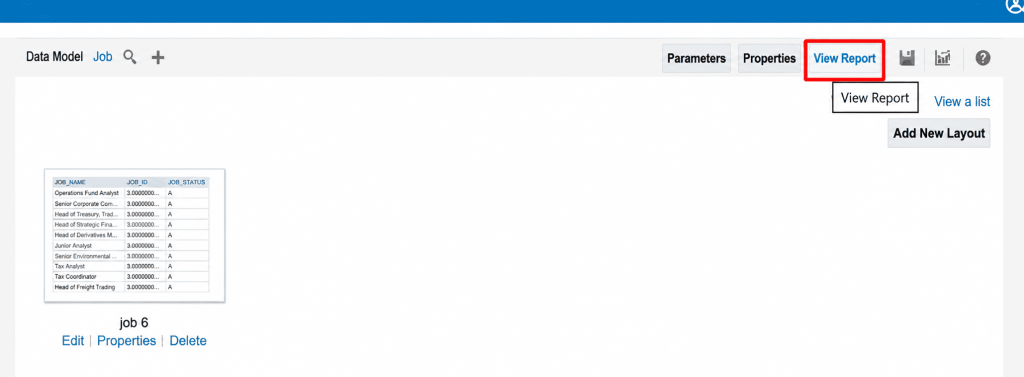
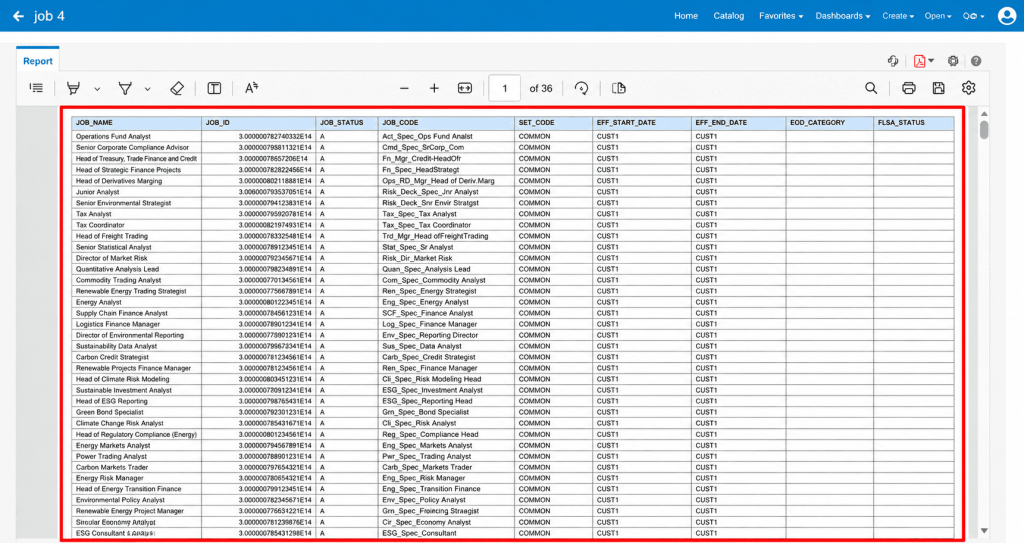
Step 27: Run and Verify the Final Report
Click View Report to generate the finished output. Confirm that all nine columns — JOB_NAME, JOB_ID, JOB_STATUS, JOB_CODE, SET_CODE, EFF_START_DATE, EFF_END_DATE, EEO_CATEGORY, and FLSA_STATUS — are present, correctly formatted, and that the data paginates as expected across the full result set.
Best Practices
Auto Generate Layout (Part A):
- Use meaningful template names that clearly identify the report.
- Validate the SQL query before generating the layout.
- Save the Data Model after making any changes.
- Regenerate the layout whenever new columns are added to the Data Model.
- Use the generated layout as a starting point and enhance it with custom formatting.
- Test the report using different parameter values to validate all scenarios.
- Store report templates in version control for easier maintenance.
Custom Table Layout (Part B):
- Add and format one column at a time, checking the preview after each addition, rather than dropping every field in at once.
- Keep header font and size consistent across all columns (for example, Tahoma 8pt) for a clean, professional appearance.
- Use Landscape orientation whenever a table has more than four or five columns.
- Save the layout with a clear, descriptive name that ties back to the report it belongs to.
- Set Data Formatting explicitly on numeric and date columns (Number, Date, Currency, etc.) rather than leaving it as None, so raw values display in a readable form.
- Re-check the saved layout from the Data Model page after saving, to confirm it registered correctly.
- Preview the full report (not just the first page) to confirm formatting holds up across all pages, especially with large data sets.
General:
- Keep naming conventions consistent across reports, Data Models, and layouts.
Common Issues
| Issue | Possible Cause | Resolution |
|---|---|---|
| Generate button is disabled | Data Model has not been saved | Save the Data Model and reopen the report. |
| Generated layout is empty | SQL query returns no records | Verify the SQL query and sample data. |
| Newly added columns do not appear | Layout was created before Data Model changes | Regenerate the layout after updating the Data Model. |
| Report displays incorrect formatting | Default template formatting | Customize the RTF template using Microsoft Word. |
| Report execution fails | Data Model contains SQL errors | Validate and test the SQL query before generating the layout. |
| New column shows blank in every row | Field dragged onto the header row instead of the data row | Delete the column, then drag the field onto the table body row so it binds to the data row. |
| Table only shows a placeholder box | No field has been dropped into the table yet | Drag a field from the Data Source panel directly onto the table cell. |
| Report looks correct on screen but prints across many pages | Too many columns for Portrait orientation | Switch Page Layout orientation to Landscape, or reduce column widths. |
| Column header font does not match the rest of the report | Header font was not set on the Table Column Header tab | Select the header cell, open Table Column Header, and set Font to Tahoma 8pt to match the other columns. |
| Date columns show a long raw timestamp (e.g. 2026-0101T00:00:00.000+00:00) | Data Formatting was left as None on the date column | Select the column, open the Column tab, and choose a Date format from the Data Formatting dropdown. |
| Saved layout does not appear under the Data Model | Layout was saved to a personal folder instead of with the report | Reopen Save Layout and confirm it is saved against the correct Data Model / report. |
Business Benefits
A well-designed BI Publisher Layout helps organizations present Oracle Fusion HCM data in a consistent, readable, and business-friendly format. Using Auto Generate Layout and custom table design provides several practical benefits:
- Faster report development: Auto Generate Layout provides a quick starting point by automatically creating an RTF template from the Data Model.
- Greater formatting control: Manual table design allows report developers to control columns, ordering, fonts, orientation, and data formatting.
- Improved report readability: Proper formatting of dates, numeric fields, headers, and column widths makes HCM reports easier for business users to interpret.
- Consistent reporting: Standardized layout and naming practices help maintain consistency across Oracle Fusion HCM BI Publisher reports.
- Reduced development effort: Combining automated layout generation with manual customization allows developers to balance speed with precision.
- Better report maintenance: Clear naming conventions, validated Data Models, and version-controlled templates make report layouts easier to update and manage.
- Reliable business reporting: Previewing and validating the complete report helps ensure that the required HCM data is displayed correctly across all pages and output formats.
Conclusion
A well-designed BI Publisher Layout helps transform Oracle Fusion HCM data into structured, readable, and actionable reports. Auto Generate Layout provides a quick starting point, while manual table design offers greater control over columns, formatting, and presentation. By combining both approaches, organizations can streamline report development, improve consistency, and create flexible reporting solutions that meet evolving business needs. Explore Kovaion’s BI Publisher Layout expertise to enhance your Oracle HCM Cloud reporting capabilities.
Frequently asked Questions
-
A BI Publisher Report Layout defines how data retrieved from an Oracle Fusion HCM Data Model is presented in the final report. It controls elements such as columns, formatting, fonts, orientation, and overall report presentation.
+ -
Auto Generate Layout automatically creates a default RTF template based on the fields available in a Data Model. It provides a quick starting point for creating an Oracle Fusion HCM report.
+ -
Yes. Oracle BI Publisher allows developers to manually create a custom table layout using the Report Editor. Developers can select the required fields, arrange columns, apply formatting, and control the report's page orientation.
+ -
Auto Generate Layout creates a basic report template automatically from the Data Model, while manual layout design provides greater control over the columns, order, formatting, and presentation of the final report.
+ -
Select the required date column, open the Column tab, and choose an appropriate Date format from the Data Formatting dropdown. This prevents raw timestamp values from appearing in the final report.
+ -
Landscape orientation provides additional horizontal space for reports containing multiple columns. It can help prevent columns from being compressed or printed across unnecessary pages.
+