Oracle Fusion HCM Job Creation to Hiring: Step-by-Step Process
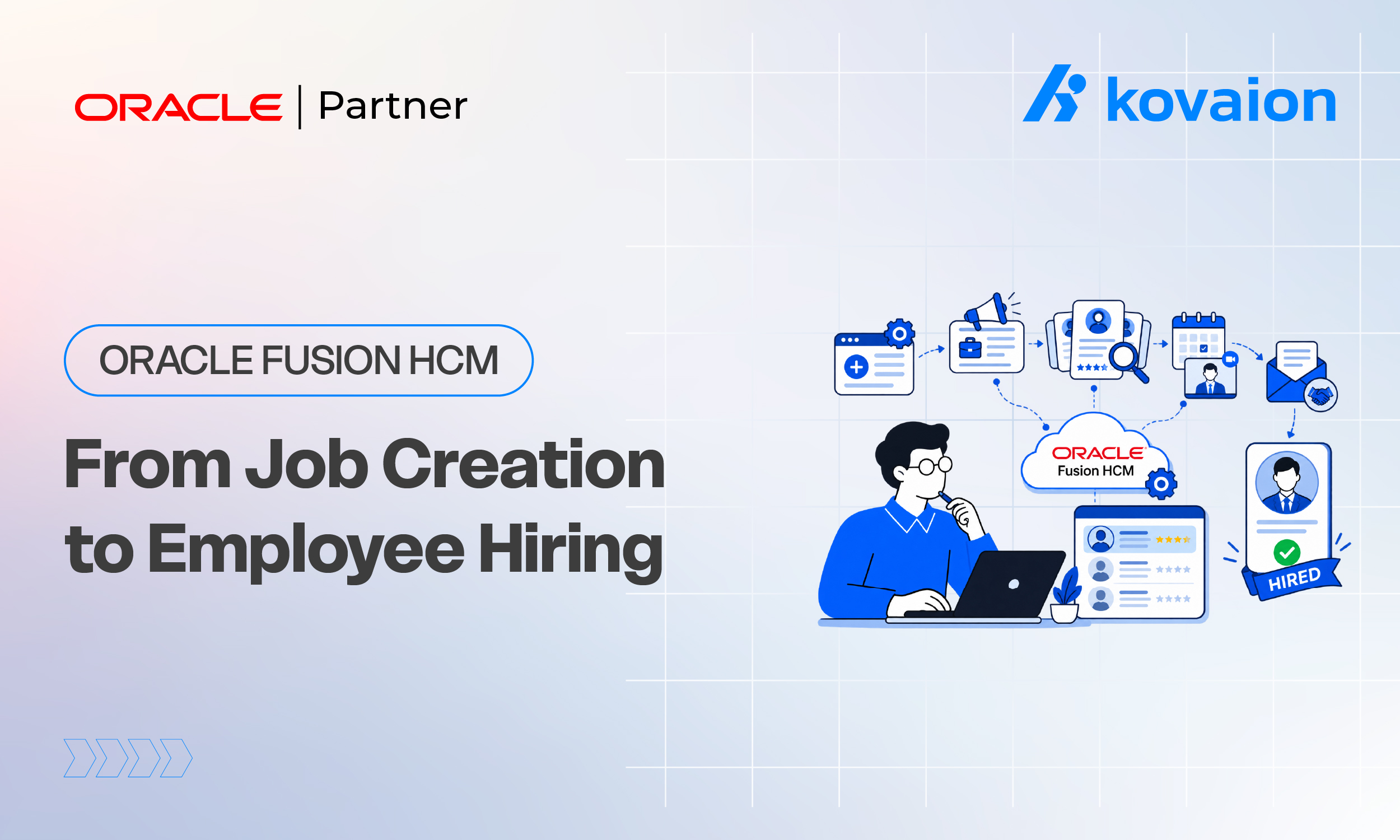
Oracle Fusion HCM organizes work structures around Jobs, which define the nature of work independent of any specific department or manager. Before a new fresher employee can be hired into an organization, a corresponding Job must exist in the system, or an existing entry-level Job must be identified and used.
This guide covers two connected activities: first, creating a new Job (for example, an entry-level role intended for freshers) using the Job Definition setup task, and second, using that Job to hire a new fresher employee through the New Hire process in Oracle Fusion HCM.
Together, these steps form the Oracle Fusion HCM Job Creation to Hiring process, ensuring that a fresher joining the organization is set up with the correct job classification, grade, and assignment details from day one.
Prerequisites
- Access to the Workforce Structures work area with Human Resource Specialist or equivalent role.
- The Enterprise, Legal Employer, Business Unit, and Department are already configured.
- A Job Family and Job Set are available, or standard defaults are acceptable.
- Grade and Grade Rate structures are configured if compensation will be assigned at hire.
- The person’s basic details (name, date of birth, contact information) are available for the hire.
- Appropriate security roles are assigned to perform the Hire an Employee action.
Part A: Creating a New Job
Step 1: Navigate to Manage Jobs
From the Home page, go to My Client Groups (or the Setup and Maintenance work area) and open Workforce Structures. Select Manage Jobs to open the Job Definition task.
Step 2: Create a New Job
Click Create. Select the Job Set and enter an effective start date for the new Job. Confirm the Legal Employer or Enterprise scope as required by your configuration.
Step 3: Enter Job Details
On the Job Details page, enter a clear Job Name and Job Code that identifies the role, for example, ‘Graduate Trainee – Engineering’ or ‘Associate – Fresher Program’. Assign the Job Family, and set the Job Level to reflect an entry-level position.
Step 4: Configure Job Attributes
Complete the remaining attributes relevant to reporting and eligibility, including:
- EEO Category and EEO-1 Job Classification (if applicable to your locale).
- FLSA Status (Exempt or Non-Exempt).
- Bargaining Unit, if the role is unionized.
- Valid grades, if grade validation is enabled for the Job.
Step 5: Review and Submit
Review all entered details, then click Submit to save the new Job. Verify the Job now appears in the Manage Jobs search results and is available for selection during hiring.
Part B: Hiring the Fresher Employee
Step 6: Start the Hire an Employee Process
From My Client Groups, select Quick Actions, then Hire an Employee under the Hiring and Onboarding section. Alternatively, use New Person or Add Pending Worker if the fresher was already pre-registered.
Step 7: Enter Legal Employer and Hire Date
On the Identification step, select the Legal Employer and enter the Hire Date, which for a fresher is typically the agreed joining date after the offer has been accepted.
Step 8: Enter Personal Details
Enter the fresher’s personal details, including legal name, date of birth, gender, and national identifier information as required by the local legislation.
Step 9: Assign the Employment Information
On the Employment Information step, select the Business Unit, Department, and the new Job created in Part A. Enter the Position if positions are used, and select the reporting Manager.
Step 10: Assign Grade and Compensation
Select the appropriate entry-level Grade and Grade Step for the fresher. If salary basis and compensation plans are enabled, enter the starting salary in line with the fresher compensation structure.
Step 11: Review and Submit the Hire
Review all steps in the Hire flow summary. Correct any validation warnings, then click Submit. The system creates the Person, Assignment, and Work Relationship records for the fresher.
Step 12: Verify the New Hire Record
Search for the newly hired fresher in Person Management to confirm the Job, Grade, Department, Manager, and Hire Date are correctly reflected on the active assignment.
Best Practices
- Use a consistent, descriptive naming convention for fresher-level Jobs (e.g., ‘Graduate Trainee’, ‘Associate – Fresher Program’).
- Define a dedicated Job Level or Job Family for entry-level roles to simplify reporting and compensation planning.
- Validate grade and salary ranges before the hire date to avoid compensation approval delays.
- Pre-register freshers as candidates or pending workers where possible to streamline the Hire flow.
- Double-check the Legal Employer and Business Unit, since these cannot always be changed easily after hire.
- Communicate the Hire Date clearly, as system access and notifications are often tied to it.
- Review EEO and FLSA classifications with HR compliance before finalizing a new Job.
Common Issues
| Issue | Possible Cause | Resolution |
|---|---|---|
| Person record already exists | Fresher was pre-registered as a candidate or contingent worker | Search Person Gallery before starting a new Hire; convert or link the existing record instead. |
| Legal Employer not available in list | User does not have data role access to the Legal Employer | Request the correct HCM data role or verify the Legal Employer setup. |
| Assignment status remains Pending Worker | Hire date is in the future | This is expected – the record activates automatically on the hire/start date. |
| Email notifications not received | Work email not generated or notification templates disabled | Verify email address rules and check BPM notification configuration. |
| Grade/Step not selectable | Grade rate not associated with the selected Job or Position | Update Grade Ladder or Grade Rate setup for the Job/Position combination. |
Business Benefits of Oracle Fusion HCM Job Creation to Hiring
A structured Oracle Fusion HCM Job Creation to Hiring process provides several business benefits for organizations managing employee onboarding and workforce structures:
- Improved workforce data accuracy: Clearly defined Jobs, grades, departments, and assignments help maintain consistent employee records.
- Faster employee onboarding: Connecting Job Definition with the Hire flow can reduce manual rework during the onboarding of fresher employees.
- Better workforce reporting: Consistent Job Families, Job Levels, and classifications support more reliable workforce reporting and analysis.
- Reduced hiring errors: Validating the Legal Employer, Business Unit, Job, Grade, and compensation details before submission helps reduce downstream corrections.
- Improved compliance: Proper EEO, FLSA, and other job classifications support organizational HR compliance requirements.
- Scalable HCM processes: A standardized Oracle Fusion HCM hiring process provides a repeatable approach for onboarding employees across different roles and business units.
Transform Your Oracle Fusion HCM Processes with Kovaion
From defining workforce structures and configuring Jobs to streamlining employee hiring and assignments, organizations need a well-connected Oracle Fusion HCM foundation to support accurate, scalable, and efficient HR operations.
At Kovaion, we provide Oracle Fusion Cloud HCM services to help organizations implement, optimize, and transform their HCM processes, enabling smarter workforce management and better business outcomes.
Connect with Kovaion to explore how our Oracle Fusion HCM expertise can help you build a more efficient and scalable HCM ecosystem.
Frequently Asked Questions
-
Oracle Fusion HCM Job Creation to Hiring refers to the process of creating or identifying a Job in Oracle Fusion HCM and then using that Job when hiring an employee. It connects Job Definition with the New Hire process.
+ -
Creating the appropriate Job helps ensure that the employee is assigned the correct job classification, Job Family, Job Level, grade, and other workforce structure details during the hiring process.
+ -
A new Job can be created through the Workforce Structures work area by accessing Manage Jobs, selecting Create, entering the required Job details and attributes, and submitting the Job Definition.
+ -
After creating or identifying the appropriate Job, start the Hire an Employee process from My Client Groups. Enter the employee's details and assign the Business Unit, Department, Job, Position, Manager, Grade, and compensation information as applicable.
+ -
Yes. If an appropriate entry-level Job already exists, it can be identified and selected during the Hire an Employee process instead of creating a new Job.
+