AI Career Coach: A Smarter Way to Find the Right Job

Finding the right job can sometimes feel confusing and time-consuming. To make this process easier, the AI Career Coach helps candidates discover jobs that match their skills and experience.
What is the AI Career Coach?
The AI Career Coach is a smart assistant available on the career site. It helps candidates search for jobs that suit their background and interests.
It works using two main tools: the Job Recommendations Agent and the Job Fit Agent. These tools personalize the job search experience for each candidate.
How Does It Work?
Candidates can upload their resume or answer a few simple questions. Based on this information, the Job Recommendations Agent looks for jobs that match their profile.
When viewing job details or applying for a job, the Job Fit Agent checks how well the candidate’s skills match the role. It can also answer questions about the job.
Both agents can use uploaded documents to provide better and more accurate suggestions.
How Candidates See the Career Coach
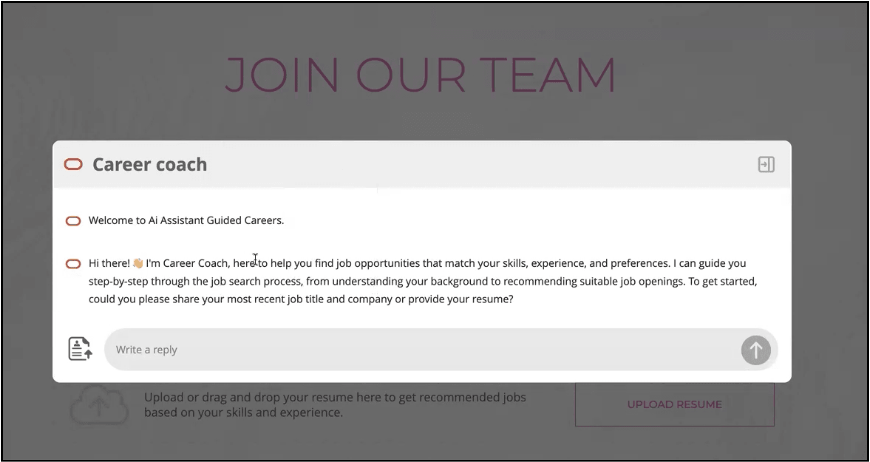
The AI Career Coach appears as a side panel on career site pages. It can also be shown clearly on the splash page if configured.
If candidates want more screen space, they can minimize it to a small icon at the bottom of the page. An animated dot appears on the icon to notify them when new information is available.
Building a Job Profile
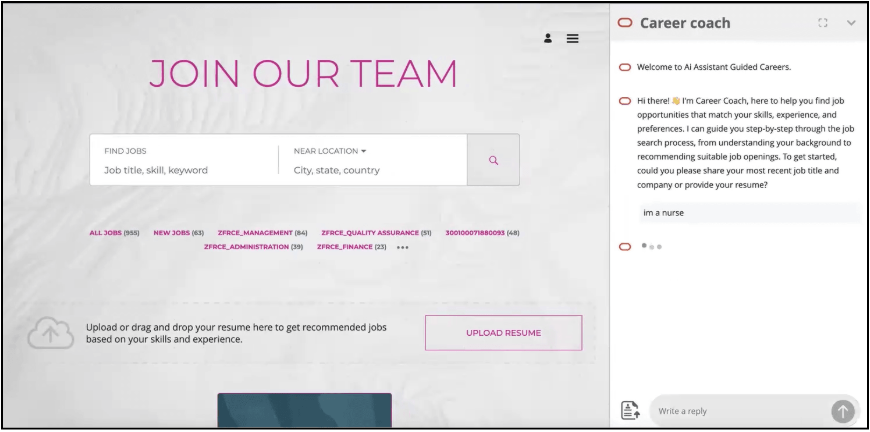
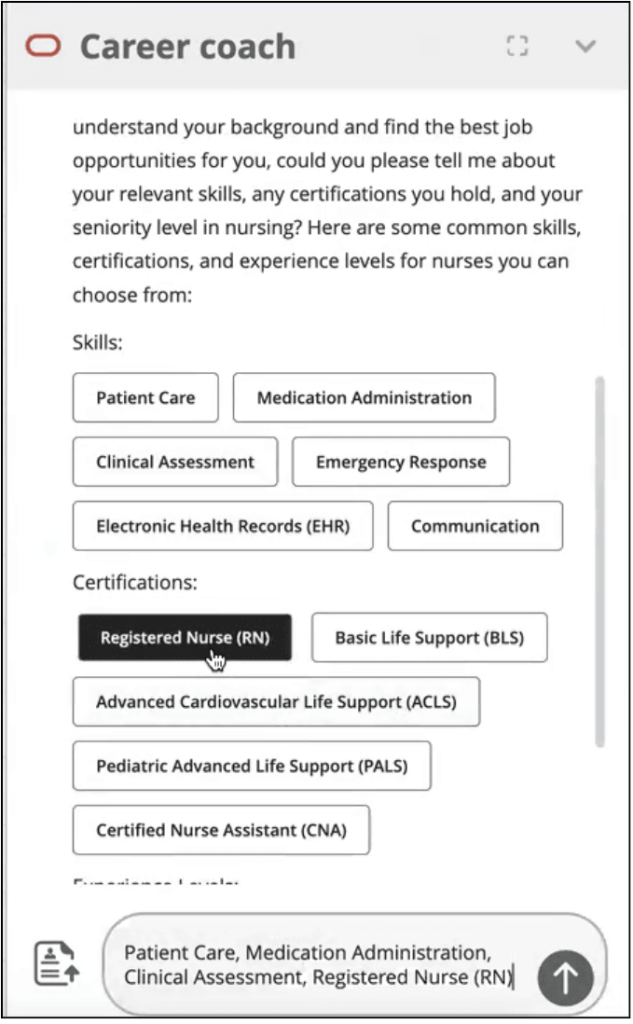
The Career Coach asks candidates questions about their job history and skills. Using their answers, it creates a mini job profile.
After the profile is ready, it shows a list of job opportunities that match their experience and skills.
Why This Enhancement is Helpful
This feature makes it easier for candidates to find the most suitable jobs. As a result, companies receive better-quality applications, and candidates apply for roles that truly fit them.
Steps to enable and configure an AI Agent for career sites
To Work With, enable permission groups, make the below profile option to “Yes”:
- Profile Option: ORA_ASE_SAS_INTEGRATION_ENABLED
Run Schedule processes:
- Import Resource Application Security Data
- Import User and Role Application Security Data
Create a custom role for managing AI Agents:
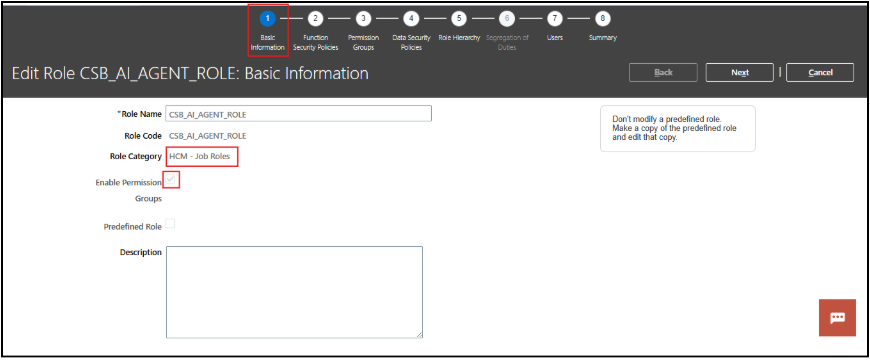
Note:
- Make sure to select “HCM – Job Roles.”
- Make sure to enable permission groups
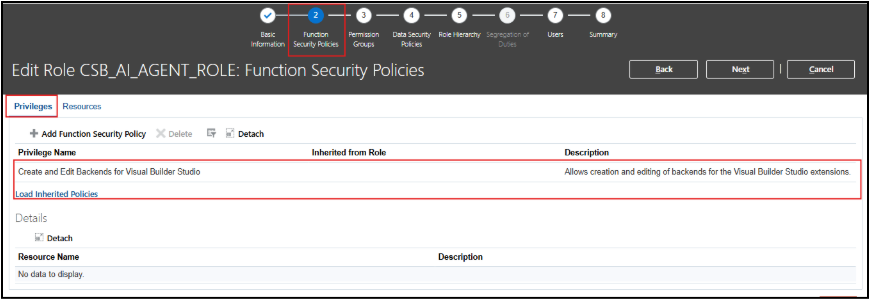
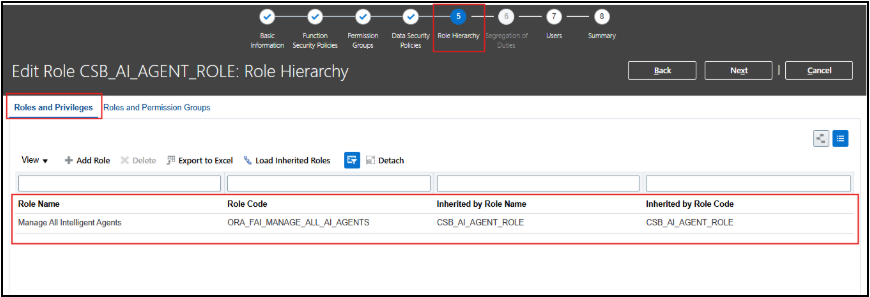
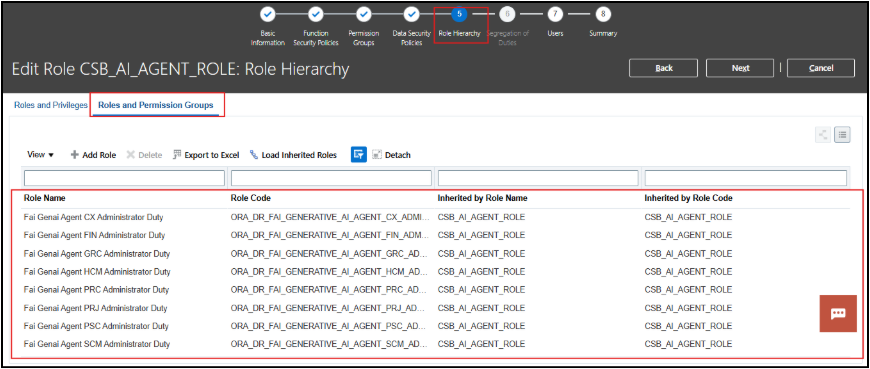
There are two agents you can enable, and both require a code from AI Studio:
- Job Recommendation Agent
- Job Fit Agent
Create a Job Recommendation Agent:
- Go to Navigator > Tools > AI Agent Studio.
- Search for the External Career Site Job Recommendation Agent template and click Copy Template.
- Add a suffix to the template. This will ensure that all the building blocks of the agent team are created and named as per your configuration nomenclature.
A sample career site document tool is attached to the agent to answer any general questions about the company. To use it:
- Expand the Tools section in the agent team box.
- Copy the tool name of the document tool that starts with CE_Career_Site_Document_Tool.
NOTE: You need to copy the exact name. Click View Tools to see it.
- Click Save and Close to save your agent.
- Upload the required company documents and make any necessary prompt changes. (See below for details)
- Publish the agent.
If you don’t want to use it, you’ll need to edit the prompt using the three dots under the agent team name.
- Remove the ## GENERAL QUESTIONS ABOUT COMPANY section in the prompt, including the IMPORTANT INSTRUCTIONS in that section.
- Click Update.
Create a Job Fit Agent:
- Go to Navigator > Tools > AI Agent Studio.
- Search for External Career Site Job Fit Agent template and click Copy Template.
- Add a suffix to the template. This will ensure that all the building blocks of the agent team are created and named as per your configuration nomenclature.
A sample career site document tool is attached to the agent to answer any general questions about the company. To use it:
- Expand the Tools section under the agent team box.
- Copy the tool name of the document tool that starts with CE_Career_Site_Document_Tool. Use View Details against the tool name to copy the exact name.
- Click Save and Close to save your agent.
- Upload the required company documents and make any necessary prompt changes. (See below for details)
If you don’t want to use it, you’ll need to edit the prompt using the three dots under the agent team name.
- Go to the ## JOB INFORMATIONAL OR GENERAL QUESTIONS section in the prompt, and remove the instruction: “If relevant information is not found in the job details, use the ‘CE_Career_Site_Document_Tool’ tool to answer the question.”
- Click Update.
- Publish the agent.
Upload Documents to the Document Tool:
A sample career site document tool is already attached to the agent, and the agent prompt contains the necessary instructions to read the document and respond to the user. However, you need to edit the tool and upload the required company documents to it.
- Go to the Tools tab.
- Search for the document tool name that you’ve copied above.
- Click the pencil icon to edit.
- Click Add.
- Enter the document name and description.
- Upload the documents.
- Change the status to Ready to Publish and click Save to save the uploaded document.
- Click Save to save the tool.
- Go to Navigator > Tools > Scheduled Processes.
- Run the scheduled process called Process Agent Documents using Schedule New Process. Once completed, go to AI Agent Studio > Tools and verify that the uploaded document status is Published.
- Edit the prompt and publish the agent.
- Go to Agent Teams and search for the agent’s name that you’ve created.
- Click the pencil icon to edit. As the agent artifacts will be suffixed with the text that you’ve provided, you need to edit the prompt to specify the new document tool name.
Note: The tool name edit is required only for the document tools and isn’t required for other tool names, as they use the internal function name rather than the tool name, so they remain unchanged even after adding a suffix to the tool name while copying the template.
- Expand the Tools section under the agent team box.
- Copy the tool name of the documents tool that starts with CE_Career_Site_Document_Tool. Use View Details against the tool name to copy the exact name.
- Edit the prompt using three dots under the agent team name.
- Go to ## GENERAL QUESTIONS ABOUT COMPANY section in the prompt if you’re editing job recommendations, agent. Go to ## JOB INFORMATIONAL OR GENERAL QUESTIONS section in the prompt if you’re editing a job fit agent.
- Replace CE_Career_Site_Document_Tool with the new name that you have copied above.
- Click Update.
- Publish the agent.
Set Up an Integration User with the Custom Job Role:
- Sign in to FA as the IT Security Manager who can access the Security Console.
- Navigate to Security Console.
- Create custom job role IRC_CE_AGENT_CHAT_JOB.
- Enable Permission groups.
- Add Functional privilege IRC_REST_SERVICE_ACCESS_CAREER_SITE_AGENT_CHAT.
- Add Permission Group read: Generative AI Workflow.
- Add SAS duty role ORA_DR_FAI_GENERATIVE_AI_AGENT_RUNTIME
- Save and Close.
- Create Integration User IRC_CE_AGENT_CHAT_INTEGRATION_USER
- Attach the custom job role IRC_CE_AGENT_CHAT_JOB created in Step 3 to the Integration User.
- Save and Close.
- Note the Integration user account credentials.
Map the Custom Job Role to the Required Agents:
- Sign in as an AI Studio Admin User who can access AI Studio.
- Navigate to AI-Studio.
- Edit the required agent from Agent Teams.
- On the Security tab, click Add Role.
- Search for the custom job role IRC_CE_AGENT_CHAT_JOB created above and apply to the agent.
- Publish the agent.
Map the Integration User for Candidate Experience:
- Sign in as a Career Site Administrator/Recruiting Administrator who can access the FSM>Enterprise Recruiting and Candidate Experience Information task.
- Navigate to the Candidate Experience section and click Edit.
In the AI Agent section, enter the username and password of the security user created above to access agents from AI Studio from the career site.
- Click Save.
Run the Scheduled Process to Index Job Requisitions:
For existing customers:
- Make sure at least one execution of the Maintain Candidates and Job Requisitions for Search scheduled process has occurred. This is required to update the index mapping.
- Run the Load and Index Job Requisitions scheduled process with mode = “Upgrade.”
- Run the scheduled process Index Job Summary for Each Requisition or the metadata “IndexJobSummaryVectors” with mode = Full. Once the scheduled process is completed, schedule the scheduled process Index Job Summary for Each Requisition or the metadata “IndexJobSummaryVectors” with mode = “Incremental” to run every 15 minutes.
For new customers:
- Run the Load and Index Job Requisitions scheduled process with mode = “Drop and Recreate.”
- Once the Maintain Candidates and Job Requisitions for Search scheduled process is completed, schedule the Maintain Candidate and Job Requisitions scheduled process to run every 15 minutes.
- Run the scheduled process Index Job Summary for Each Requisition or the metadata “IndexJobSummaryVectors” with mode = Full.
- Once the scheduled process is completed, schedule the Index Job Summary for each Requisition scheduled process or the metadata “IndexJobSummaryVectors” with mode = “Incremental” to run every 15 minutes.
Enable and Configure the Agents for Career Sites:
- In Setup and Maintenance, go to Offering: Recruiting and Candidate Experience > Functional Area: Candidate Experience > Task: Career Sites Configuration.
- Create a career site or edit an existing one.
- On the General tab, open the AI Agent section.
- Select Enable AI Agent.
- Enter the Agent Team Code for the job recommendation agent.
- Enter the Agent Team Code for the job fit agent.
- Enter the Version.
- Publish the site.
- Click the Theme tab.
Note: AI Agent settings configured here aren’t included in the Export/Import or site duplication processes. This functionality will be supported in a future release.
- Open the AI Agent section and configure the settings.
- Click Publish Site.
NOTE:
- Create all the custom job roles under the Role Category “HCM – Job Roles.”
- After creating the custom job role, make sure to run the following scheduled processes:
- Import User and Role Application Security Data
- Retrieve Latest LDAP Changes
- Send Pending LDAP Requests
Business Benefits
1. Empowers Employee Career Growth
AI Career Coach helps employees identify suitable career opportunities based on their skills, interests, experiences, and career aspirations. This empowers employees to take ownership of their professional development and career progression.
2. Improves Internal Talent Mobility
By recommending relevant roles, learning opportunities, and career paths, organizations can promote internal mobility and help employees discover growth opportunities within the organization before seeking opportunities elsewhere.
3. Enhances Employee Engagement
Employees who have visibility into potential career paths and development opportunities are more likely to remain engaged, motivated, and committed to achieving their professional goals.
4. Supports Data-Driven Career Planning
AI-driven recommendations provide employees and managers with valuable insights into skill gaps, career readiness, and development opportunities, enabling more informed career planning decisions.
5. Reduces Talent Attrition
Organizations that invest in employee growth and career development often experience higher retention rates. AI Career Coach helps employees visualize their future within the organization, reducing the likelihood of voluntary turnover.
6. Encourages Continuous Learning
The solution recommends relevant learning content, certifications, and development activities that help employees acquire new skills and stay aligned with evolving business needs.
7. Strengthens Workforce Readiness
By aligning employee skills with future job opportunities, organizations can build a workforce that is better prepared to meet changing business demands and strategic objectives.
8. Personalizes Employee Experiences
AI-powered recommendations create a tailored career development experience, ensuring employees receive guidance and opportunities that are relevant to their unique career journeys.
Conclusion
AI Career Coach is transforming career development by providing employees with personalized, data-driven guidance to navigate their professional growth. By leveraging artificial intelligence to recommend career paths, learning opportunities, and skill development plans, organizations can foster a culture of continuous growth, improve workforce engagement, and strengthen internal talent mobility. As businesses continue to invest in employee experience and talent development, AI Career Coach serves as a powerful tool for building a future-ready and highly engaged workforce.
Empower Career Growth with AI-Powered Oracle HCM Solutions
Looking to help employees make informed career decisions and unlock new growth opportunities? Oracle’s AI Career Coach provides personalized career guidance, skill development recommendations, and internal mobility insights that empower employees to achieve their professional goals. By leveraging AI-driven career development tools, organizations can enhance employee engagement, improve retention, and build a more agile workforce.
At Kovaion, our experienced Oracle HCM consultants help organisations implement and optimise Oracle HCM solutions that transform talent management and employee experiences. From AI-powered career development initiatives to end-to-end Oracle HCM implementations, we deliver innovative solutions that help businesses nurture talent, strengthen workforce capabilities, and maximise the value of their Oracle HCM investment.