Enhancing Approval Efficiency in Oracle Fusion Expenses Using Direct Receipt View Links
If you’ve worked with Oracle Fusion Expenses as an approver, you’ve likely felt the frustration firsthand. Every time an expense report lands in your queue, verifying the attached receipts means clicking through multiple screens — open the report, drill into each expense line, expand the attachments section, download the file, open it locally. Then repeat for the next line. And the next report.
For a manager handling 40+ expense reports a day, this isn’t just inconvenient — it’s a genuine bottleneck that delays reimbursements, strains SLA compliance, and creates approval backlogs during peak periods.
This blog walks you through a practical, low-code solution that eliminates all of that friction by embedding a direct, clickable receipt view link right inside the approval notification — so approvers can verify receipts in a single click, without ever leaving the notification screen.
The Business Problem
The default Oracle Fusion Expenses approval workflow requires approvers to:
- Open the Expense Report
- Navigate into each individual Expense Line
- Expand the attachment section
- Download the receipt file
- Open and view it locally
Multiply this by dozens of expense lines across multiple reports, and the cumulative time loss becomes significant. At an organizational level, this creates:
- Finance processing delays — month-end closures get held up waiting on approvals
- Longer reimbursement cycles — employees wait longer to get paid back
- Approval backlogs during peak periods — travel season, quarter-end, and project closeouts overwhelm approvers
The root cause isn’t a missing feature — it’s that the existing process forces approvers into an unnecessarily deep navigation path just to do one simple thing: look at a receipt.
The Objective
The goal is straightforward: give approvers a one-click way to view receipts directly from the notification screen, without downloading anything, without navigating into the expense report, and without breaking any existing Oracle Fusion security or attachment framework.
The result looks like this — the approver receives their standard workflow notification email or BIP notification, sees a “Click here” link next to the expense line, clicks it, and the receipt opens directly in their browser. Done.
Technical Overview
The solution works by dynamically constructing a secure Content Server URL for each receipt attachment using Oracle Fusion’s built-in attachment metadata tables. This URL points directly to the file in Oracle’s WebCenter Content (UCM) layer and opens it inline in the browser — no download prompt, no navigation required.
Key database tables involved:
| Table Name | Purpose |
| FND_DOCUMENTS_TL | Stores document metadata — file name, document ID, version number |
| FND_ATTACHED_DOCUMENTS | Links attachments to their parent transaction records |
| EXM_EXPENSES | Individual expense line records |
| EXM_EXPENSE_REPORTS | Expense report header records |
| EXM_EXPENSE_TYPES | Expense type definitions |
| fusion.ask_deployed_domains | Provides the environment’s external host URL |
The magic is in combining the document’s DM_VERSION_NUMBER and DM_DOCUMENT_ID with the environment’s external_virtual_host to build a URL that the Oracle Content Server understands — specifically using the GET_FILE IdcService with noSaveAs=1 to force an inline browser view rather than a download.
Step-by-Step Implementation Guide
Step 1: Write the SQL Query to Generate the View Link
This is the foundation of the entire solution. The query joins the attachment metadata tables with the expense tables and constructs the direct view URL dynamically.
SELECT
EER.EXPENSE_REPORT_NUM,
ex.EXPENSE_ID,
EET.NAME,
tl.FILE_NAME AS “File_Name”,
(
SELECT ‘https://’ || external_virtual_host
FROM fusion.ask_deployed_domains
WHERE deployed_domain_name = ‘FADomain’
)
|| ‘/cs/idcplg?IdcService=GET_FILE’
|| ‘&dID=’ || tl.DM_VERSION_NUMBER
|| ‘&dDocName=’ || tl.DM_DOCUMENT_ID
|| ‘&RevisionSelectionMethod=Specific’
|| ‘&noSaveAs=1’
|| ‘&allowInterrupt=1’ AS “VIEW_ATTACHMENT_LINK”
FROM FND_DOCUMENTS_TL tl
JOIN FND_ATTACHED_DOCUMENTS fad
ON tl.DOCUMENT_ID = fad.DOCUMENT_ID
JOIN EXM_EXPENSES ex
ON fad.PK1_VALUE = TO_CHAR(ex.EXPENSE_ID)
JOIN EXM_EXPENSE_REPORTS EER
ON EER.EXPENSE_REPORT_ID = ex.EXPENSE_REPORT_ID
JOIN EXM_EXPENSE_TYPES EET
ON EET.EXPENSE_TYPE_ID = ex.EXPENSE_TYPE_ID
WHERE fad.ENTITY_NAME = ‘EXM_EXPENSES’
AND tl.LANGUAGE = ‘US’
AND EER.EXPENSE_REPORT_NUM = UPPER(:bindExpenseReportNum)
What each part does
- The subquery against `fusion.ask_deployed_domains` dynamically fetches the correct base URL for your environment — this makes the solution portable across DEV, UAT, and PROD without hardcoding any domain.
- `DM_VERSION_NUMBER` maps to the `dID` parameter, identifying the specific document version.
- `DM_DOCUMENT_ID` maps to `dDocName`, identifying the document in the content server. `noSaveAs=1` is the critical parameter — it tells the browser to display the file inline instead of downloading it.
- `RevisionSelectionMethod=Specific` ensures the exact version of the receipt is retrieved.
Before moving to the next step, paste the generated URL into your browser and confirm the receipt opens correctly. This validates your SQL and your environment’s content server connectivity.
Step 2: Locate the Workflow Notification Report in BI Publisher
Navigate to the BI Publisher Catalog and find the existing seeded workflow notification report for Expenses. The standard path is:
/Shared Folders/Financials/Workflow Notifications/Expenses/
You will find two components here — the Report and its associated Data Model. Do not edit the seeded versions directly. Oracle will overwrite them during patches and upgrades.
Step 3: Archive and Move to a Custom Folder
To protect your changes from being overwritten:
1. Archive both the Report and the Data Model from the seeded folder.
2. Unarchive them into your custom folder:
/Shared Folders/Custom/Financials/Workflow Notifications/
This creates your working copies that are patch-safe and fully under your control.
Step 4: Add the Custom SQL to the Data Model
Open the copied Data Model in BI Publisher’s Data Model Editor and add a new dataset using the SQL query from Step 1. Map bindExpenseReportNum as a bind parameter so it gets populated dynamically at runtime with the report number from the workflow context.
Save the data model and run a sample output using a real expense report number from your environment. In the output XML, you should see the VIEW_ATTACHMENT_LINK element populated with a full, valid URL for each expense line that has an attachment. Copy one of these URLs and paste it into a browser to confirm the receipt opens inline — this is your verification checkpoint before touching the template.
Step 5: Modify the RTF Notification Template
Download the RTF layout template from the copied report to your local machine. Open it using Microsoft Word with the BI Publisher Desktop Add-in installed.
In the template, locate the section where individual expense lines are rendered. Add a new field for the attachment link using the BI Publisher field insertion tool, and apply the following XSL-FO code to render it as a clickable hyperlink:
<?if:normalize-space(VIEW_ATTACHMENT_LINK)!=”?>
<fo:basic-link
external-destination=”url({VIEW_ATTACHMENT_LINK})”
color=”blue”
text-decoration=”underline”>
Click here to view the receipt
</fo:basic-link>
<?end if?>
Why the normalize-space check matters: Not every expense line will have an attachment. This conditional wrapper ensures the link only appears when an actual attachment URL exists, keeping the notification clean for lines without receipts.
Save the modified RTF file locally.
Step 6: Upload the Modified Template and Activate It
Go back to BI Publisher and open your copied report. Under the Layout section:
- Upload the modified RTF file as a new layout.
- Give it a clear name like Custom Expense Approval with Receipt Link.
- Set this layout as the Active layout for the report.
Once activated, this layout will be used for all subsequent expense approval notifications routed through this report.
Step 7: Assign the “Attachments Read” Role (Critical)
This is a step that catches most implementations off guard. Even with a perfectly constructed URL, approvers may get an Access Denied or blank page when clicking the link. This happens because Oracle’s Content Server enforces its own permission layer separately from the Expenses module.
To resolve this, assign the Attachments Read role to all users who need to view receipts via the link. This can be done through:
- Security Console → User Management — add the role directly to individual users
- Role Hierarchy — add Attachments Read to an existing job role that approvers already hold, so it propagates automatically
Without this role, the Content Server will reject the request even though the URL itself is valid.

Fig 1
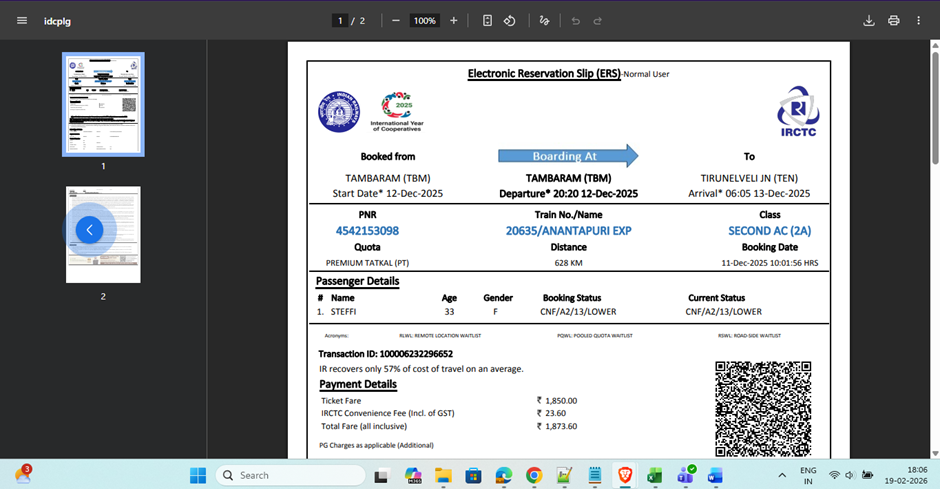

Fig 2
Before vs. After
| Before | After | |
| Receipt Access | 4–5 navigation clicks per line | Single click from notification |
| File Handling | Manual download required | Opens directly in browser |
| Approval Speed | Minutes per report | Seconds per report |
| Approver Experience | Fragmented, context-switching | Seamless, in-notification |
| Backlog Risk | High during peak periods | Significantly reduced |
Business Benefits
1. Accelerated Approval Cycles
Direct receipt view links allow approvers to access supporting documents instantly without navigating through multiple screens. This significantly reduces review time and helps organizations process expense approvals faster.
2. Improved Approver Productivity
By providing immediate access to receipts and expense details, managers and finance teams can make informed decisions more efficiently. This streamlined experience reduces administrative effort and improves overall productivity.
3. Enhanced User Experience
A simplified approval process eliminates unnecessary clicks and navigation, creating a more intuitive experience for approvers. This encourages quicker action and improves adoption of Oracle Fusion Expenses.
4. Greater Accuracy in Expense Reviews
Easy access to supporting receipts helps approvers validate expense claims more effectively, reducing the likelihood of errors, incomplete approvals, or overlooked documentation.
5. Reduced Processing Delays
Approval bottlenecks often occur when supporting documents are difficult to access. Direct receipt links help eliminate these delays, ensuring expense reports move through the approval workflow more efficiently.
6. Stronger Compliance and Audit Readiness
Providing approvers with immediate visibility into expense documentation supports policy compliance and creates a transparent approval process. This strengthens audit readiness and improves governance across expense management operations.
7. Optimized Financial Operations
Faster approvals and accurate expense validation contribute to quicker reimbursements, improved financial visibility, and more efficient expense management across the organization.
Conclusion
Enhancing approval efficiency in Oracle Fusion Expenses using direct receipt view links helps organizations streamline expense review processes and improve decision-making. By enabling instant access to supporting documentation, businesses can reduce approval delays, improve accuracy, and create a more user-friendly experience for approvers. As organizations continue to focus on operational efficiency and digital transformation, optimizing expense approval workflows can deliver measurable improvements in productivity, compliance, and financial performance.
Streamline Expense Approvals with Oracle ERP Solutions
Looking to improve expense approval efficiency and simplify access to supporting documentation in Oracle Fusion Expenses? Direct receipt view links can help organizations accelerate approval cycles, enhance user experiences, and strengthen compliance by providing approvers with instant access to critical expense information. A streamlined approval process enables faster decision-making and improves overall financial operations.
At Kovaion, our experienced Oracle ERP consultants help organisations implement and optimise Oracle ERP solutions that automate financial workflows, improve expense management processes, and enhance operational efficiency. From Oracle Fusion Expenses enhancements to enterprise-wide financial transformation initiatives, we deliver tailored solutions that help businesses maximise the value of their Oracle ERP investment.