Advance Payments And Automation Of Invoicing And Receipt Applications 24b Update

Oracle Fusion allows for recording a customer’s advance payment prior to receiving goods or services as a prepayment receipt. It generates prepayment invoices for sales orders that are associated with the prepayment received.
AutoInvoice generates invoices from payment receipts. When a linked transaction occurs, AutoInvoice creates an invoice and associates it with the prepayment, reducing manual work.
Steps to automate the Invoicing and Receipt applications are as follows:
STEPS TO ENABLE
- Configure Prepayment Receivables Activities.
- Configure Prepayment Transaction Types.
- Subledger Accounting Rules and their configuration
1. Configure Prepayment Receivables Activities.
- Navigate to Manage Receivables Activities on Setup and Maintenance
- Create a Prepayment Receivables Activity with respect to their Business units that uses prepayment invoices.
- Select the Business unit from the LOV and set the Activity type as Prepayment
- Set the GL Account Source as Activity GL Account.
- In the Activity GL Account field, enter the account to which the prepayment invoice distributions are to be created.
- Set the Tax Rate Code Source as None.
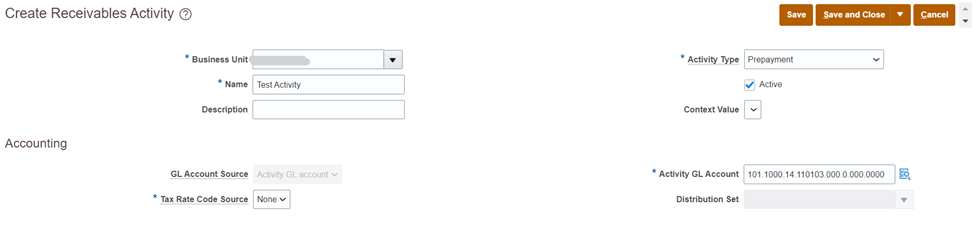
Fig 1: Prepayment Receivable activity
2. Configure Prepayment Transaction Types.
- Navigate to Manage Transaction Types on Setup and Maintenance
- Create a prepayment transaction type with the Transaction Class of Invoice and the Transaction Subclass of Prepayment.
- Name the transaction type such that it identifies the prepayment transaction type.
- Set the Transaction Class as Invoice.
- Set the Transaction Subclass as Prepayment.
- Enable the Natural Application Only option. Overapplication cannot be used on prepayment invoices.
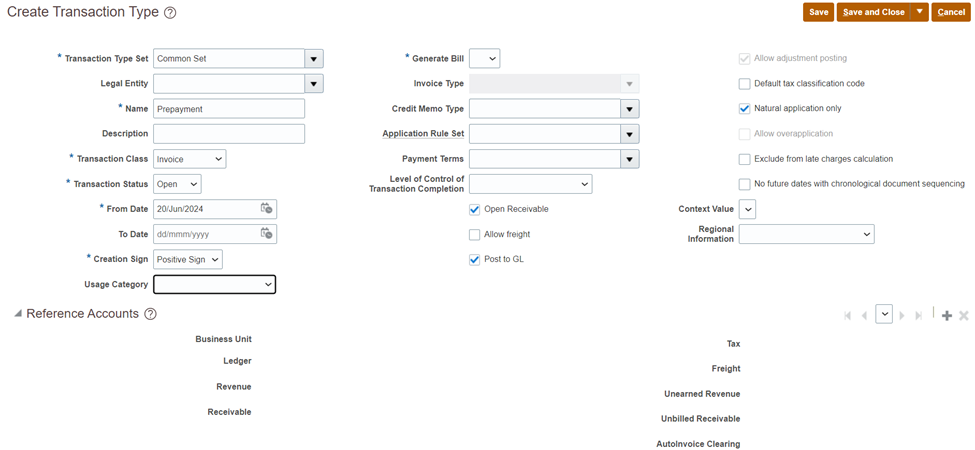
Fig 2: Prepayment Transaction Type
3. Subledger Accounting Rules and their configuration
Subledger Accounting will establish journal line rules and journal entry rule sets for the invoice and credit memo event classes to generate line amounts in the Prepayment account.
New rules and rule sets to be assigned to the accounting method specified in the Specify Ledger Options section.
Event Class: Invoice
- Navigate to the Edit Journal Line Rule page on Setup and Maintenance
- Create a duplicate of the predefined rule Invoice Revenue to create the rule Invoice Prepayment.
- Select Prepayment in the Accounting Class field.
- Enter the following condition: “Transaction Distribution Account Class” = ORA_PREPAYMENT ‘AND’ “Rounding Correction Indicator” is null.
- Create a custom Journal Entry Rule Set by cloning the existing journal entry rule set “Invoices – Default Accrual” and adding the new journal line rule you created before.
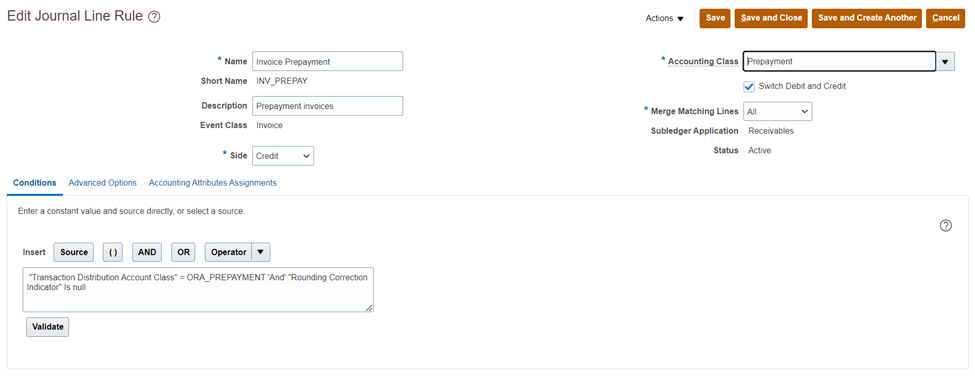
Fig 3: Edit Journal Line Rule
Event Class: Credit Memo
- Navigate to the Edit Journal Line Rule page.
- Create a duplicate of the predefined rule Credit Memo Default Revenue to create the rule Credit MemoPrepayment.
- Select Prepayment in the Accounting Class field.
- Enter this condition: “Credit Memo Distribution Account Class” = ORA_PREPAYMENT.
Create a custom Journal Entry Rule Set by cloning the existing journal entry rule set “Credit Memos – Default Accrual” and adding the new journal line rule you prepared earlier
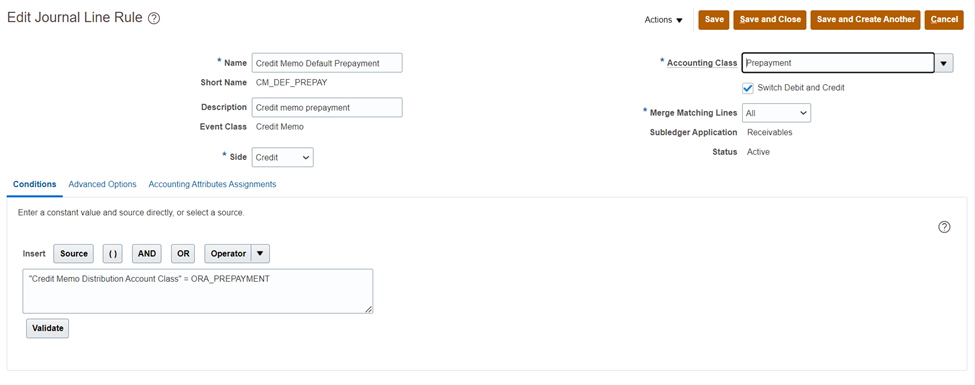
Fig 4: Credit Memos – Default Accrual
Creating Prepayment Invoices
- Download the AutoInvoice Import FBDI worksheet.
- Fill in the blank lines on the prepayment invoice worksheet.
- Create a CSV file and upload it to Oracle Universal Content Management (UCM).
- Submit the Import Interface File for the Import process to import invoice lines into the AR Interface database.
- Submit the Import Receivables Transactions using the AutoInvoice process to generate prepayment invoices.
- Examine the prepaid invoices on the Manage Transactions page.
Applying a Prepayment Invoice to a Sales Invoice
- In the AutoInvoice Import FBDI spreadsheet, fill in the prepayment lines and sales invoice lines with negative values.
- Fill in additional Line DFF attributes for prepayment application lines.
- The combination of additional line DFF attributes must correspond to the line transaction DFF attributes in the prepaid invoice.
- Create a CSV file and upload it to Oracle Universal Content Management (UCM).
- Submit the Import Interface File for the Import process to import invoice lines into the AR Interface database.
- Use the Import Receivables Transactions Using AutoInvoice method to add the prepayment invoice to the sales invoice.
Business benefits:
- The prepayment invoice enables conventional invoice processing, such as credit memos, receipt applications, and document sequencing.
- Prepayment invoices assist businesses with accurate receivables estimations by tracking a customer’s advance payments.
- When the Prepayment Invoice is accounted for, it does not affect the revenue account and merely credits the Prepayment Account.
Points to Consider
- Prepayment invoices can only be created and applied to sales invoices via the AutoInvoice FBDI and Import AutoInvoice processes. SOAP, REST API, and manual transaction creation aren’t supported.
- Invoices should be completed.
- Transaction activities on prepayment invoices or sales invoices with prepayment lines are not supported by SOAP, REST API, and AR transaction pages, such as credit requests, disputes, and adjustments.
- Partial credits are not supported, and Credit can be applied only to a full prepayment invoice or a sales invoice that includes prepayment application lines.
- Overapplication on prepayment application lines is not supported.
- Prepayment and sales invoice creation and application are only available in ledger currency. Foreign currency transactions are not supported.
Roles Required
- Accounts Receivable Manager
- Accounts Receivable Specialist
- Billing Manager Segregated Role
- Billing Specialist Segregated Role
Conclusion
Oracle Fusion Cloud 24B enhances financial efficiency by automating advance payments, invoicing, and receipt applications. These improvements help organizations reduce manual effort, improve accuracy, and streamline cash flow management for better business outcomes.
Accelerate Financial Operations with Oracle ERP Solutions
Looking to simplify advance payment processing and automate invoicing and receipt applications in Oracle ERP? The latest Oracle ERP 24B enhancements help organizations streamline receivables operations, reduce manual intervention, and improve the accuracy of financial transactions. By leveraging automation across invoicing and receipt application processes, businesses can enhance cash flow visibility, strengthen financial controls, and improve overall operational efficiency.
At Kovaion, our experienced Oracle ERP consultants help organisations unlock the full value of Oracle Financials through implementation, optimisation, integration, and managed services. From automating receivables workflows to configuring advanced financial processes, we deliver tailored Oracle ERP solutions that improve productivity, ensure compliance, and support scalable business growth. Partner with Kovaion to build a smarter, more connected finance ecosystem powered by Oracle ERP.