Remote Worker | PeopleSoft HCM Image 40

Remote Worker
PeopleSoft HCM Image 40 has introduced a new feature called Remote Worker. Remote worker helps the organization to track and record the remote location working employee.
Navigation: Employee Self Service > Remote Worker Tile
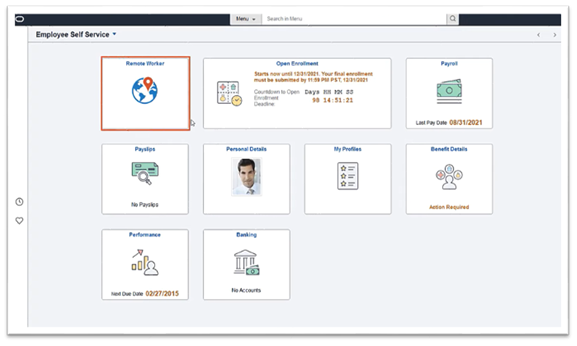
Fig. 1: Remote Worker Tile
Employee can access the Remote Worker Tile and raise a request for themself for remote work. HR Administrator and Manager has similar Tile to submit and approve the request.
Once the Employee access the tile they can find the request details or can add a new request.
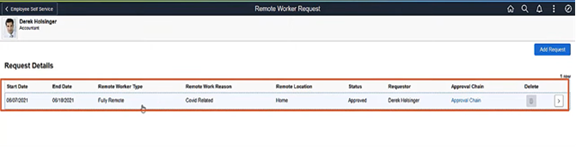
Fig. 2: Request details in Remote worker
In the Add Request Page employee can add the start date, end date and Remote worker type details for Remote work. Select the require option from the Remote Worker Type Field.
Remote worker Type Filed are of two types:
- Fully Remote – where Employees are completely working from Home
- Hybrid- where Employee are working for a limited time period from home.
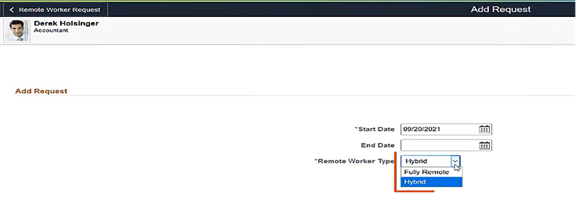
Fig. 3: Add Request Page
The Remote Worker Page appears in an Activity Guide Layout. when an employee progress through the steps the system saves the data provided by the employee.
Remote worker Consists of:
- Guidelines
- Acknowledgement
- Request Details
- Attachments
- Workplace Support
- Review and Submit
These Steps can be configured according to the Organization
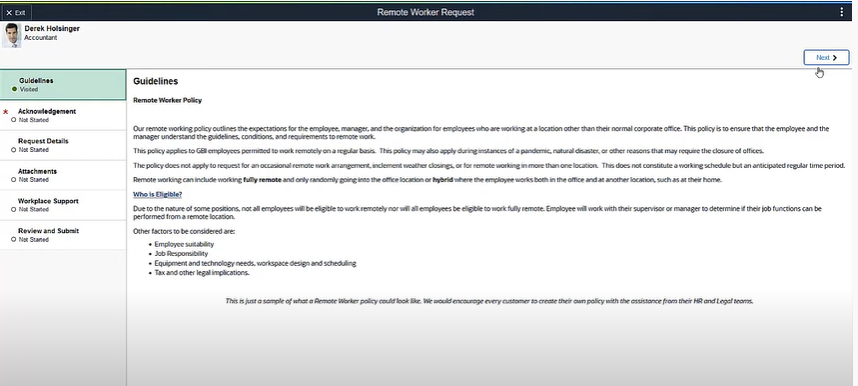
Fig.4: Step 1: Guidelines of Remote Worker.
The employee Needs to acknowledge the Check Box Provided.
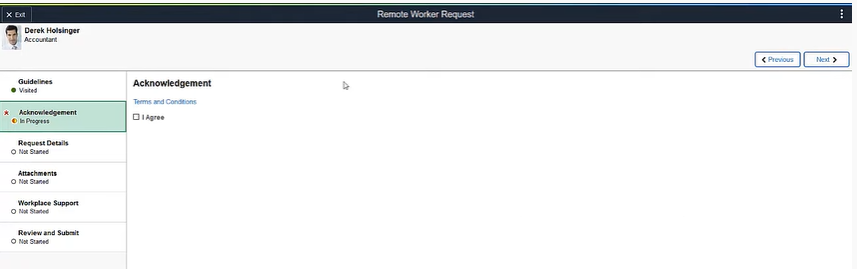
Fig.5: Step 2: Acknowledgement of Remote Worker
Employee Needs to set the details of the remote Worker Request.
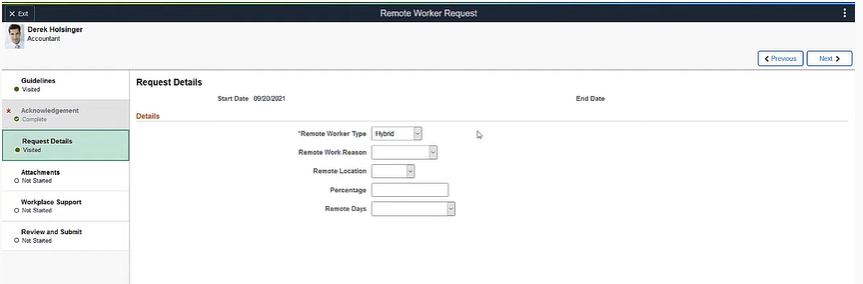
Fig.6: step :3 Request details page of Remote worker
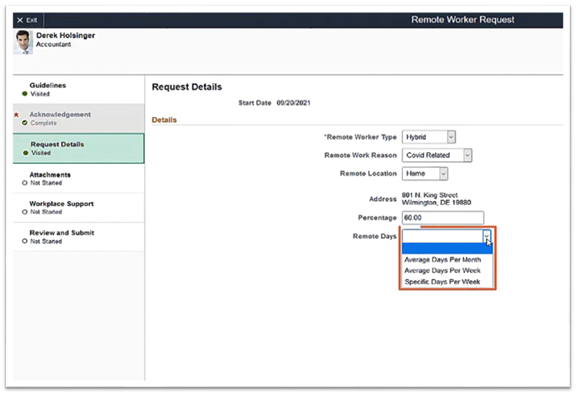
Fig.7: Step 3 Request detail page
If an Employee has any supporting documents or notes he can upload them in Attachments in step 4.
Using the Questioner Framework, the administrator can request for the addition details from an employee in Workplace Support.
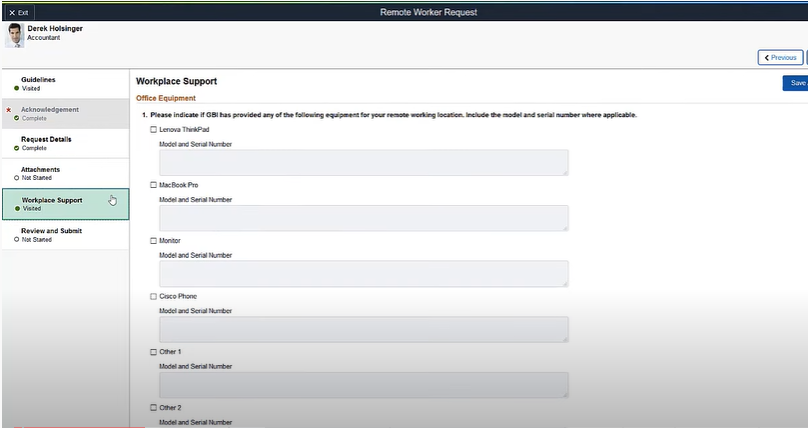
Fig.8: step 5 Workplace support of Remote Worker
The employee reviews his remote worker details and clicks on submit button at last.
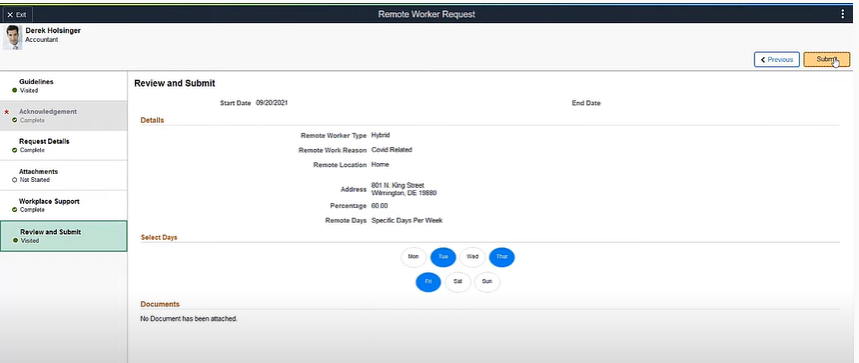
Fig. 9: Step 6 Review and submit Of Remote worker
The Approver approves, deny or push back the request from the approver Tile of Remote Worker.
Administrators use the remote worker inside visualizations to view and manage the organizations remote work force.
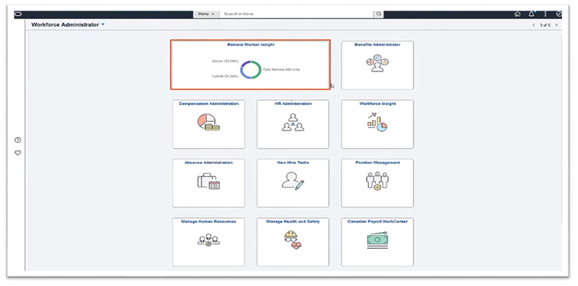
Fig. 10: Administrators Remote Worker Inside Visuals
The Kibana Visuals helps to understand the type of Remote Worker you have in the Organization.
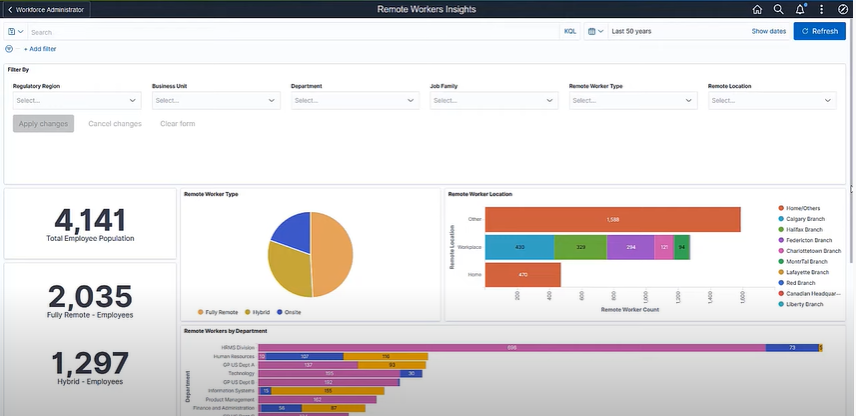
Fig. 11: Kibana Visuals
Benefits:
- Easy Access to maintain the Remote work
- User Friendly
- Administration can approve and keep a track on the Remote employees.
- Kibana visualizations allows to know the type of employees working as a Remote employee in the organization, their location and department etc.
Author:
T A Sharath Kumar
PeopleSoft Team